*** This version of Confluence is for testing only and contains a copy of content from June 29th 2026. No changes will be preserved. ***

 Ryann A. Levo, last updated on May 12, 2014
4 minute read
Ryann A. Levo, last updated on May 12, 2014
4 minute read
1. What you need to know before setting up a DSN (Data Source Name) in your Coldfusion 10 environment:
2. CIT Hosting recommends customers use the OID connection string and the Oracle JDBC drivers with Coldfusion 10
3. Using Oracle JDBC with OID
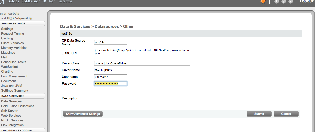
It is not possible to specify more than one OID ldap server.
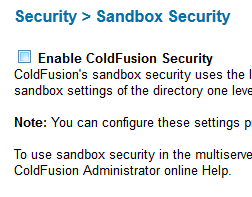
You'll also need need to disable "Sandbox Security" (it is unknown why this is a problem, this does not always "fix" the problem).
2. Using Macromedia with OID
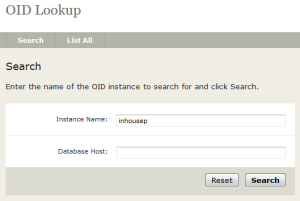
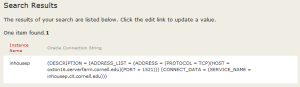
If you choose to use the built-in Oracle driver you will need to use the Oid Lookup tool to retrieve the servername of the backend database. Please note that if the backend database moves you will need to update your connection information!
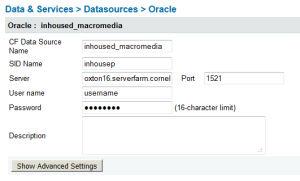
3. Using Macromedia with JDBC connection string - to allow failover if your databases are in a RAC configuration
If you have your databases in a RAC setup with CIT DBA's and OID is not working for you, here is an example of a jdbc connection string to use. You'll need to use the above OID lookup tool to find the hostnames and service name.
jdbc:macromedia:oracle://host1-vip.serverfarm.cornell.edu:1521;SERVICENAME=mydb11g.cit.cornell.edu;sendStringParametersAsUnicode=false;MaxPooledStatements=1000;AlternateServers=(host1-vip.serverfarm.cornell.edu,host2-vip.serverfarm.cornell.edu)
To enter the above, in CFAdmin, Create a new DSN and you'll need to choose "Other" in the DSN Driver. In the new window, enter your DSN name, the jdbc URL/connection string (however it looks from above), Driver Class should be "macromedia.jdbc.MacromediaDriver", Driver Name can be whatever you choose, and then the appropriate username and password to access.
If you need to install an updated Oracle JDBC driver (i.e. Oracle 12g), you'll need to upload a "jar" file that contains the updated driver to your hosting environment.
This can be done by downloading the driver from Oracle's website (odbc6.jar for Java 1.6 or odbc7.jar for Java 1.7) and uploading the file into your "jars" directory (next to your htdocs directory). Once the file is uploaded you'll need to restart your Coldfusion instance using the Hosting Dashboard.
