*** This version of Confluence is for testing only and contains a copy of content from June 29th 2026. No changes will be preserved. ***

 user-27d2e, last updated by user-0a60b on Aug 30, 2009
4 minute read
user-27d2e, last updated by user-0a60b on Aug 30, 2009
4 minute read
In order to bridge the gap between previous and new members of the team that need to learn Process Controller for the AguaClara experiments, the Tube Flocculator team (07-08) and the Research Team Leader has created a series of tutorials and exercises to learn the basic and more complicated tools of the software.
The first step is to ensure that Process Controller is downloaded under Runtimes on your desktop. Next, open Process Controller (PC) and follow the tutorial to learn the basics. You can also hover the mouse over the buttons for descriptions.
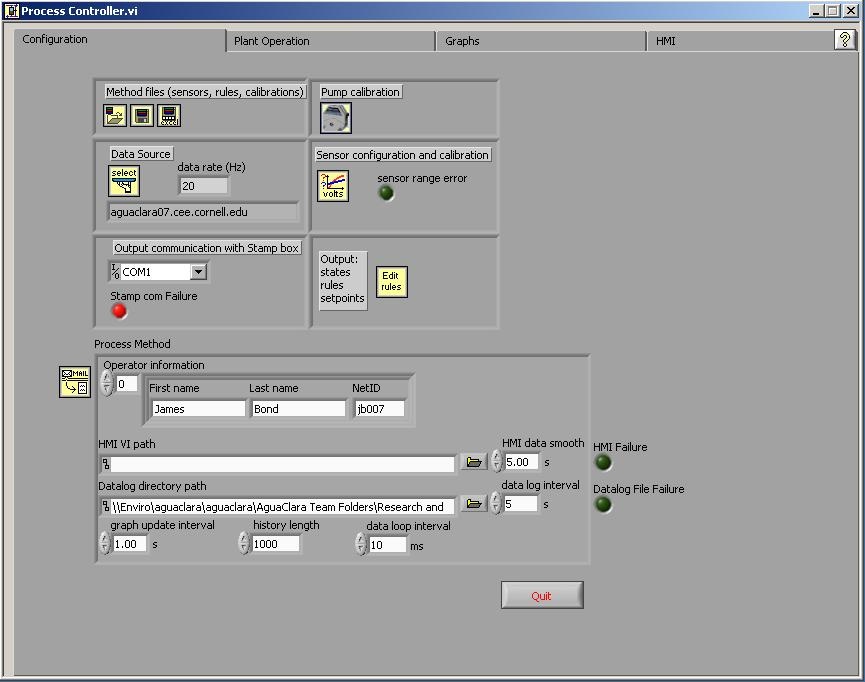
This is the configuration tab of the PC interface. In the configuration tab, you can open, save, and edit PC method files. A method file is your aggregate experimental design file. For each new experimental method you develop, you should save it as its own file.
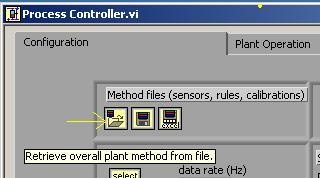
Click on this button to open any previous method files. You might have to navigate your way to the folder that has the saved method files. The tutorial files are saved on the AguaClara server/AguaClara Team Folders/Research and Development/Tube Floc/Tutorial.
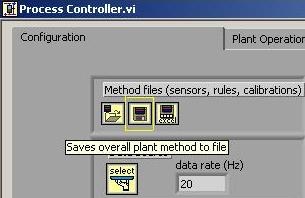
If you have been working on the method file and want to save changes, click on this button. It will ask you to either rename the file, or click on the previous file to override the saved changes. This allows you to "save as" without changing an old file.
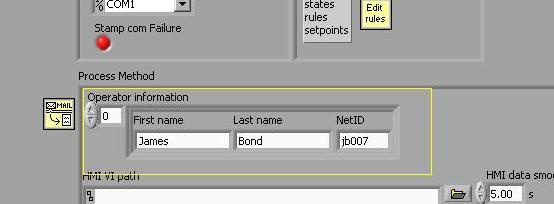
If you are running an experiment in the lab, make sure to put your name and email address in the correct boxes. Process Controller will email you automatically if the experiment shuts off due to an extreme change of pressure that you may have set in your program. Additionally, if there is a leak or problem with the setup in the laboratory, someone else in the lab can easily see who is running the experiment and email you.
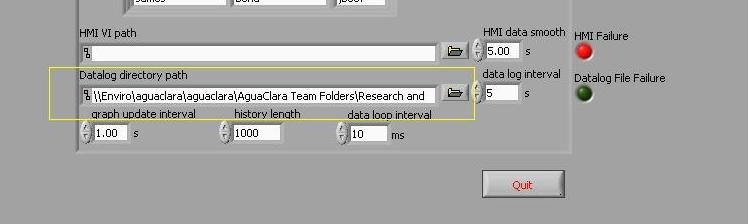
When you are measuring a parameter such as temperature, turbidity, or pH, the data is outputted to excel files where you direct PC to drop them. The datalog files are set to be named by the current datte you are running the experiment. You must dictate where you want the datalog path. Click on the open folder button next to the datalog path name and you can navigate to a folder that you want the data files to be saved under. It can be a new folder with the current date, or one folder where all your files are located. Once you have the currect folder, click "Current Folder" on the screen and this folder will show up in the datalog path. Note: It is important that you make sure this is the correct folder whenever you run a new experiment, or else results from different experiments can mesh together in the same file if you run it in the same day.
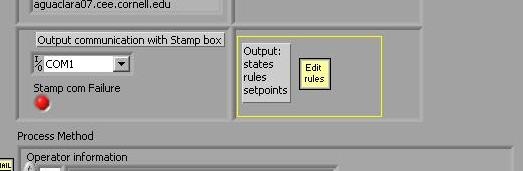
In order to run a program, you need set points, rules and states that will tell PC what to do. These are all changed in another window that is opened when you select "Edit Rules" on the configuration tab. Edit rules will be discussed more in depth in the next Tutorial.
In this excercise, you will be creating your own PC method file to which you will make future changes to in future excercises.
Hint: It would be helpful if under your netID folder, you had a folder heirarchy such as Process Controller>Methods and Process Controller>Data to save the method and to save the datalogs respectively.