*** This version of Confluence is for testing only and contains a copy of content from June 29th 2026. No changes will be preserved. ***

Scope: This document provides guidelines for Ordering staff to process POOF2 orders and send items ordered each day
Contact: Masayo Uchiyama
Unit: Ordering
Date last updated: 3 4/269/20252026
Date of next review: March 2026
2027
Download Open Cyberduck, download marc files from Cyberduck
Create purchase order in Open Data Import App
Review order details, create purchase orderOpen Print PO or create CSV in Orders App, review orders
Create CSV file or Print PO for each vendor
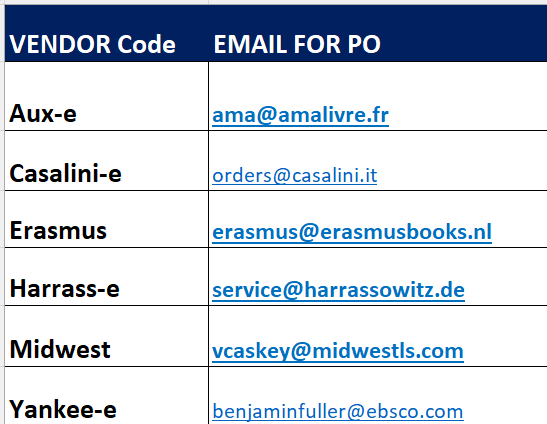
Send PO Send printed orders to a vendor via by email with attachment (CSV file or PDF)PDF or CSV attachment
Harrassowitz (code: Harrass-e) orders get sent via EDIFACT
A. Open Cyberduck, download marc files for of print orders which are sent via POOF2 on the in previous business day
B. Create PO in Date Import App
C. Do a compound search in Orders App for current day’s firm orders created by Data Import
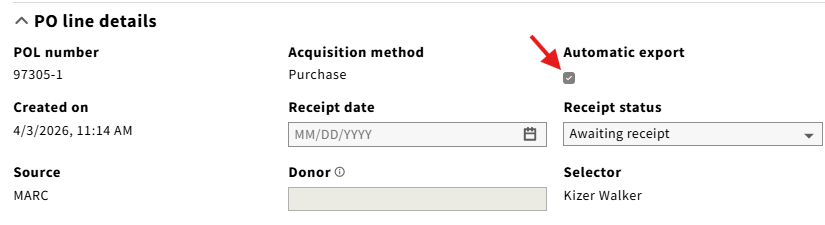
Alternatively, you can print order in PDF format. Click action in right hand corner of right pane, select Print order. Save as PDF and use PO number for the file name.
For Yankee orders, GOBI API is an alternative workflow. Skip step B and place firm order directly in GOBI.
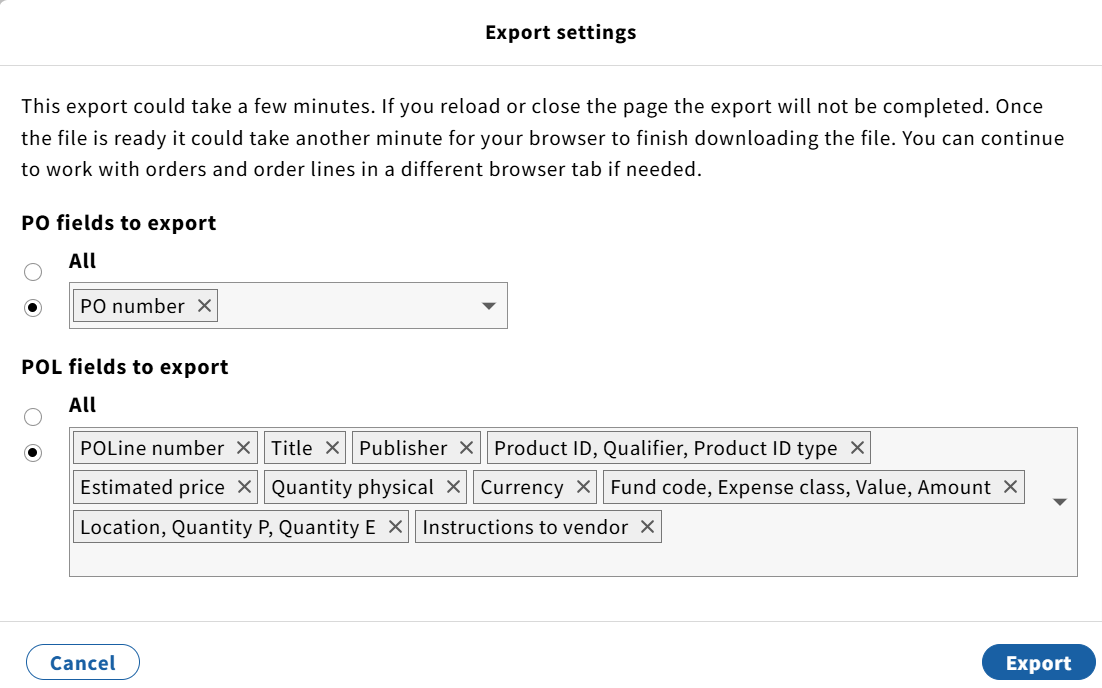
D. Send printed orders to a vendor by email with PDF or CSV
D. Examine CSV files and cleanup unwanted information and save. Send orders by email to a vendor with attachment.
NOTES: Some vendors send us order confirmation/acknowledgement and they notifications. Email can be filed saved in print ordering mailbox.
E. Harrassowitz orders get sent via EDIFACT