*** This version of Confluence is for testing only and contains a copy of content from June 29th 2026. No changes will be preserved. ***

 Unknown User (zw738), last updated by Unknown User (zl469) on May 21, 2025
2 minute read
Unknown User (zw738), last updated by Unknown User (zl469) on May 21, 2025
2 minute read
sudo adduser newuser
sudo su - newuser
ssh-keygen
mv id_rsa.pub authorized_keys
exit
sudo cp /home/newuser/.ssh/id_rsa /home/ubuntu/
scp -i "DIAPER-production-key.pem" ubuntu@ec2-3-239-18-167.compute-1.amazonaws.com:/home/ubuntu/id_rsa ./
ssh -i <private.key> -L 6445:localhost:6443 username@ssh.diaper-project.com
Username is your NetID. An admin account holder should be able to create the linux account for you.
If permission error
sudo chmod 600 private.key
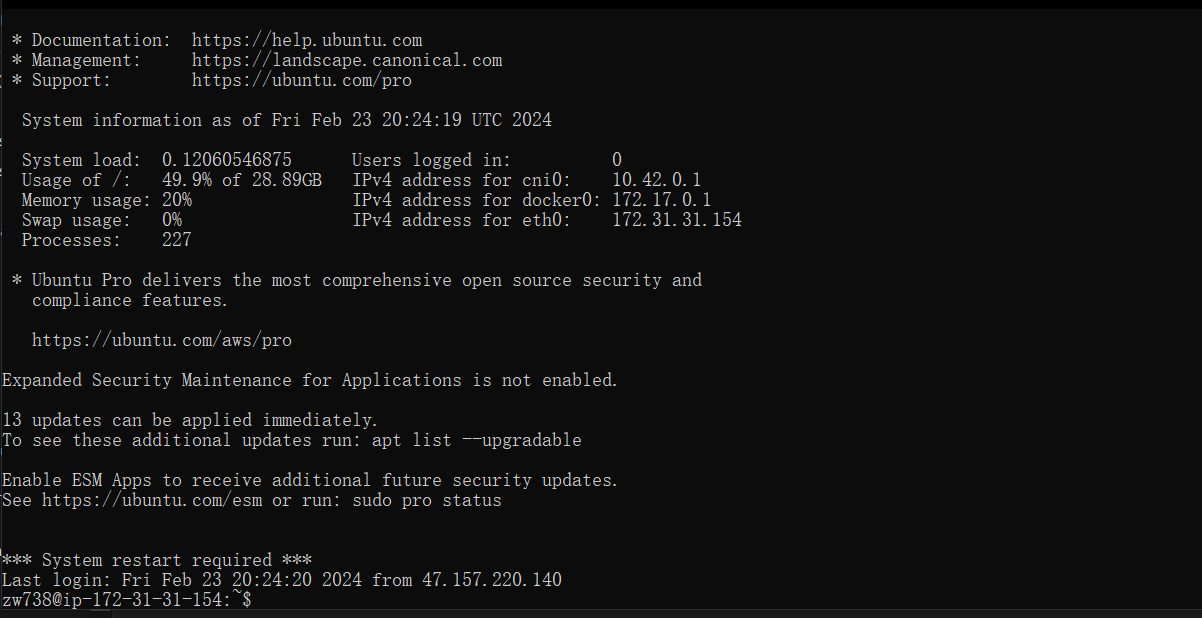
Reminder, before connecting to the server. You need to ask the admin for a server token.
apiVersion: v1
clusters:
- cluster:
    certificate-authority-data: LS0tLS1CRUdJTiBDRVJUSUZJQ0FURS0tLS0tCk1JSUJlRENDQVIyZ0F3SUJBZ0lCQURBS0JnZ3Foa2pPUFFRREFqQWpNU0V3SHdZRFZRUUREQmhyTTNNdGMyVnkKZG1WeUxXTmhRREUzTURjeE56SXpNRFl3SGhjTk1qUXdNakExTWpJek1UUTJXaGNOTXpRd01qQXlNakl6TVRRMgpXakFqTVNFd0h3WURWUVFEREJock0zTXRjMlZ5ZG1WeUxXTmhRREUzTURjeE56SXpNRFl3V1RBVEJnY3Foa2pPClBRSUJCZ2dxaGtqT1BRTUJCd05DQUFSeG5lcFhxd1oxSUNGcXBrcmNqNkNIdDlxK3daSUV6N093ajM5VXJmRnoKTHBBS2tpUzhpS2NIRGNHMTZiazFjaEhzbVdTLzZjV0ptZm5ueEs3cTg2WDNvMEl3UURBT0JnTlZIUThCQWY4RQpCQU1DQXFRd0R3WURWUjBUQVFIL0JBVXdBd0VCL3pBZEJnTlZIUTRFRmdRVUpsRGJlajRVa2IyV0ZVRjBDREd2CnNrWkUzOG93Q2dZSUtvWkl6ajBFQXdJRFNRQXdSZ0loQUxKelRCZTQyZFZtMmtTWUJWQW5TZW05bWw1TSt1NVcKQVkya1cyamcvMy80QWlFQXdhMTlENk1IcThPTS9pMTlSWitXYUxrdkJYV3Uwb1MwWmJCV2UzdFJvY2c9Ci0tLS0tRU5EIENFUlRJRklDQVRFLS0tLS0K
    server: https://127.0.0.1:6445
  name: diaper-server
contexts:
- context:
    cluster: diaper-server
    user: <Kubernetes service account name>
  name: diaper-server
current-context: diaper-server
kind: Config
preferences: {}
users:
- name: <Kubernetes service account name>
  user:
    token: <Kubernetes service account token>
k9s
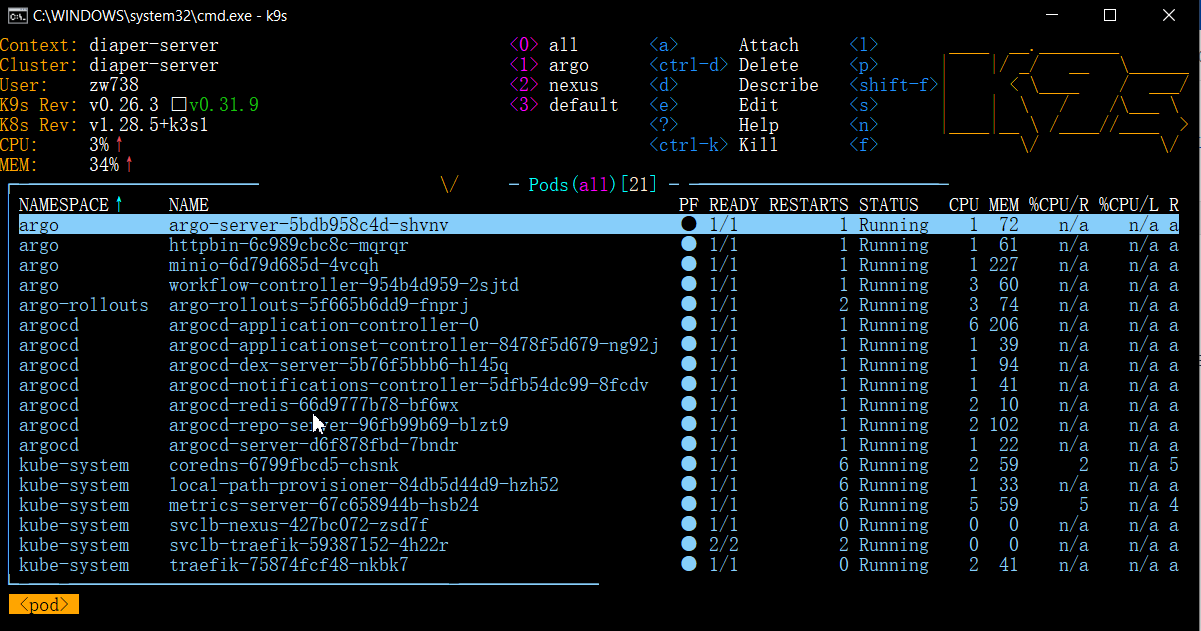
:services or :deployments or :pods
More k9s Tutorial: derailed/k9s: 🐶 Kubernetes CLI To Manage Your Clusters In Style! (github.com)
