*** This version of Confluence is for testing only and contains a copy of content from June 29th 2026. No changes will be preserved. ***

 user-0432d, last updated on Oct 26, 2020
3 minute read
user-0432d, last updated on Oct 26, 2020
3 minute read
When trying to develop and debug in container environment, in lieu of local machine
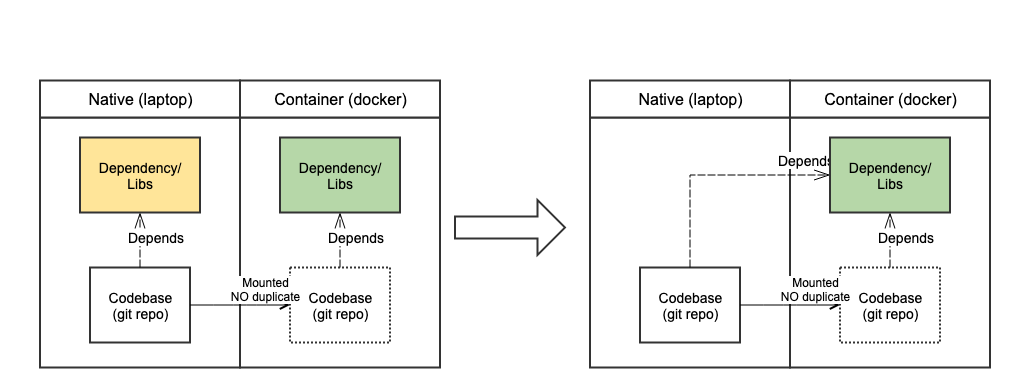
Note: This guide is based on VS Code. I've also tried IntelliJ IDEA (including PyCharm), but unfortunately it doesn't work on my laptop. If interested, see the link below under "Read more"
On VS Code, make sure you've installed the extension Remote - Containers

After installing, you should see a button for this extension at the bottom-left corner of VS Code
Launch docker (you don't need to start the project container)
Click the remote container button > Open folder in container > Open your working directory with Dockerfile inside the repo. For instance, for backend-offline subteam, choose backend-offline/dev-dashboard/dashboard-backend

You should now see a progress notification at the bottom-right corner. Note that this will take a minute (Only for the first time opening the working directory. Next time it would start very quickly).
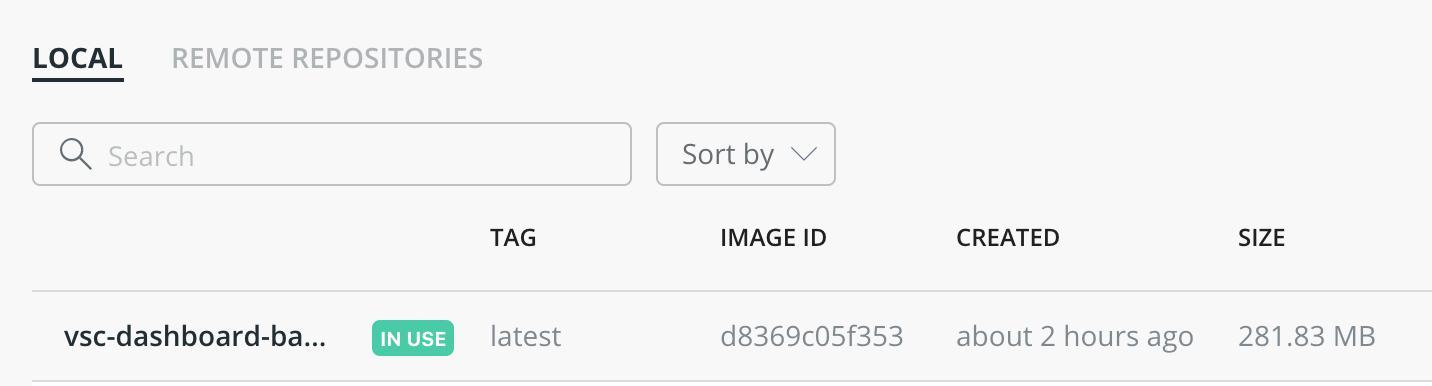
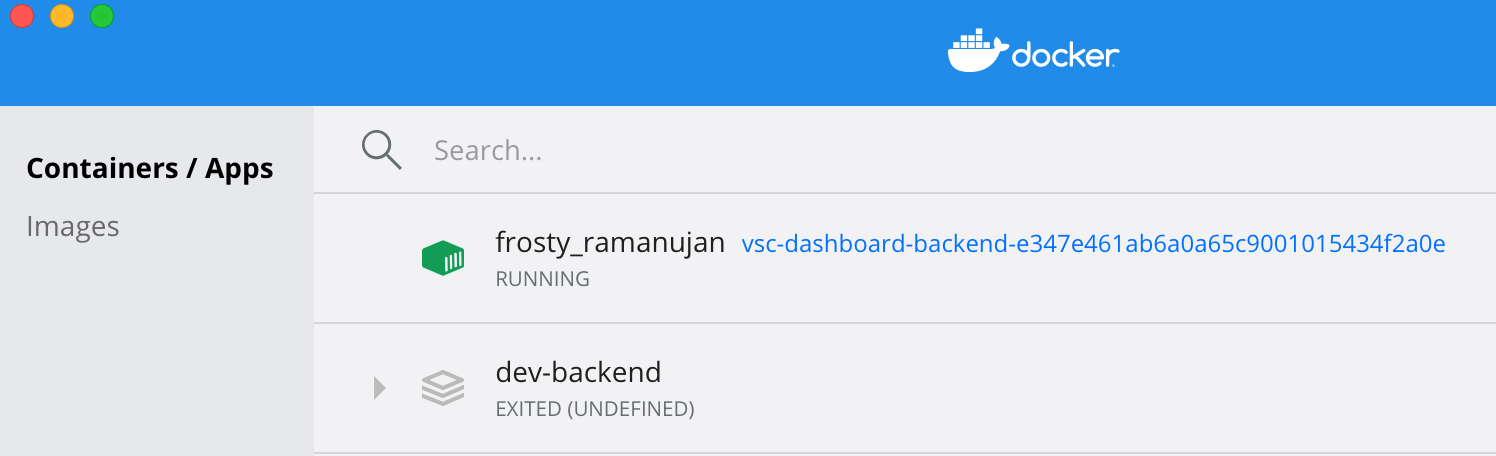
When completed, you'll notice VS Code has deployed an image (name starting with vsc-) in your docker, and has inserted/started an container (name including some random scientist/mathematician).
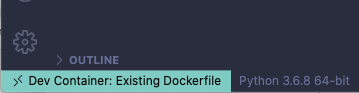
Click the button to the right of the container button, to choose your interpreter/SDK.
For python, click the area, which shows Python 3.6.8 64-bit above, and choose the interpreter Python 3.6.8 64-bit (it should be at /usr/local/bin/python)
Now you're ready to develop, run, and debug in container!
To exit, simple click the remote container button at the bottom-left corner of VS Code > Close Remote Connection.
{'_id': ObjectId('5f8771822ca2e28e9b5572df'), 'test_field': 'test_value'}
Linux-4.19.76-linuxkit-x86_64-with#1 SMP Tue May 26 11:42:35 UTC 2020
I've included a simple code in the repo of backend-offline subteam, at backend-offline/dev-dashboard/dashboard-backend/temp_container_test_run/container_test_run.py
If you run it, it should show in terminal the same output as above. Note the 2nd line Linux shows it's been run in container (not local machine of Mac OS/Windows)
Everything you've coded is done in the same git repo.
If you choose to stop the container after finish coding, it's alright. Next time VS Code will automatically start it when you open the working directory as in steps above
Guide from VS code: https://code.visualstudio.com/docs/remote/create-dev-container
Guide from JetBrains (IntelliJ IDEA, PyCharm): https://www.jetbrains.com/help/idea/configuring-remote-python-sdks.html#Docker
There is no content with the specified labels
