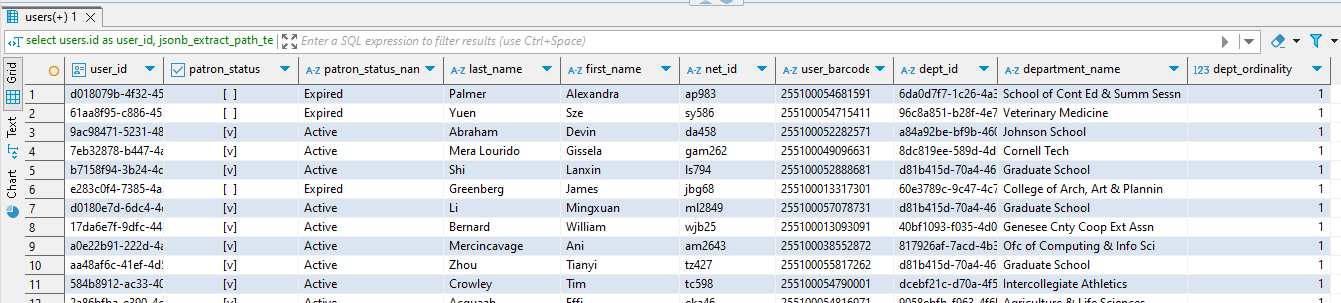
The following jsonb extract expressions will be used to get values from the json data array of a table.
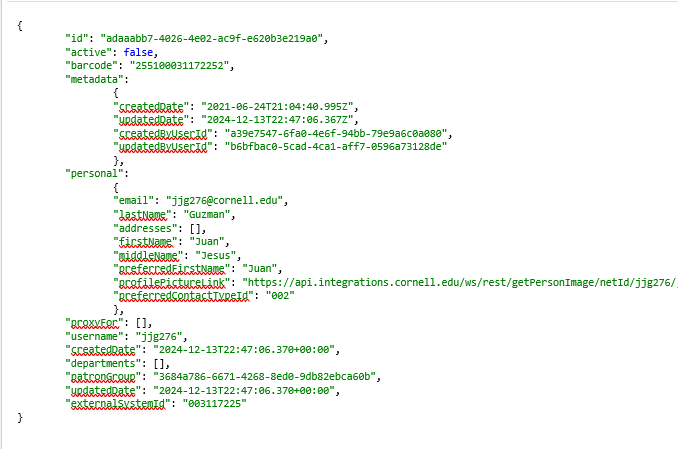
Example: In the data array of the folio_users.user table (screenshot below), the field 'active' (a boolean value showing patron status) is a "first level" hierarchical field. Other first-level fields include: id, barcode, metadata, personal, proxyFor, username, createdDate, departments, patronGroup, updatedDate and externalSystemId.
You will see that some of the first-level fields have subordinate data in second-levels fields ("metadata" and "personal" have subordinate fields). The following query will get the data out of first-level fields, when those fields don't have subordinate fields:
SELECT
users.id AS user_id,
jsonb_extract_path_text (users.jsonb, 'status') AS patron_status
FROM folio_users.users
The following expression will also get the value for "status":
SELECT
users.id AS user_id,
users.jsonb #>> '{status}" AS patron_status
FROM folio_users.users
In the example below, 'lastName' and 'firstName' are both "second-level" fields found under "personal."
SELECT
users.id AS user_id,
jsonb_extract_path_text (users.jsonb, 'personal', 'lastName') AS requestor_last_name,
jsonb_extract_path_text (users.jsonb, 'personal', 'firstName') AS requestor_first_name
FROM
folio_users.users
The following expression will also get "lastName" and "firstName":
SELECT
users.id AS user_id,
users.jsonb #>> '{personal, lastName}' AS requestor_last_name,
users.jsonb #>> '{personal, firstName}' AS requestor_first_name
FROM
folio_users.users
Some tables, such as the folio_circulation.audit_loan table, have third-level data fields that are comprised of text objects (they can also have array objects, but that is covered in the next section – note: array objects can appear at any level within the json data). The json statement for extracting third-level text fields is exactly the same as for first- and second-level data fields, except there are three fields listed in the parentheses, instead of just one or two.
In this example, "name" and "updatedByUserId" are third-level fields.
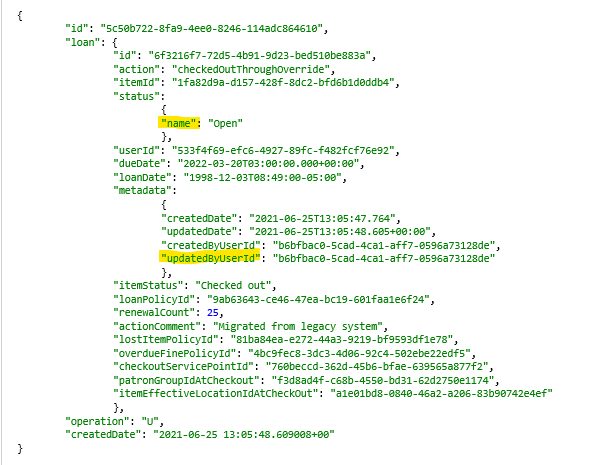
This is the code to extract them. Note that the fields listed within the parentheses must be in the same hierarchical order as they appear in the json data.
SELECT
audit_loan.id AS audit_loan_id,
jsonb_extract_path_text (audit_loan.jsonb, 'loan', 'status', 'name') AS loan_status_name,
jsonb_extract_path_text (audit_loan.jsonb, 'loan', 'metadata', 'updatedByUserId') AS loan_updated_by_user_id
FROM
folio_circulation.audit_loan
The following expression will also get the third-level values:
SELECT
audit_loan.id AS audit_loan_id,
audit_loan.jsonb #>> '{loan, status, name}' AS loan_status__name,
audit_loan.jsonb #>> '{loan, metadata, updatedByUserId}' AS loan_updated_by_user_id
FROM
folio_circulation.audit_loan
-- 1. Arrays embedded in text objects
In the previous examples, the elements being extracted were "text objects" within the table's JSON array, and were denoted by curly brackets { }. In this next example, we need to extract multiple values from an "array" object (denoted by square brackets [ ] ) that is embedded in a hierarchy of text elements. This calls for nested json extract statements, a structure very similar to what we used in Access with nested "GetField" and "GetXXXBLOB" functions.
When extracting arrays embedded in text objects, it's usually best to use a "cross join lateral" statement in the FROM stanza. This cross join creates a "json object" that can then be further extracted in the Select stanza.
It's also possible to NOT use a cross join at all, but to nest the json extract statements in one long expression in the Select stanza. However, you lose the ability to include the ordinality of the values extracted.
The example below uses the folio_users.custom_fields table, which has an embedded array called "values" containg three fields: "id","value" and "default". The "Values"array is embedded within two preceding text objects:
Here is what the custom_fields jsonb data array looks like:
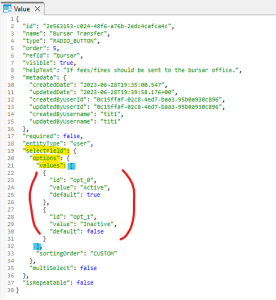
The code to do that is:
SELECT
cft.id AS custom_fields_id,
cft.ref_id,
cft.name AS custom_fields_name,
jsonb_extract_path_text (values.jsonb,'id') AS value_id, ----- this extracts the "id" element from the values object that we created in the cross join below
jsonb_extract_path_text (values.jsonb,'value') AS value_name ----- this extracts the "value" element from the values object that we careated in the cross join below
------ NOTE: the two json extract statements above can be replaced by a shorthand formula, using the "#>>" operator:
values.jsonb #>> '{id}'
values.jsonb #>> '{value}'
FROM folio_users.custom_fields AS cf
CROSS JOIN LATERAL jsonb_array_elements (jsonb_extract_path (cf.jsonb, 'selectField', 'options', 'values')) AS values (jsonb)
----- "jsonb_array_elements" works on the 'values' element in the parentheses; we use this extract function because "values" is an array
----- "jsonb_extract_path" works on the "selectField" and "options" objects – the objects listed must be in the same hierarchical order as they appear in the table
----- the entire cross join statement produces a jsonb object that I named named "values" (note: what you name this object is totally arbitrary - you could call it "stuff" if you felt like it)
LEFT JOIN folio_users.custom_fields__t AS cft
ON jsonb_extract_path_text (cf.jsonb,'id')::UUID = cft.id
------ I'm joining to the custom_fields__t table to show the custom fields id, the ref_id and the custom_fields name from this table (joining to this table is not necessary, it's just a convenience)
ORDER BY name, jsonb_extract_path_text (values.jsonb,'id'), jsonb_extract_path_text (values.jsonb,'value')
Then you would add a line in the Select stanza to show the ordinality:
values.ordinality AS custom_fields_ordinality
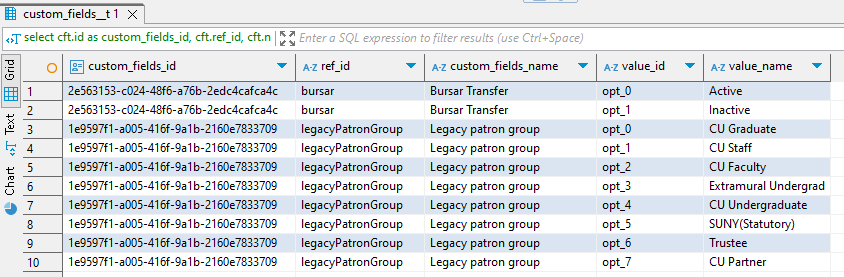
RESULT:
Sometimes you want to extract an array that is at the top-most hierarchical level of a table – that is, it is not embedded within any other object. An example of this is "departments" element in the folio_users.users table:
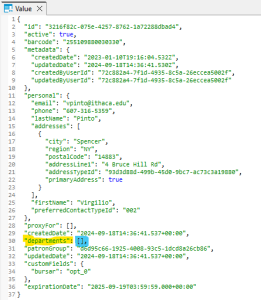
Because "departments" is an array, you still have to extract it with a cross join statement, as in the previous example. In the code below, I am using the shorthand method to extract the various elements:
RESULT: