You received an error message when uploading a file into FOLIO via Data Import.
After uploading your file the status column shows the upload was ‘completed with errors’.
(click on video to see screen recording)
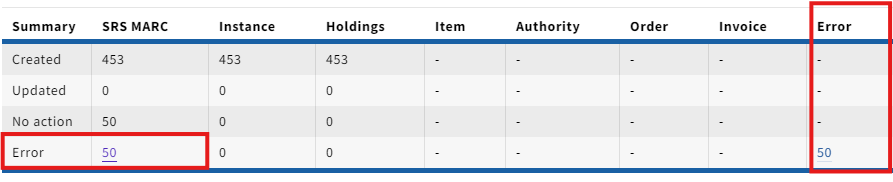
Click on the uploaded file. You should see a summary at the top of the screen. Next, click on the hyperlinked number in the ‘Error’ row or column.
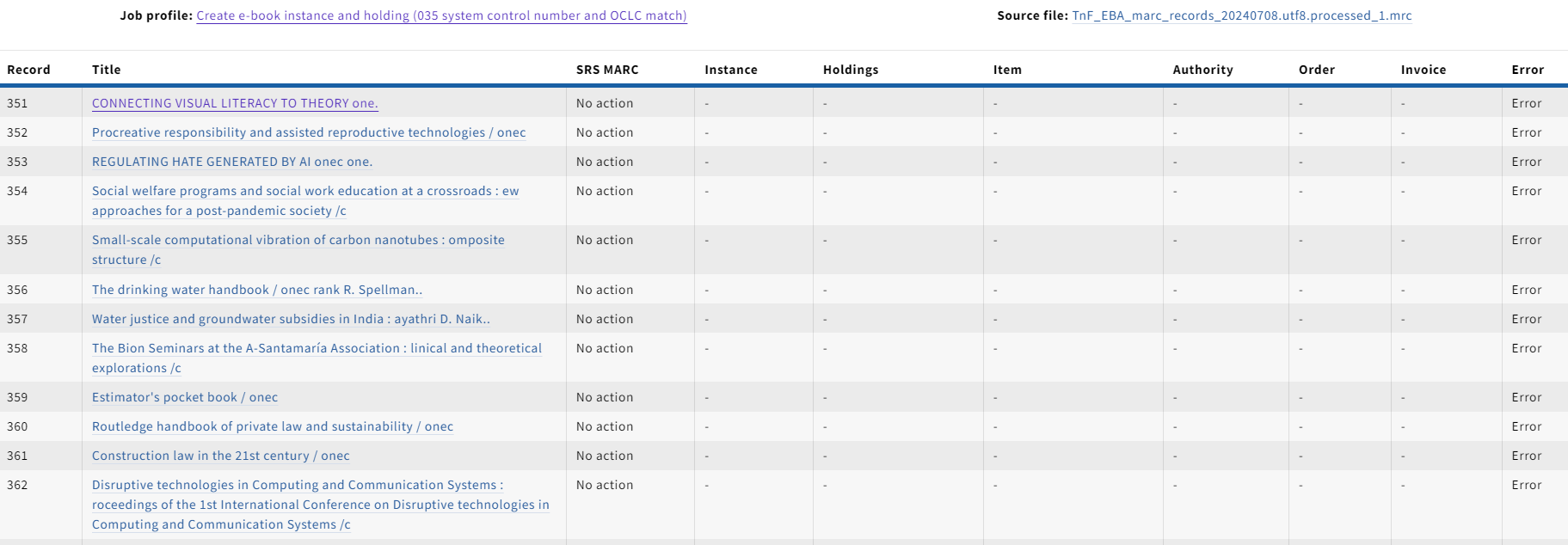
Clicking on the number will display the list of records affected by the error.
Click on one of the records listed. Then click on the resource type you attempted to upload at the top of the screen. This should show you the error message in JSON format.
The error message should provide you with a place to start on identifying the cause of the error.
Finding the Issue
Below are a few places that can help verify the cause of your issue or the location of the error:
Your first step should always be to check the logs in FOLIO.
The errors in FOLIO are written in JSON, but usually have an error message that is clear and easy to understand.
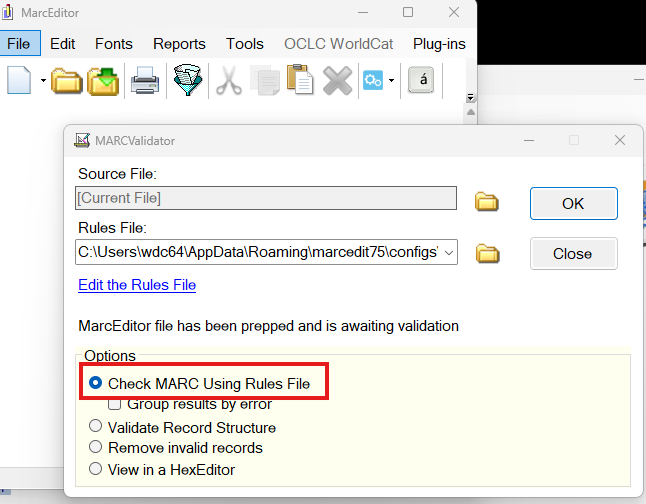
MARCEdit has a tool called MARCValidator that is very useful for identifying issues with MARC records.
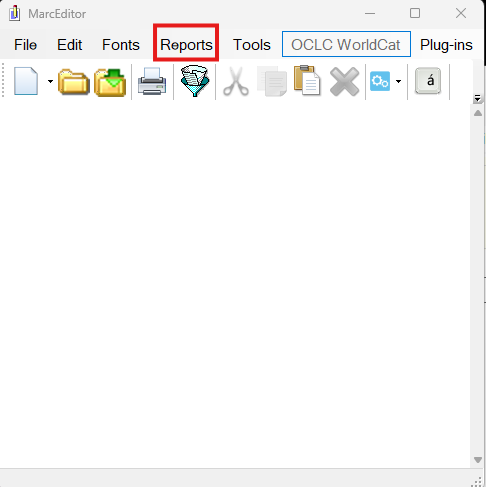
In MARCEdit click on Reports…
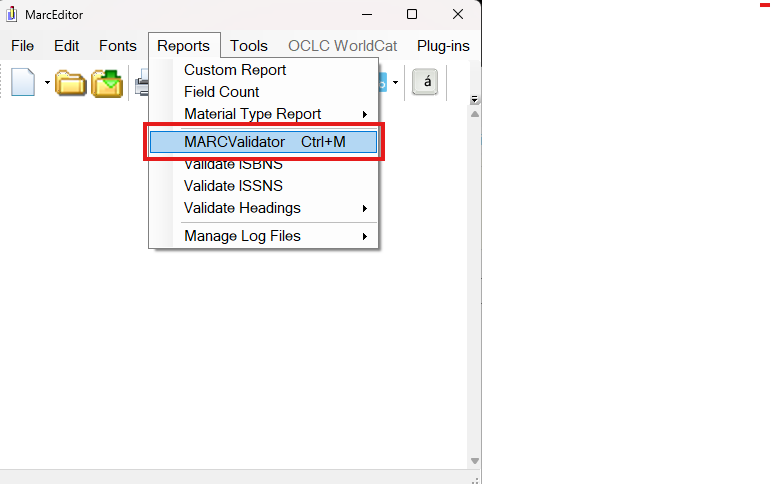
Next, click on MARCValidator
Make sure “Check MARC Using Rules File’ is checked.
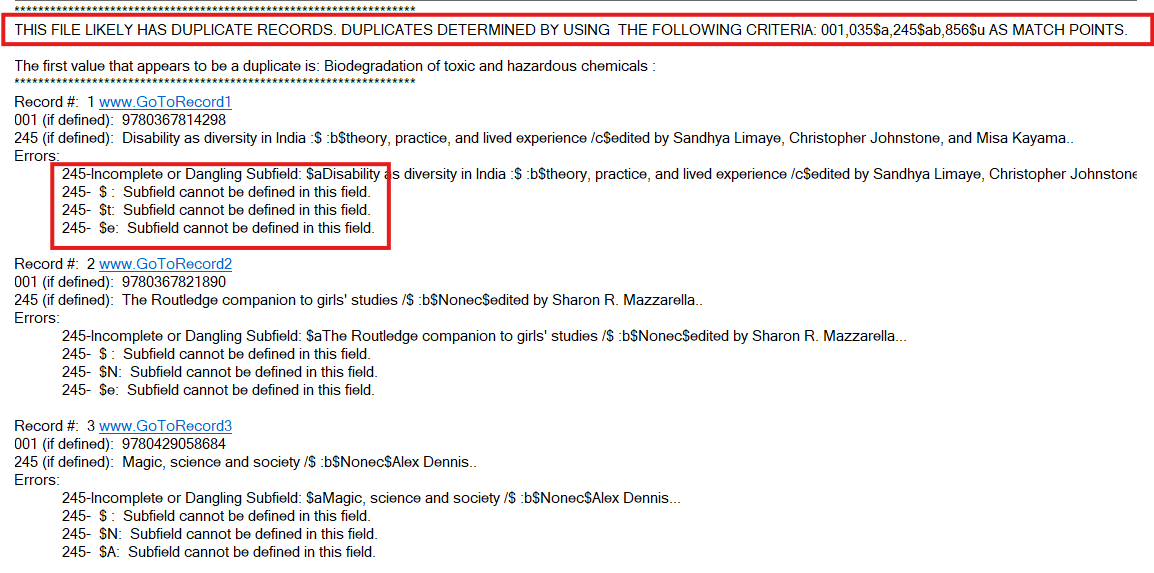
MARCEdit will provide you with an explanation of the potential issues with your records as well as a list of the affected records.
Other Notes/Recommendations
If you do NOT get an error, but records from your file upload are not imported, check the ‘Inventory’ section in FOLIO. Sometimes records already exist, so you will not receive an error message. Be sure to use the records identifiers when checking.
If you see a message that says ‘No record’ like the example listed below; the record was kicked out to deduplicate.