Scope: This procedure contains instructions for processing withdrawals, transfers, and reinstatements in the Database Quality Unit. Requests for these transactions typically come from selectors or from Collection Maintenance staff.
A. Withdrawals of physical materials in the collection:
I. Instance
Display Instance record. Verify that record matches book. If the title is marked "lost" or "missing", see special instructions below.
If the title is a serial, check for and report an open purchase order or ongoing subscription.
For single-part monographs Click Actions→Edit Instance, and make the following changes in the Administrative Data section:
Check the "Suppress from Discovery" box
Check the "Staff Suppress" box
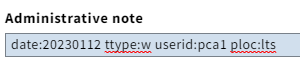
Add an Administrative note with the proper coding for the withdrawal, using the format date:yyyymmdd ttype:w userid:[netid] ploc:lts The macro for this is ,,w.
For multipart items, record the number of pieces withdrawn by adding "pcs: " to the end of the note, followed by the number of pieces withdrawn (see example below)
If you are NOT withdrawing ALL of the pieces of a particular multi-volume, DO NOT suppress the instance record, or the remaining volumes will not be discoverable.
Examples (single-part and complete multivolume sets):
(For single-part monographs):
(For withdrawing 3 volumes of a multivol:
II. Holdings record
1. Display the appropriate Holdings record for the piece in hand:
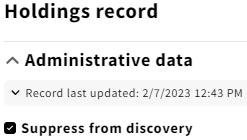
For single-part monographs being withdrawn, check the box to SUPPRESS FROM DISCOVERY. For Multi-part monographs and serials, see instructions below, suppress ONLY if withdrawing all of the pieces in a given Holdings.
2. In the Holdings Notes, with Note Type: Note, enter "WITHDRAWN", and a short parenthetical note stating the reason, if available (e.g. lost, damaged, deselected, etc.), plus the date and your netID:
When withdrawing only certain parts of a multipart monograph or serial, add specific information in the above Holdings note on which parts are being withdrawn, and why.
Example: "v.2 and v.6 withdrawn (damaged) 01/02/03 abc"
Make sure NOT to suppress the Instance and Holdings records if any of the other volumes are still associated with this Holdings.
3. If the part(s) being withdrawn are accompanying material that is included in the bibliographic description for the title (such as supplements or maps in a pocket), add a note specifying that the supplement/map/etc. has been withdrawn –
Example:"Vol. 3 and accompanying maps WITHDRAWN (MISSING) 9/3/21"
4. If you are withdrawing only certain parts or supplements from the Holdings, Edit the appropriate Holdings Statement(s) to reflect ONLY those holdings that are retained. If you are withdrawing all parts of a multipart monograph or serial, however, retain the Holdings Statement information as is.
5. Save the Holdings record.
III. Item Record
1. Display relevant Item record(s).
2. For single-part monographs,delete the Item record by clicking Actions→Delete. If the Item cannot be deleted because of dependencies or certain Item Statuses, bring the piece to the DBQ, Inputting, or Monographs Workflow supervisor, to Check-in the piece and remove the dependencies as applicable.
3. For multipart monographs and serials, note item Enum/Chron information for the Holdings withdrawal note (if you have not already), and delete the Item records as described above.
Make sure not to delete any item records for material that is NOT being withdrawn.
IV. Physical Disposal
1. If you have the physical pieces in hand, stamp them "Withdrawn", For books, the stamp can go on the inside front or back cover, title page, verso, or some combination of the above.
2. Route the withdrawn, stamped physical pieces as follows:
Place print serials in the recycle bin.
Send all items that with a "Federal Publications" sticker, or "Depository" stamp, or have a "D" penciled on the cover, title page, or other preliminary pages, to the LTS Documents supervisor.
Place all other items on the "Withdrawn Items" items cart in 110, to be sent to the Annex for donation.
B. Batch Withdrawals: Single Monographic Volume or Complete Serial collections
For batch withdrawals of single volume monographs, a text file or Excel spreadsheet of barcodes of records to be withdrawn are sent to the Automation team. The list should have more than 25 entries. Lists of fewer than 25 entries will be processed manually by DBQ staff.
The batch withdrawal process is as follows:
Text file or Excel spreadsheet is imported into DBeaver LDP and a separate table of the barcodes is created.
A query, (or queries), is performed on the newly created table of barcodes. This is to acquire specific data needed to perform the batch withdrawal process. The primary data necessary to complete a batch withdrawal are the instance UUIDs, holdings UUIDs and the item UUIDs.
Once item UUIDs are acquired, item records are deleted by means of a Perl or Python script.
Utilizing the holdings UUIDs and a Perl or Python script involving the the Folio API, all holding work will be completed. This would include adding the withdrawal note in the holdings note, the transaction data note and the suppression of the holdings. Examples of withdrawal notes: Withdrawn (lost/missing) 3/12/20, netid or Withdrawn (dupe-deselected) 3/12/20, netid.
If the holdings being withdrawn is the last CUL copy, the MARC bibliographic record will need to be suppressed.
The corresponding instance UUIDs for the bibliographic MARC bibs will be used when implementing a Perl or Python script utilizing the Folio API to suppress the instance, if there are no other holdings attached with circulating material. The instance will not be suppressed if there is a valid holdings attached with circulating material.
Spot check a few records in Blacklight to see if modifications have taken affect.
Develop and run query in Dbeaver to verify bibliographic records of last CUL copy are suppressed and that all withdrawn holdings are suppressed and the items deleted.
Note: As of (05|16|2022), all scripts necessary to perform the aforementioned tasks in the Folio API are currently in development.
C. Transfers
I. Initial Conditions
If the transfer involves a title for "rmc,anx" or one of the "ranx" sublocations, follow the Rare Annex (12a)instructions below.
If the transfer involves superseded editions or volumes, see also Special Instructionsbelow.
If the title is a serial, check for and report an open purchase order to the Serials Unit supervisor, to make sure any new issues are processed for the correct location (or to simply close the PO if applicable).
If the title has a "Pamphlet" call number, or other non-LC classification, consult with the Cataloging supervisor about whether it can go to the new location as-is, or whether it needs to be re-cataloged/re-marked with a new call number.
If the physical piece(s)-in-hand does not fit the conditions above, or has been cleared by the Serials or Cataloging supervisor, proceed to the following steps:
II. Single Part Item and Complete Multipart Item Transfers (for Partial Multi-Part Transfers, see section III below)
Display the Instance Record
Make sure the record is NOT suppressed in the database. If it is suppressed, uncheck the Suppress from Discovery box.
Enter an Administrative note for transfers using the format: date:yyyymmdd ttype:t userid:[netid] ploc:lts The macro for this is ,,t
Display the Holdingsrecord that matches the old location and copy number of the title and edition in hand. If there is any discrepancy between the piece and its records, consult with the DBQ supervisor.
Make sure the record is NOT suppressed in the database. If it is suppressed, uncheck the Suppress from Discovery box.
Change the Permanent Location field to the new location.
If needed, add an appropriate copy number in the Holdings record.
Add a Holdings Note (with Note type: Note) showing which collection the piece originally came from, and the date it was transferred. Make sure the "Staff only" box is checked:
Exception: Not all transfers to the Annex require the Holdings note, as large transfer projects and book-moves can make it burdensome to add notes to every Holdings record. LTS staff are still encouraged to add transfer notes for manual transfers whenever possible, however.
e. Check the Oversize Chart for prefixes and/or suffixes appropriate for the new location, if applicable, and adjust the Call Number Prefix/Suffix fields accordingly.
3. Search the database to verify that the old call number is NOT already in use for the new location. If it is, add publication date and work letter to the call number in the Holdings and on the piece in hand, or work letter only if call number already contains a date. Consult with DBQ supervisor if needed.
Make sure to re-mark and re-label the piece if you make modifications to the call number.
4. Savethe Holdings record.
III. Partial Multipart Item Transfers
In the Instance record, add the Administrative note for Transfers as described above (best to use the macro ,,t)
Display the holdings record that matches the old location and copy number of the title and edition in hand.
Delete the volumes and/or numbers to be transferred from the original Holdings statements, INCLUDING supplements and indexes, if applicable.
Save changes to original Holdings record.
Display the holdings record that matches the NEW (destination) location and copy number.If there is no holdings record for the new location, skip to step 10 below.
Verify that the destination Holdings record is not suppressed from discovery. If it is, UN-CHECK the "Suppress from Discovery" box.
Add the appropriate "Transfer From" note to the Holdings Notes of the destination record (Note type: Note), as in the above example, but note which volumes were transferred. (e.g. "Vols. 3 and 4 transferred from Echols Ref.")
Add the volumes and/or numbers to be transferred to the appropriate Holdings Statements of the destination Holdings record.
Save the destination Holdings.
If there is no holdings record for the new location and copy number (including ANX locations, if you are transferring items to the Annex),create and edit one. Be sure to:
Check theOversize Chartfor prefixes and/or suffixes appropriate for the new location.
Search FOLIO to verify that the old call number is not already in use for the new location. If it is already in use, add a w suffix to the last cutter in the call number, or consult with a cataloger or DBQ staff.
Add an appropriate transfer note to the Holdings note, as in the above example.
Include appropriate Holdings statements for volumes, supplements and indexes.
IV. Item Records
Single Part Item and Complete Multipart Item Transfers
a. Display Item record. (After making and saving the appropriate changes to the Instance and Holdings)
b. Change Permanent Location field to match the newly-changed location in the holdings record.
c. Edit the Permanent LoanType, if appropriate -- for example: when transferring a title to or from a "Non-Circulating" reference collection. If you are transferring a title to a (Rare Annex #12a) location (e.g. "rmc,anx"), set the Item Type to "Non-Circulating". (NOTE: These are the only Annex locations for which the Item Type should be set to "Non-Circulating")
e. If the item status is checked out, missing, lost, etc., use consult with the DBQ supervisor, or check the piece in to change the status to "Available".
f. Save the Item record
g. Repeat for each item record associated with the transfer.
Partial Multipart Item Transfers
a. Relinkthe item records for the pieces in hand, from the original holdings to the new (destination) holdings.
b. Display each item record.
c. Change Permanent Location to match the new Holdings record, as for single-part and complete sets, described above.
d. Edit the Permanent Loan Type, if appropriate -- for example: when transferring a title to or from a "Non-Circulating" reference collection. If you are transferring a title to a (Rare Annex #12a) location (e.g. "rmc,anx"), set the Item Type to "Non-Circulating". (NOTE: These are the only Annex locations for which the Item Type should be set to "Non-Circulating")
V. Final Steps
Line out all previous location stamps -- (see exception below).
Edit handwritten locations and call numbers in the book -- (see exception below).
For serials, if you know that the new location is picking up an open subscription from the old location, write "Ongoing, currently received" on the location flyer. In addition, for unbound issues not barcoded separately, give recent issues (as displayed in the OPAC) to LTS Serials or Documents for further processing. If the transfers are computer disks, sound recordings, or video recordings , do additional processing if required for the new location. Consult with a cataloger as needed. Exception: for unbound serials not barcoded separately, edit only the first and last issue in each bundle. Insert a location flyer and place completed transfers on the appropriate shelf (#12a).
Send the items to the Physical Processing unit for re-labeling and routing to the appropriate library.
D. Reinstatements
Search FOLIO for the piece. If no record is found, import one from OCLC, or Input as applicable. (Instance Statistical Code: Source of Acquisition: miscellaneous)
If there is an Instance record in FOLIO, verify that the record matches the book.
Check for and report an open purchase order associated with the item, if applicable.
If you find an open PO associated with the piece, see Special Instructions below.
If the piece in-hand was the only copy cataloged in FOLIO, the Instance record may be Suppressed. If so:
Un-check the "Suppress from Discovery" box in the Instance record.
Set the Catalog Date to the CURRENT date.
c. Save and Close the Instance record.
Display Holdings record.
If the Holdings record in suppressed, make sure to un-check the Suppress From Discovery box so that it displays in the public catalog.
Add "REINSTATED [date and NET ID]" to the Holdings Notes field (Note type: Note) :
**Make sure the call number on the label matches the call number written in the book, and that BOTH of them match the FOLIO call number: Reinstatements are often the result of a mis-match in the call number, resulting in the item having been "withdrawn/lost" because it was misplaced in the stacks.
Save the Holdings record.
Display item record[s]. If no item record is found, create item record[s] and barcode book[s].
Re-display the bibliographic record. Add a 948 local statistics (Procedure #136) field to the record using the value "s" for the type of transaction.
If there are multiple holdings records for the title:
Display holdings record that matches book in hand.
Remove |x WITHDRAWN [date] and [initials] from the 852 field following the call number.
Add |x REINSTATED [date] to the 852 field following the call number.
If you delete the sublocation "anx", edit the Permanent Location on the item record(s) to match the Holdings Permanent Location.
2. Open purchase orders:when withdrawing or transferring serials, and for all reinstatements, check to see if there is an open purchase order for the title:
a. With the Acquisitions Client open in the background, type [control] m to bring up a line item screen. If multiple line items are attached, select the appropriate location from the Line Item Summary, then click on Details to bring up the appropriate line item screen.
b. With the appropriate line item screen displayed, click on the Order tab, then click on the ellipsis in the Order Number field.
c. Verify that the Location is correct.
d. Check the title bar at the top of the screen. If it states that the purchase order is complete or canceled, do nothing. If it states that the purchase order is approved/sent or pending, send an e-mail notification to Supervisor of either Monographic or Serials processing as appropriate. In the e-mail, give the following information:
a. Retain a unique print copy of an item if the only other manifestations in CUL are microform, CD-ROM, or networked resorce. Do not retain a unique microform if the title is available in print.
b. When filling in serial "back volumes missing in other units," retain volumes (numbers, issues, etc.) that are unique to CUL but do not retain additional copies, even if there is more than one incomplete serial run in CUL.
5. Shelves for completed transfers and reinstatements:
b. Deliver all unbound serials that are not separately barcoded to Collection Management--Serials, otherwise
c. Place items on the appropriate Physical Processing truck at the east end of Room 110, if remarking is required (e.g. location or call number on spine are incorrect).
d. If remarking is not required, place items for Olin, Kroch, or Uris on the "return to stacks" shelf in Room 107E or 110. Place items for other libraries on the outgoing mail shelves in Room 110.
6. Superseded editions or volumes:add appropriate notes to holdings records to indicate the treatment of these "ongoing" transfers. For example:
852 ... $z Latest ed. only.
852 ... $z Latest ed. in Reference.
7. State-supported library:
If any CUL state-supported library is withdrawing material, the following procedure will apply:
Take responses and tag material for shipping to designated libraries using UPS call tag.
Obtain shipping and delivery information from requesting library. Shipping costs will be borne by the requesting library.
Send materials to LTS Database Quality staff for withdrawal, along with shipping information as appropriate.
b. Technical Services staff will:
Receive material for withdrawal (DBQ).
Update records in voyager for withdrawn titles (DBQ).
Ship requested material to designated library (G&E).
Discard remaining volumes in accordance with CUL's general withdrawal policies (DBQ).
Work with library accounting to collect shipping fees, if necessary (N/A with UPS call tag).
8. Withdrawal requests from publishers:
a. When selectors inform LTS that the Library has received a request from a publisher to withdraw a particular title (usually because of controversial or erroneous content), but that request has been refused, add the following note to the appropriate Voyager BIB record:
500 ## $aPublisher withdrew this title from publication in light of controversy about its content.
If you unsuppress the bib record, add an additional 948 to indicate a fast shelve statistic (,,s). Note: If a new BIB record is created, add additional 948 statistics fields for inputting ( ,,i ) and fast-catting ( ,,f ) to insure that the record is exported to OCLC as a newly cataloged record.