Overview
The calendar system has been changed to use a new pattern as of Nolana. Calendars may now be assigned to multiple service points instead of each service point needing to have its own calendar.
Sections
All calendars
List all calendars in the system. Calendars are created, copied and edited in this section.
Current calendar assignments
All current service points, what calendar is assigned to them, the calendar active dates and the service points current status. (open /closed)
Monthly calendar view
Shows a month view of the current service point.
Create a new calendar
In the Settings app select Calendar, All calendars. from the Action menu, located in the upper right corner of the last panel, select New.
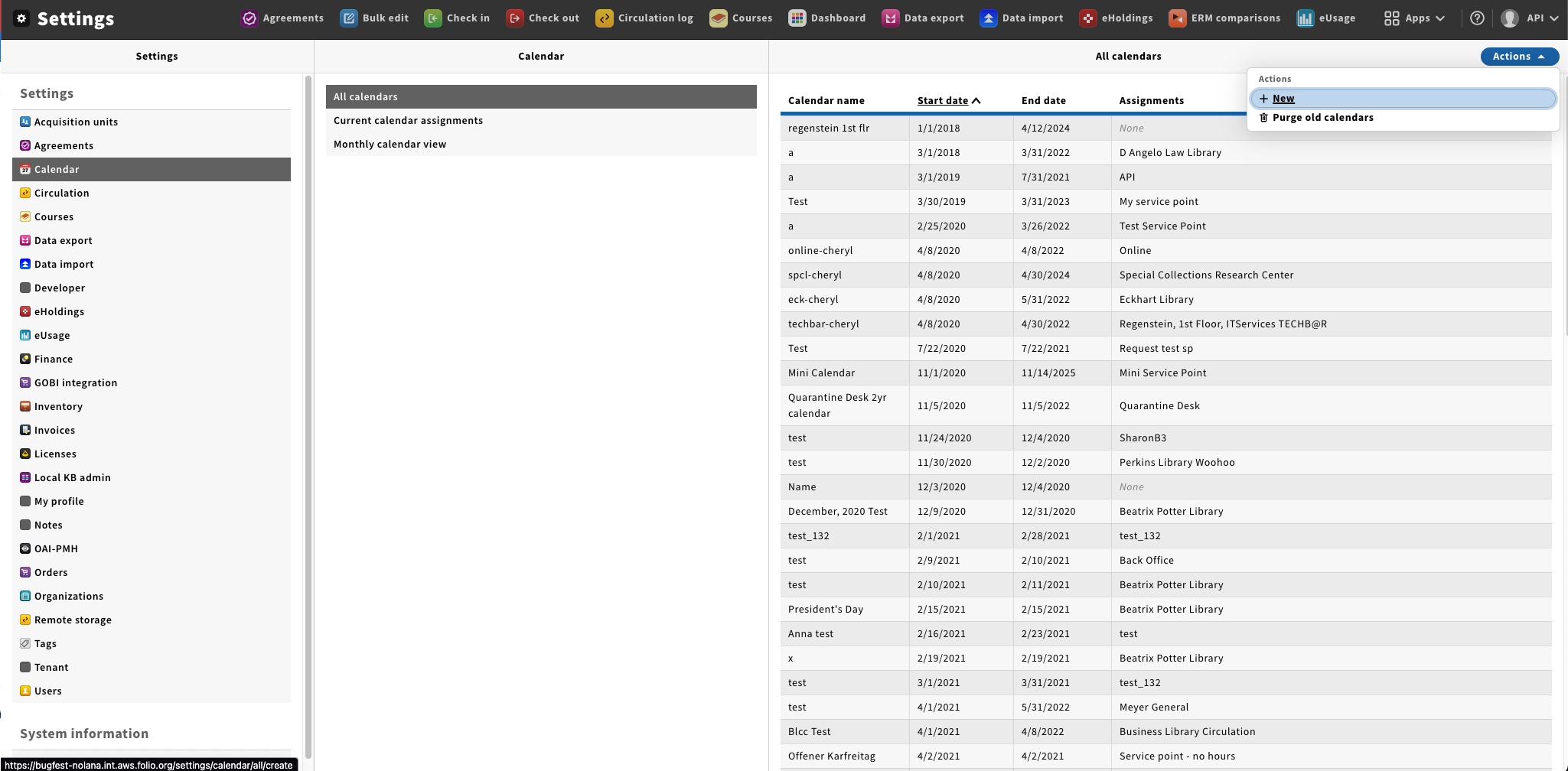
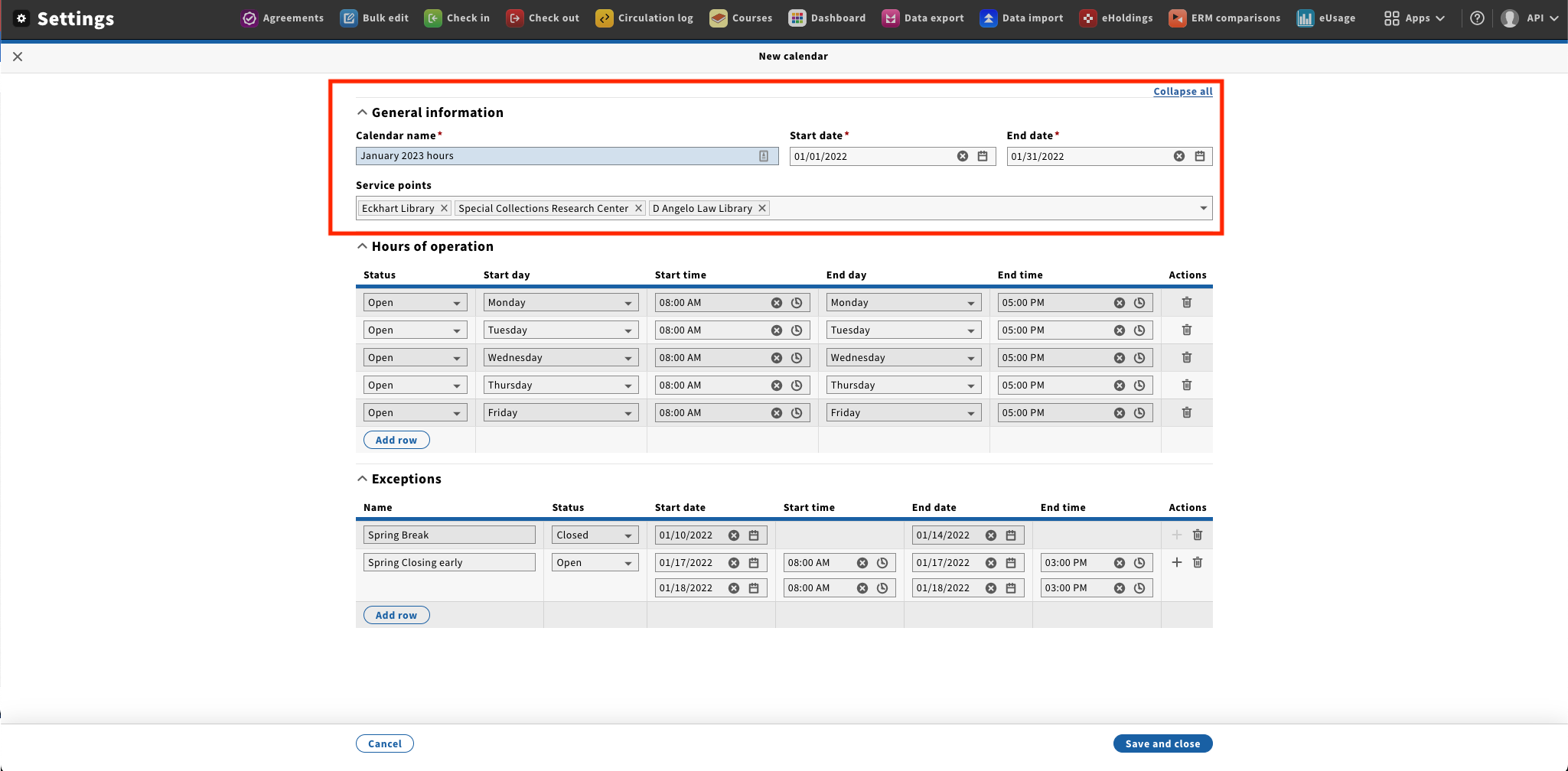
Under the General section enter a Calendar name, Start date and End Date in the top part of the New calendar form. From the dropdown select all the service points you wish to apply the calendar to.
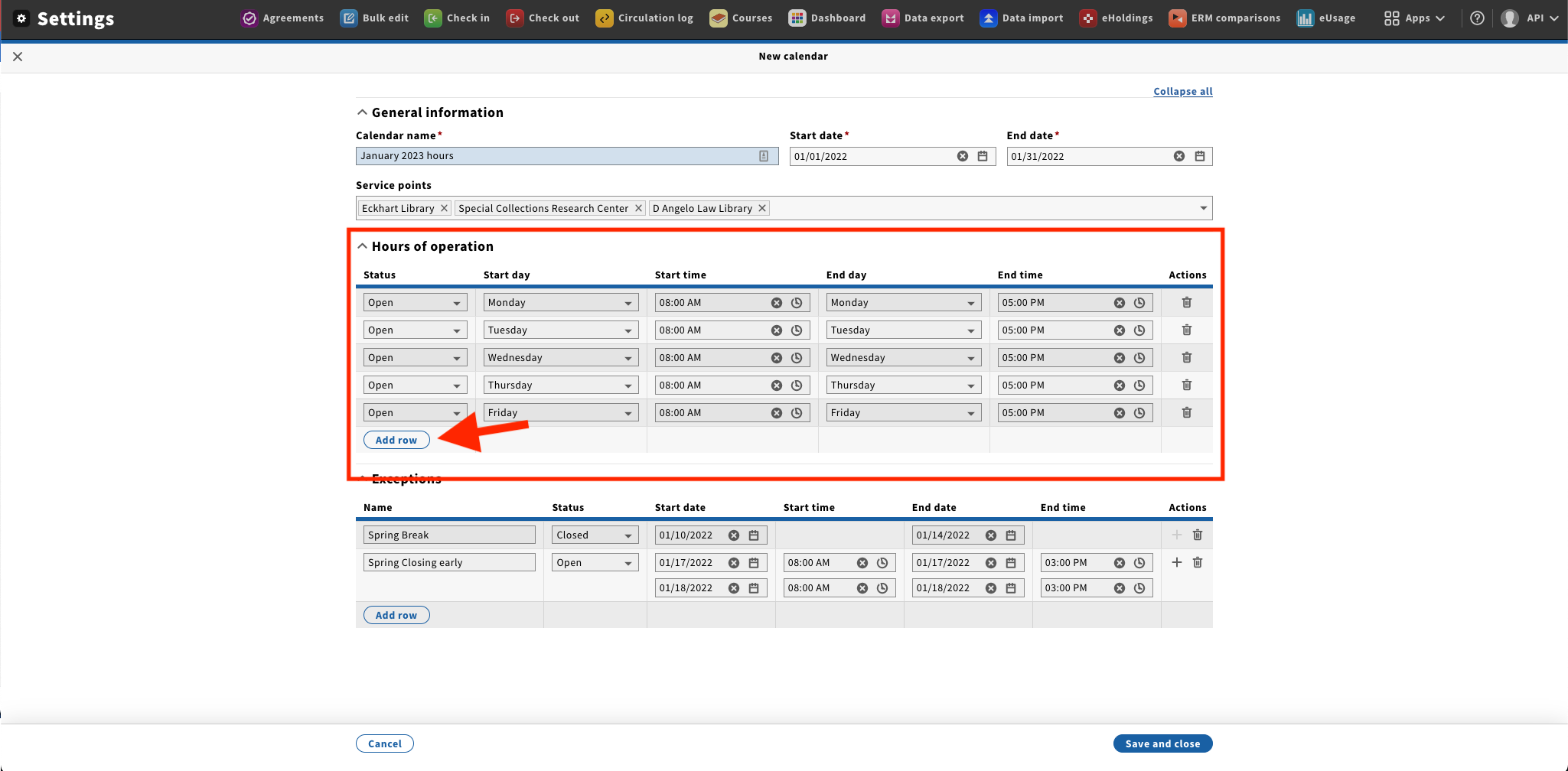
Under the Hours of operation section enter the base hours for this calendar.
- Select the Status - Open or Closed
- Select the Start day for the hours; ie Monday
- Using the selection model select the Start time
- Select the End day for the hours range. Hours can start on one day and end on another, for example start Monday at 8:00am and end on Tuesday at 1:00am
- Using the selection model select the End time
Additional hour lines can be added by clicking on the Add row button under the last hours column.
Once all hours and exceptions have been entered click on Save and close.
Managing exceptions
Under the Exceptions section enter any exceptions for this calendar.
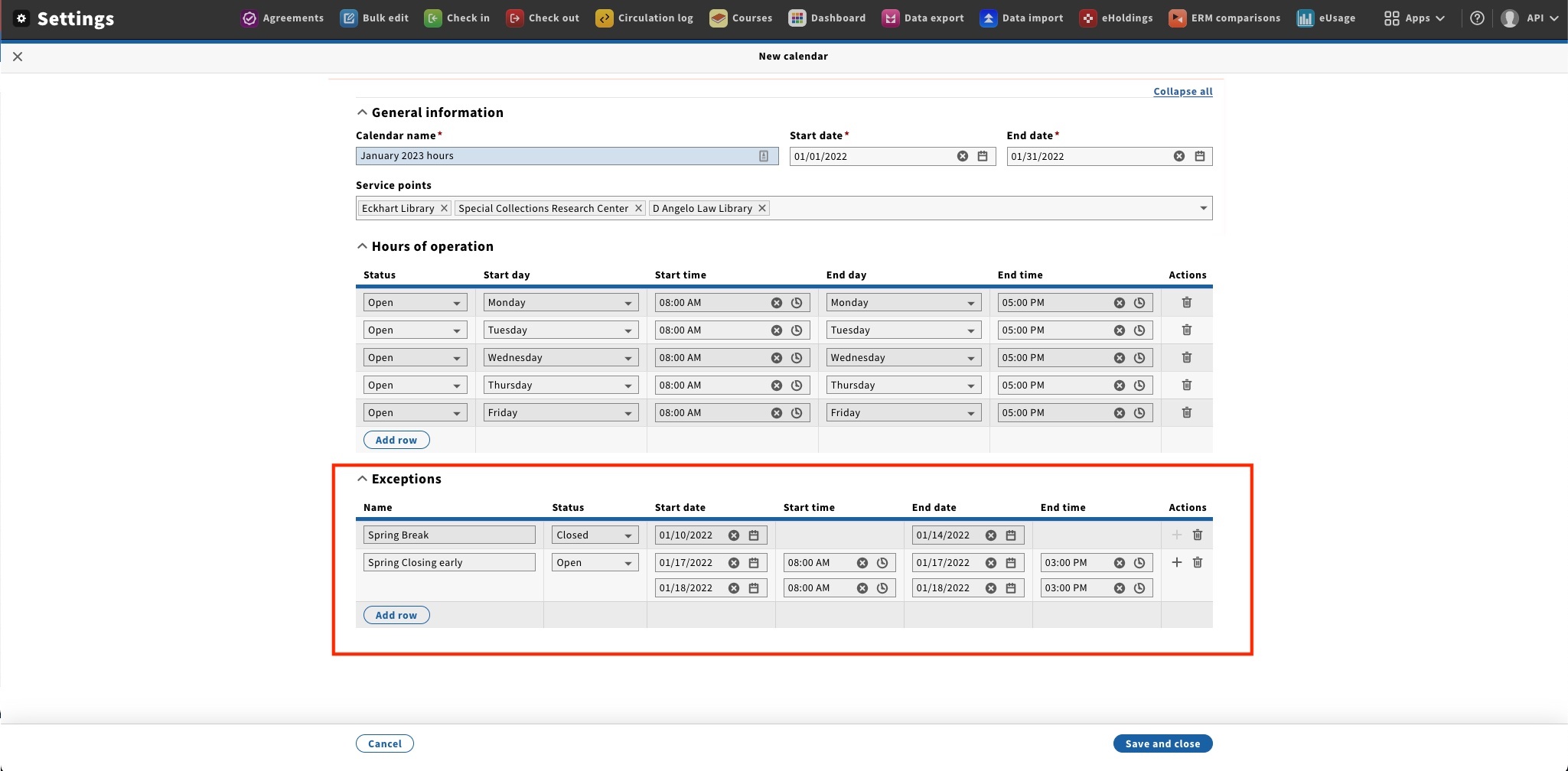
Adding a Closed exception
If a blank row is already not visible click on Add row to add a new blank exception row.
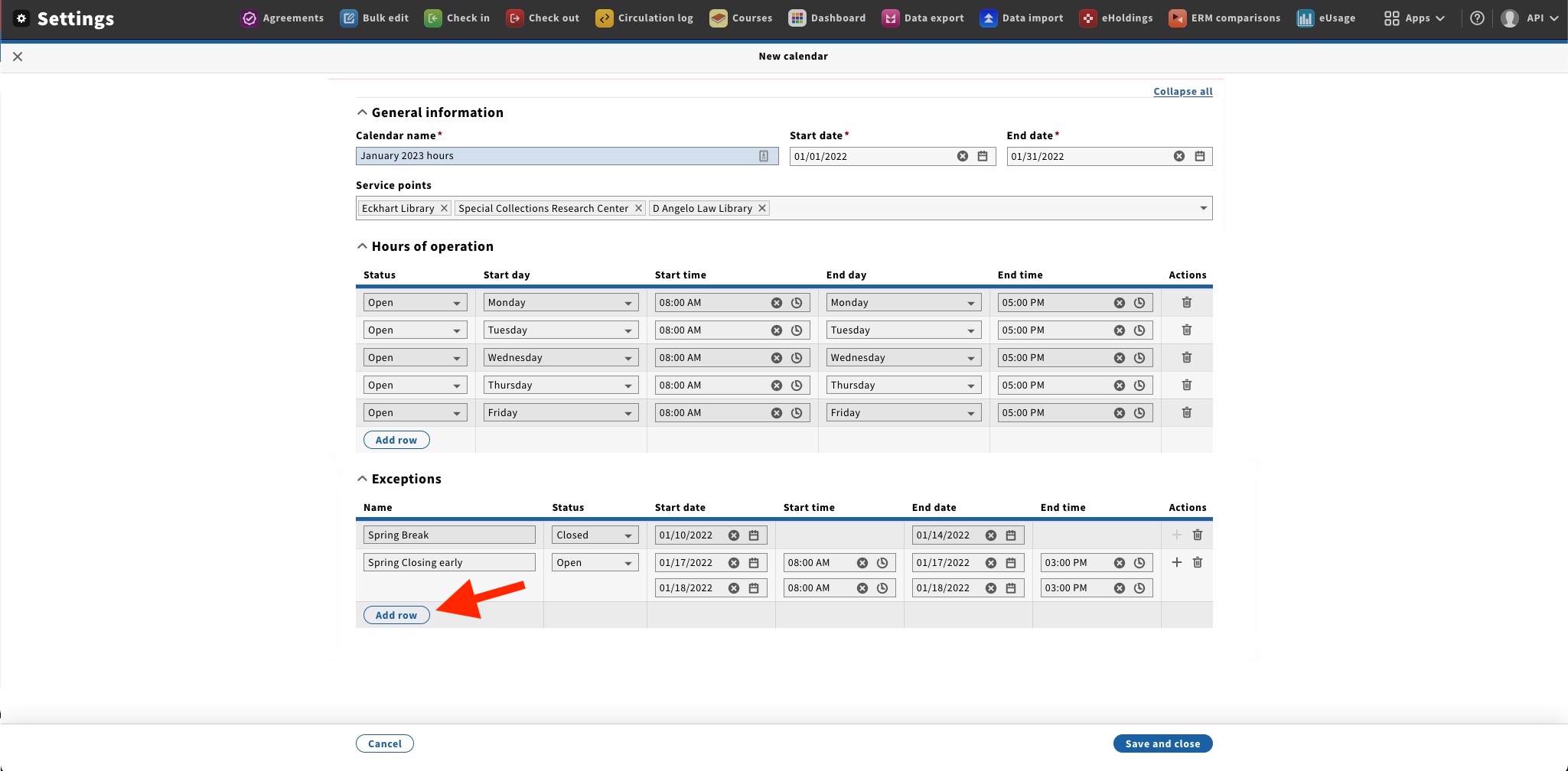
- Enter a Name for the exception
- Select 'Closed' as the Status
- Select the Start date using the model
- Select the End date using the model
NOTE: Closed exceptions can span multiple days.
Adding a open exception (modified hours)
If a blank row is already not visible click on Add row to add a new blank exception row.
- Enter a Name for the exception
- Select 'Open' as the Status
- Select the Start date using the model
- Using the selection model select the Start time
- Select the End date using the model
- Using the selection model select the End time
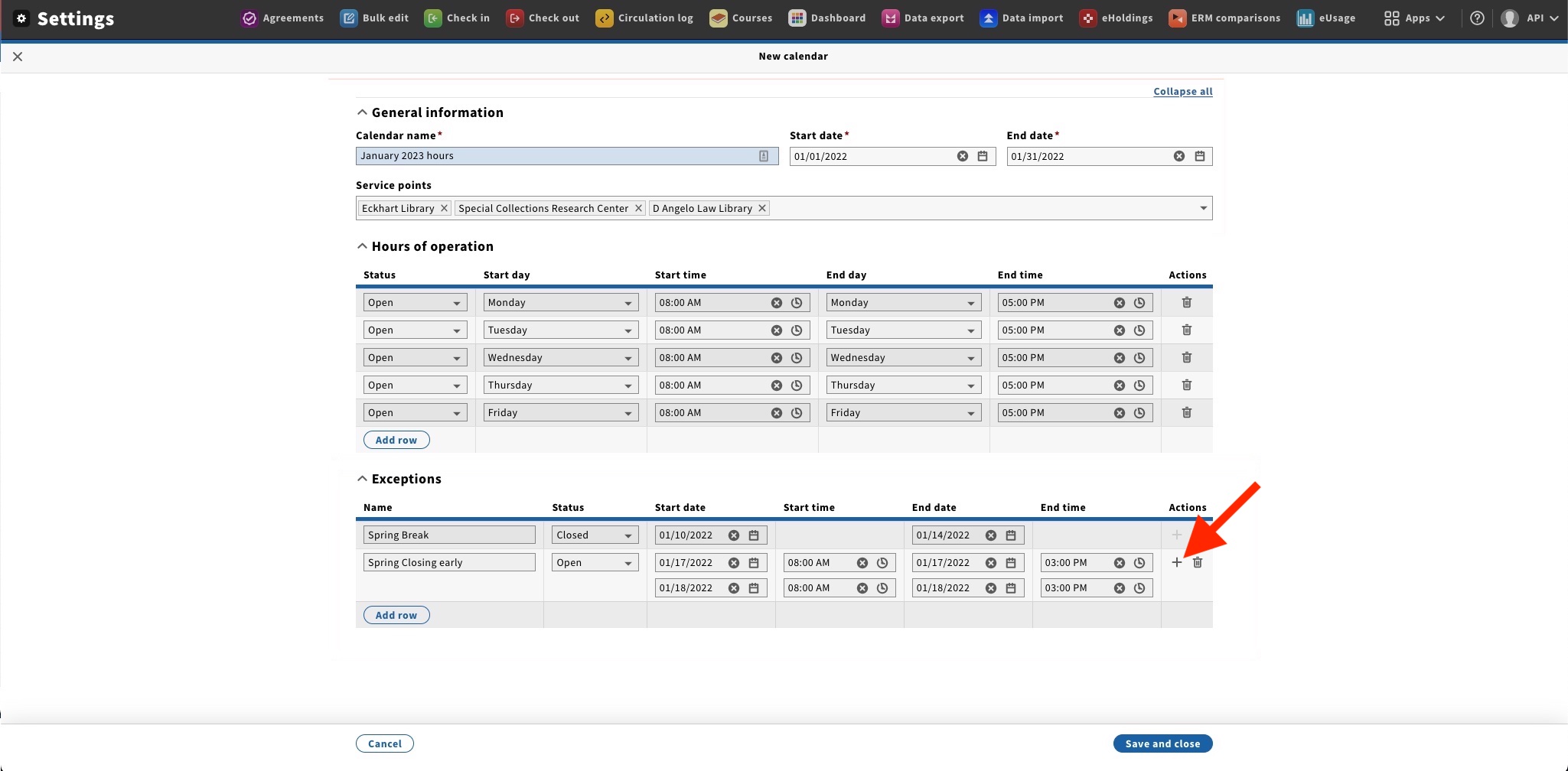
You can add multiple modified hours to an Exception by clicking on the plus sign. This does not perform any addition function in FOLIO but does provide a visual grouping for users.