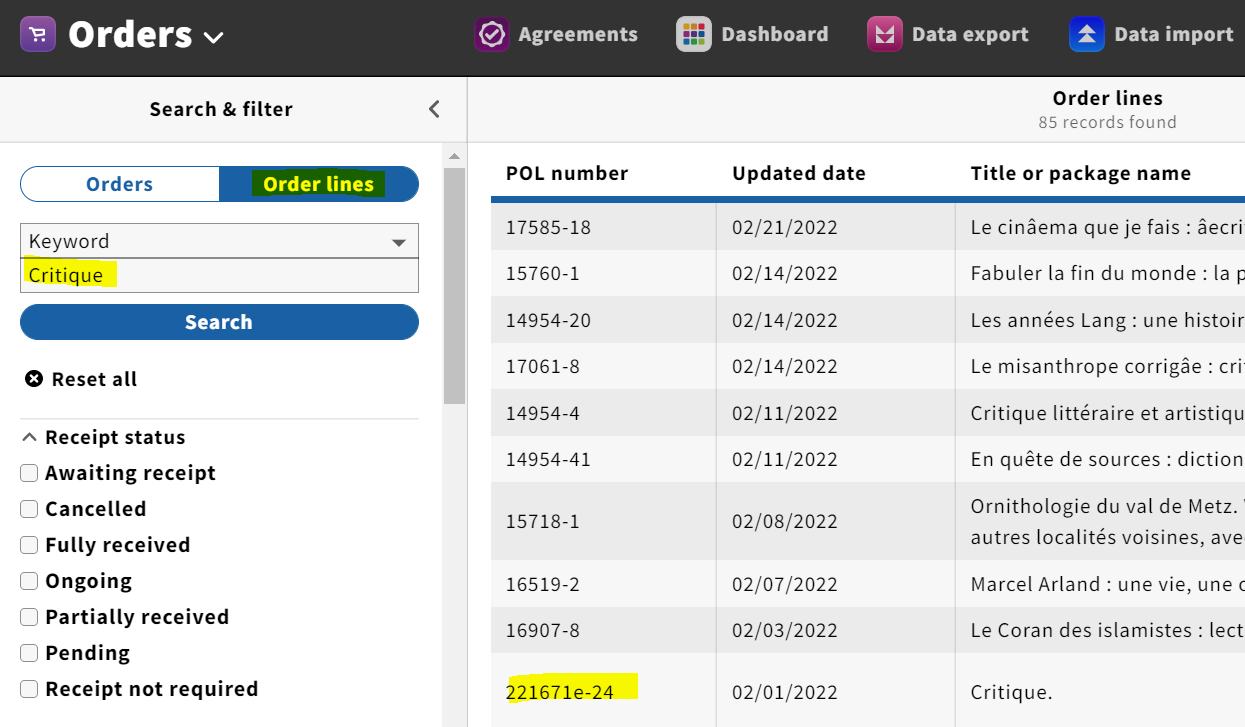
1. Beginning in the Orders app, navigate to the PO you'd like to relink by searching by PO number under Orders or by title under Order Lines. Click on the appropriate PO Line (POL)/title.
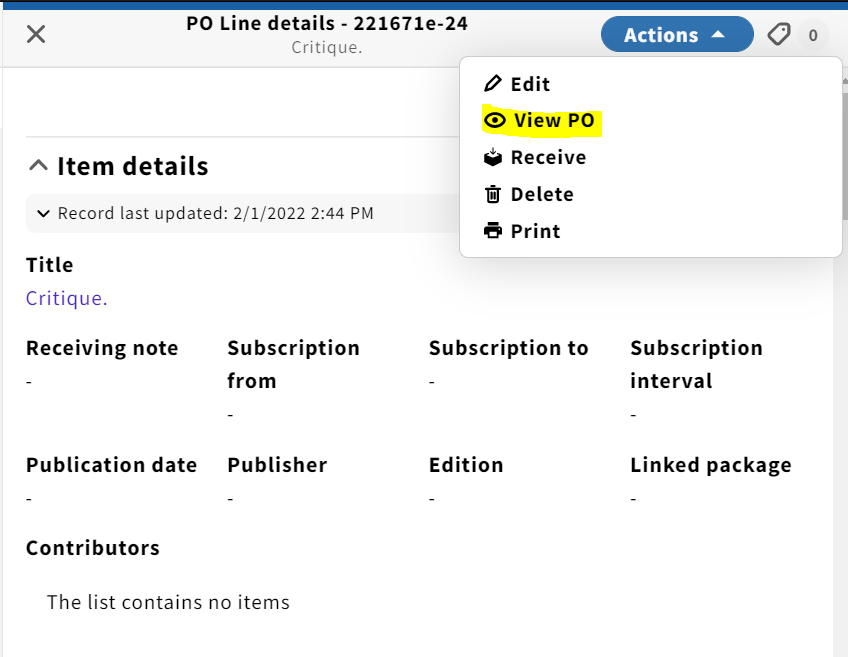
2. Clicking the POL/title will cause the PO Line details screen to appear in the third panel on the right. Click on Actions in the upper right corner and Edit. Click View PO.
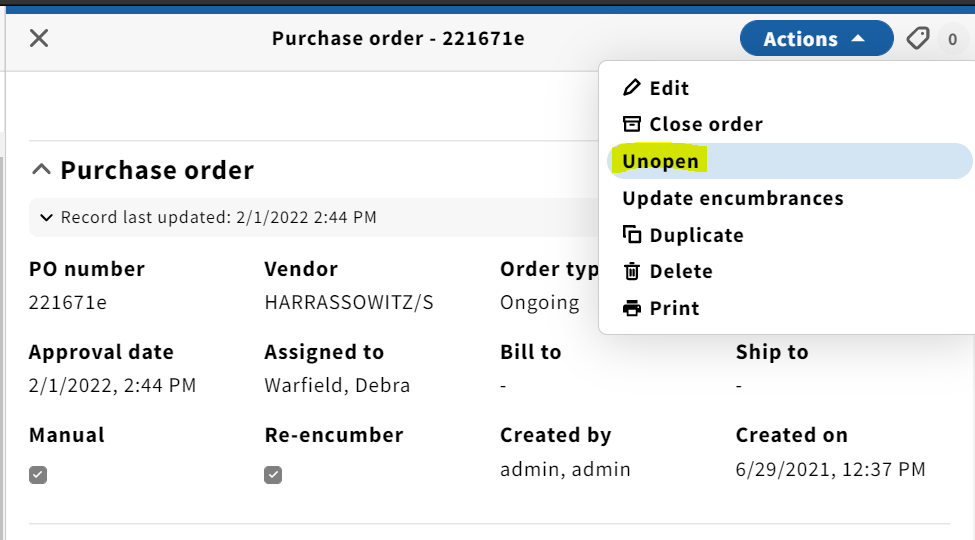
3. You will be brought to the Purchase order screen. From here, select Actions followed by Unopen.
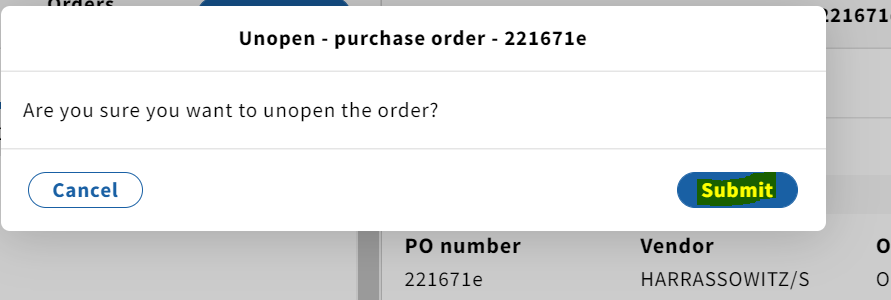
4. A confirmation pop-up will appear. Select Submit.
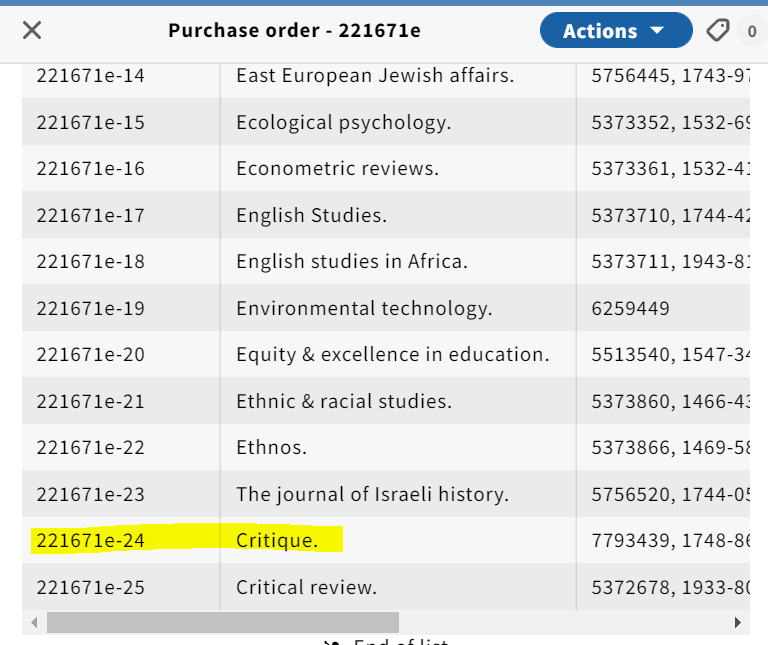
5. Note that the PO is now in a Pending state, as opposed to Open. From here, scroll down to the POL you wish to relink. Click on the POL.
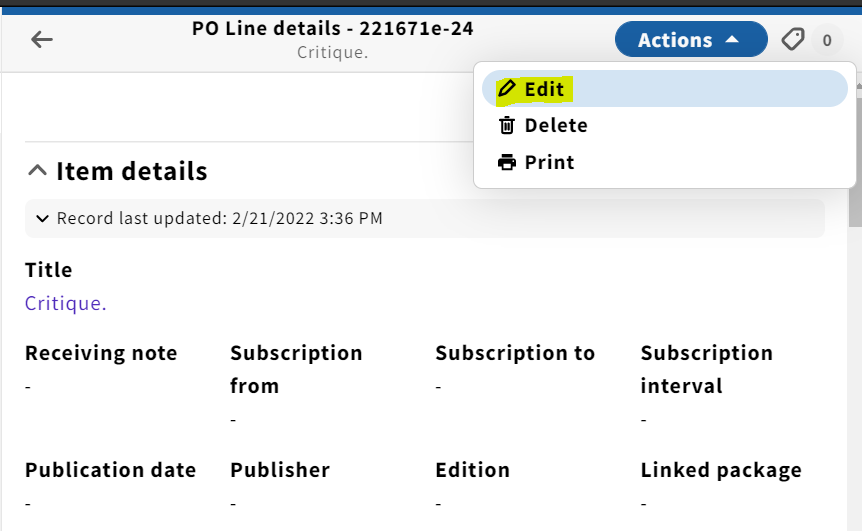
6. You will be brought back to the PO Line details screen. From here, select Actions and Edit.
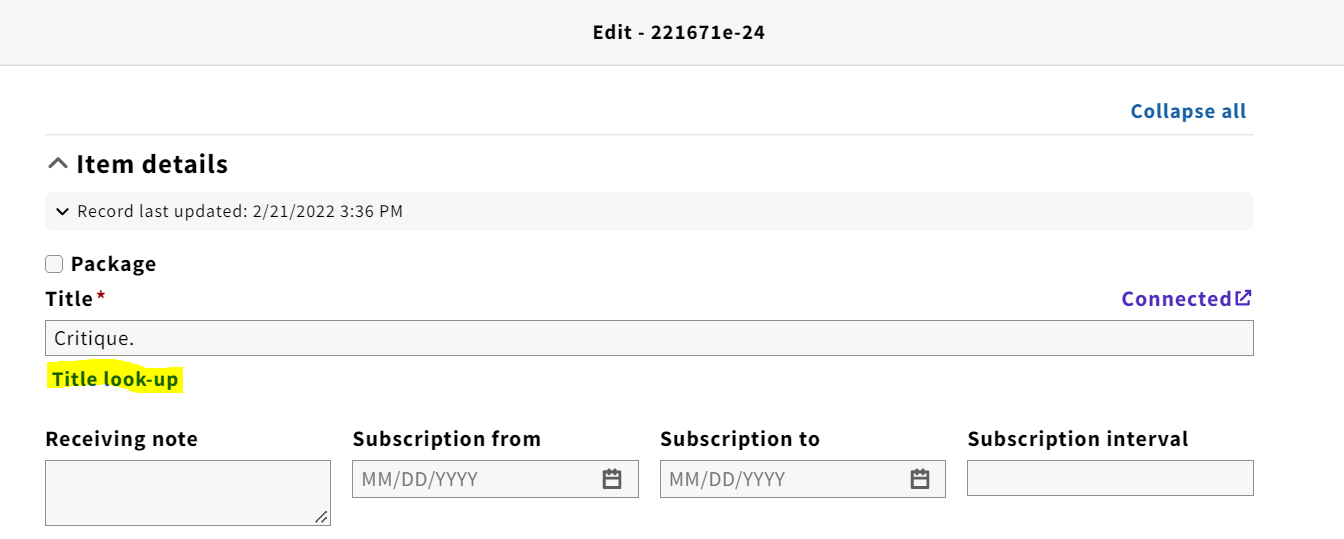
7. From the Edit screen, click Title look-up.
8. The Select instance pop-up will appear. It's generally easiest to search by Instance HRID by selecting it from the drop-down menu. You can also search by title using a keyword search, but it will usually yield more results. Click on the appropriate title.
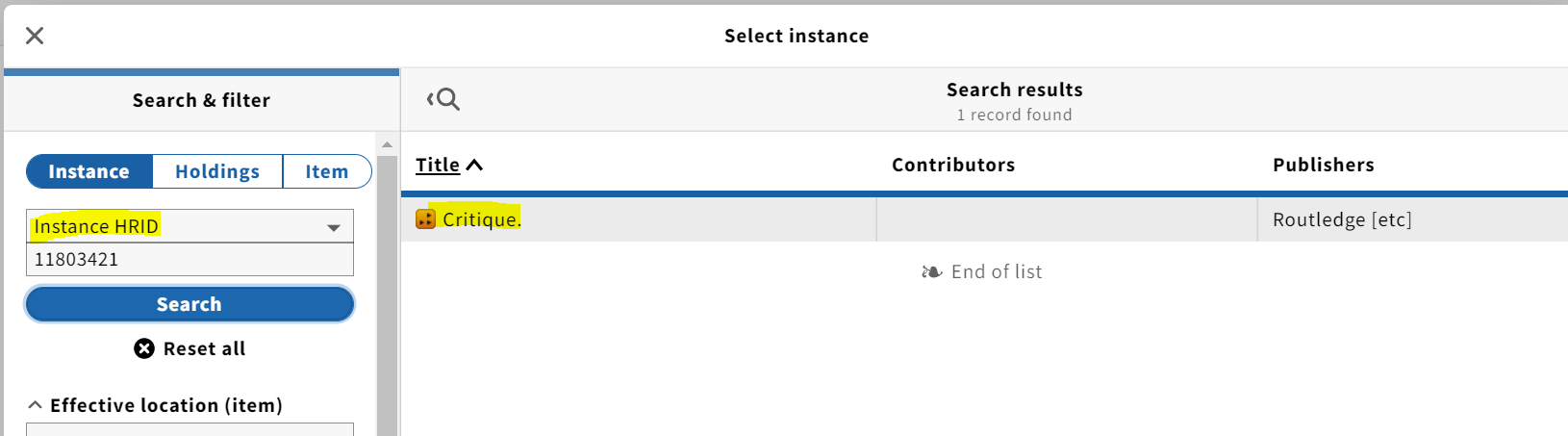
9. The POL is now relinked to the appropriate Instance record. Click Save & open order if you are done relinking POL's.
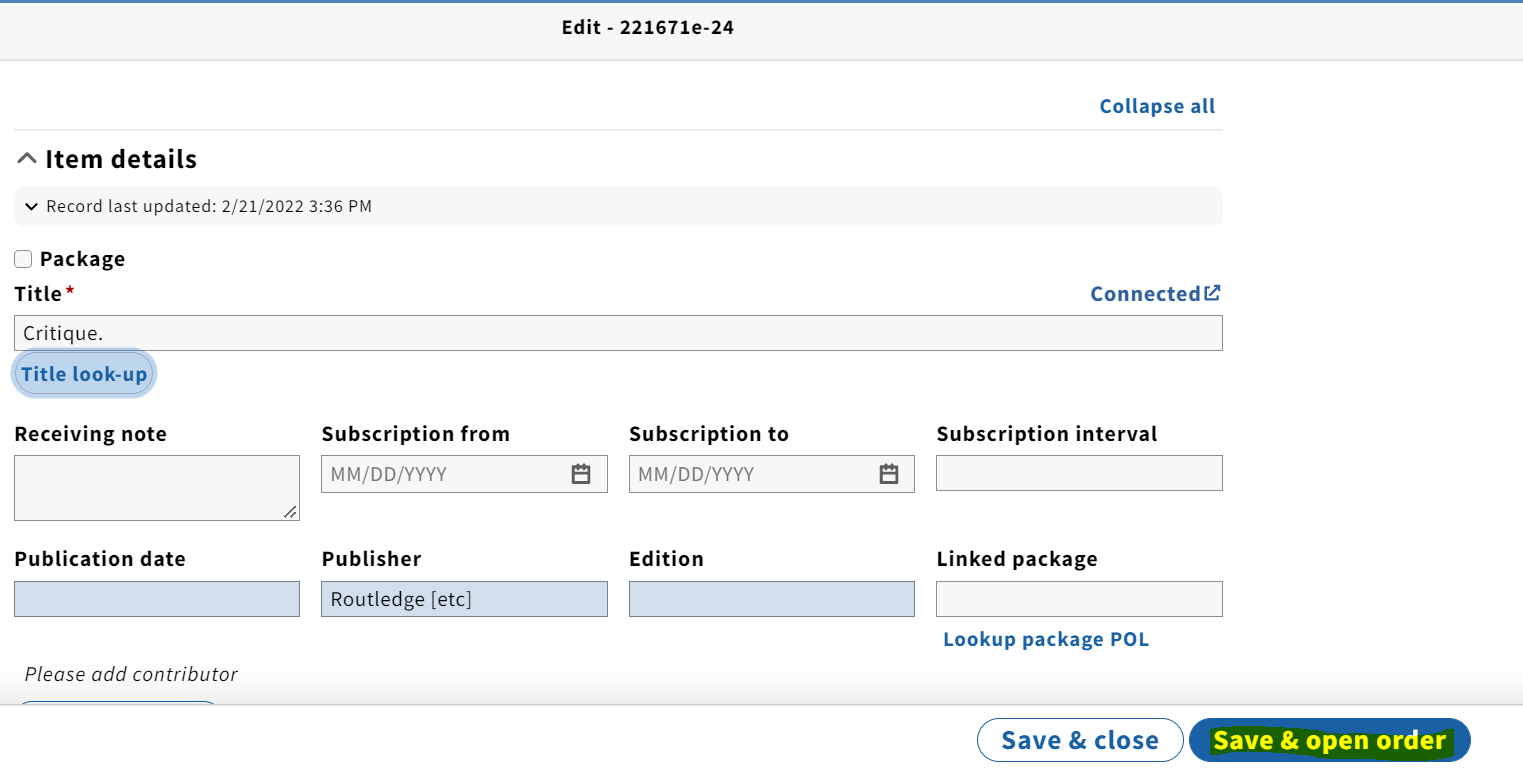
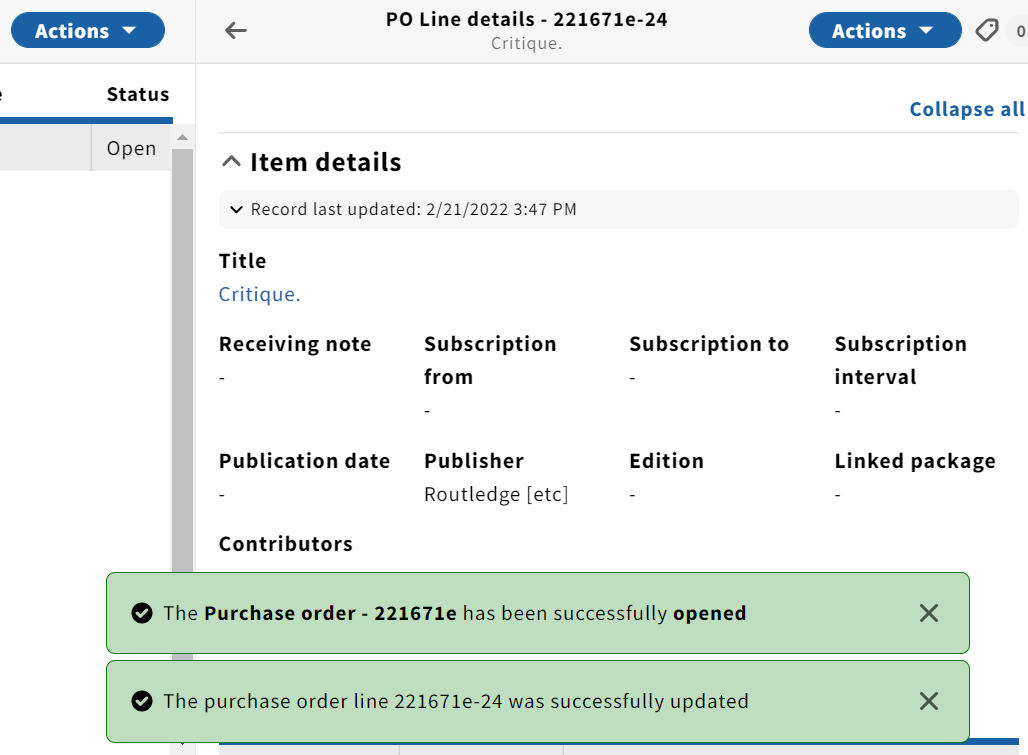
10. You will receive two green toasts indicating that the PO has been opened and that the PO Line was successfully updated.