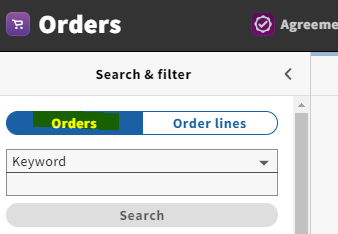
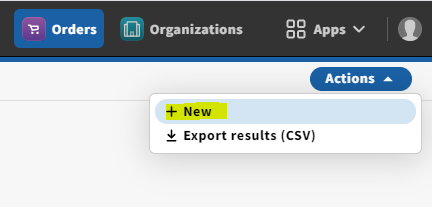
a. PO number: FOLIO will auto-populate this field with a system-generated number. Add an "e" to the end of this number to indicate that this is an e-resource PO
b. Vendor
c. Order type: Ongoing
d. Bill to/Ship to: LTS E-Resources & Serials
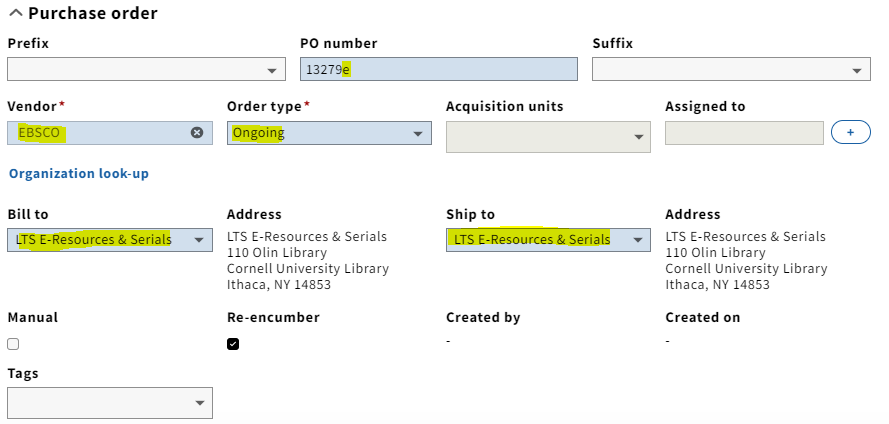
Complete the purchase order form, being sure to complete all required fields. Click on the blue button marked "Save & close" at the bottom of the screen when finished.
The purchase order will now display in the third column on the screen. Click on "Add PO line" under the "PO lines" accordion in the purchase order.
Complete the PO line form, being sure to complete all required fields.
Under the "PO line details" accordion, set "Order format" to "Electronic resource."
Verify that the "Quantity electronic" field under the "Location" accordion correctly requires the same "Quantity electronic" entered earlier.
Click on the blue button marked "Save & close" at the bottom of the screen when finished.
Verify the purchase order and the purchase order line display all entered information correctly. To view the PO line from the Purchase Order view screen, click anywhere on the PO line under the "PO lines" accordion.