| NOTE: at this time (Honeysuckle) you CANNOT DELETE a tag once you've created it, so be careful! |
Add a tag to a license
1 | Go to the Licenses app and select a license so it opens in the view pane
Able to view license and "Tags" icon displays at top right of license view pane |
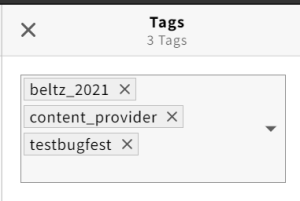
2 | Click tags icon
tags pane opens |
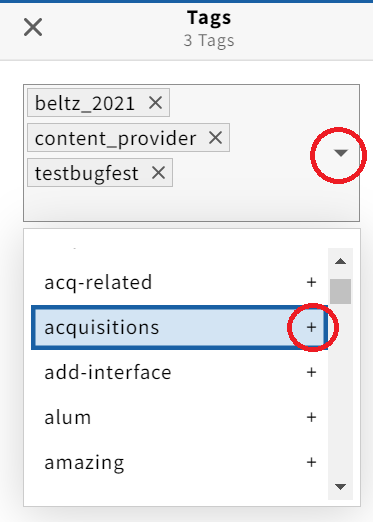
3 | Click the dropdown arrow in the tags text box and select an existing tag
Tag added to license |
4 | Type directly into the tags text box to create a new tag - click "Add tag for:"
Tag added to license |

 or
or 
Remove a tag from a license
1 | Click on Licenses app. Licenses app opens and shows list of all records. | |
2 | Choose a license with a tag. | |
3 | Click on the tag symbol in the right upper corner. | |
4 | Remove the tag by clicking on the "x" next to the chosen tag.
|

Filter licenses by tags
1 | Click on Licenses app. Licenses app opens and shows list of all records. |
2 | Click on "tags" in the left column. A drop-down menu opens. |
3 | Choose a tag from the dropdown menu. The records with that tag are shown. |
