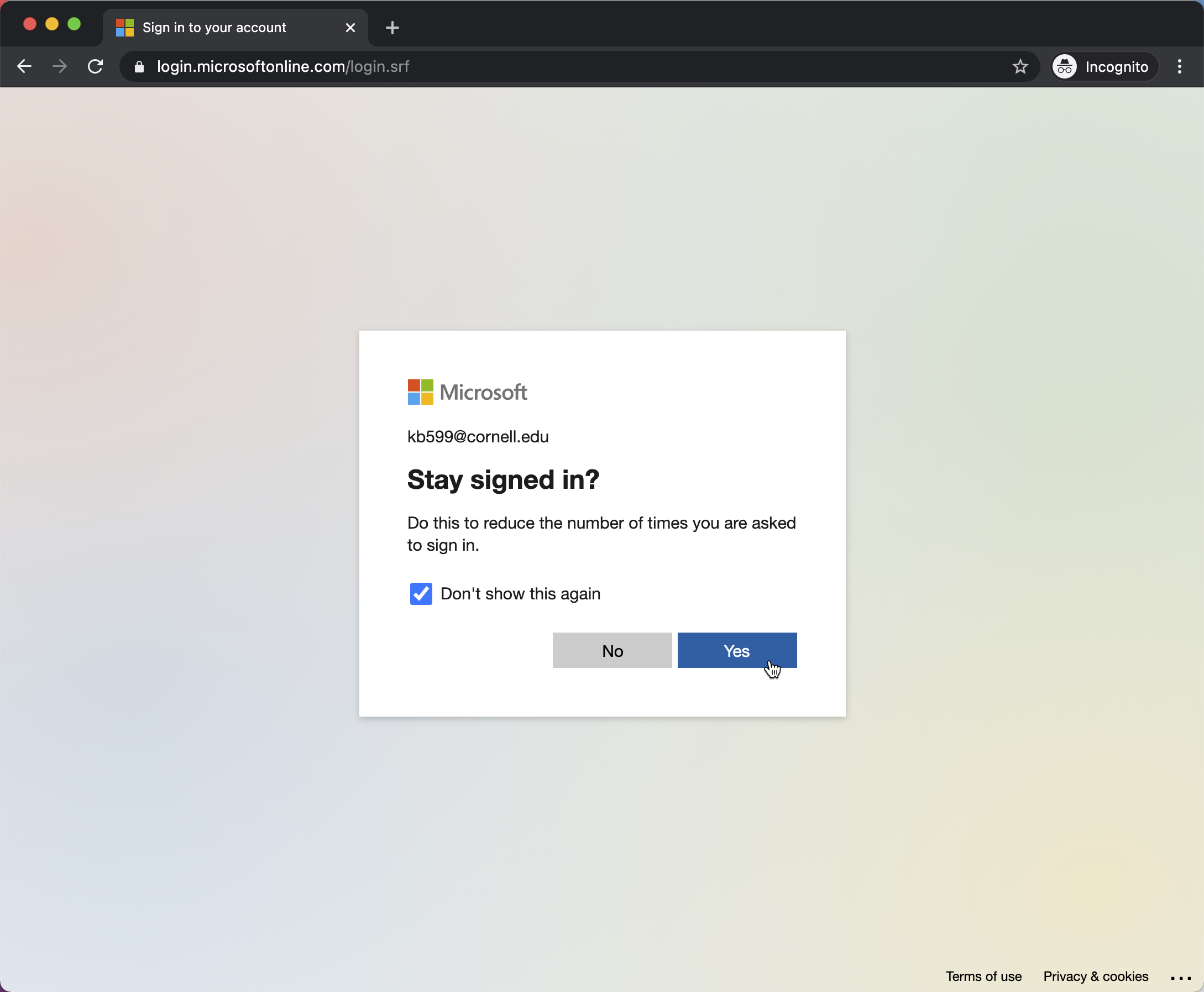
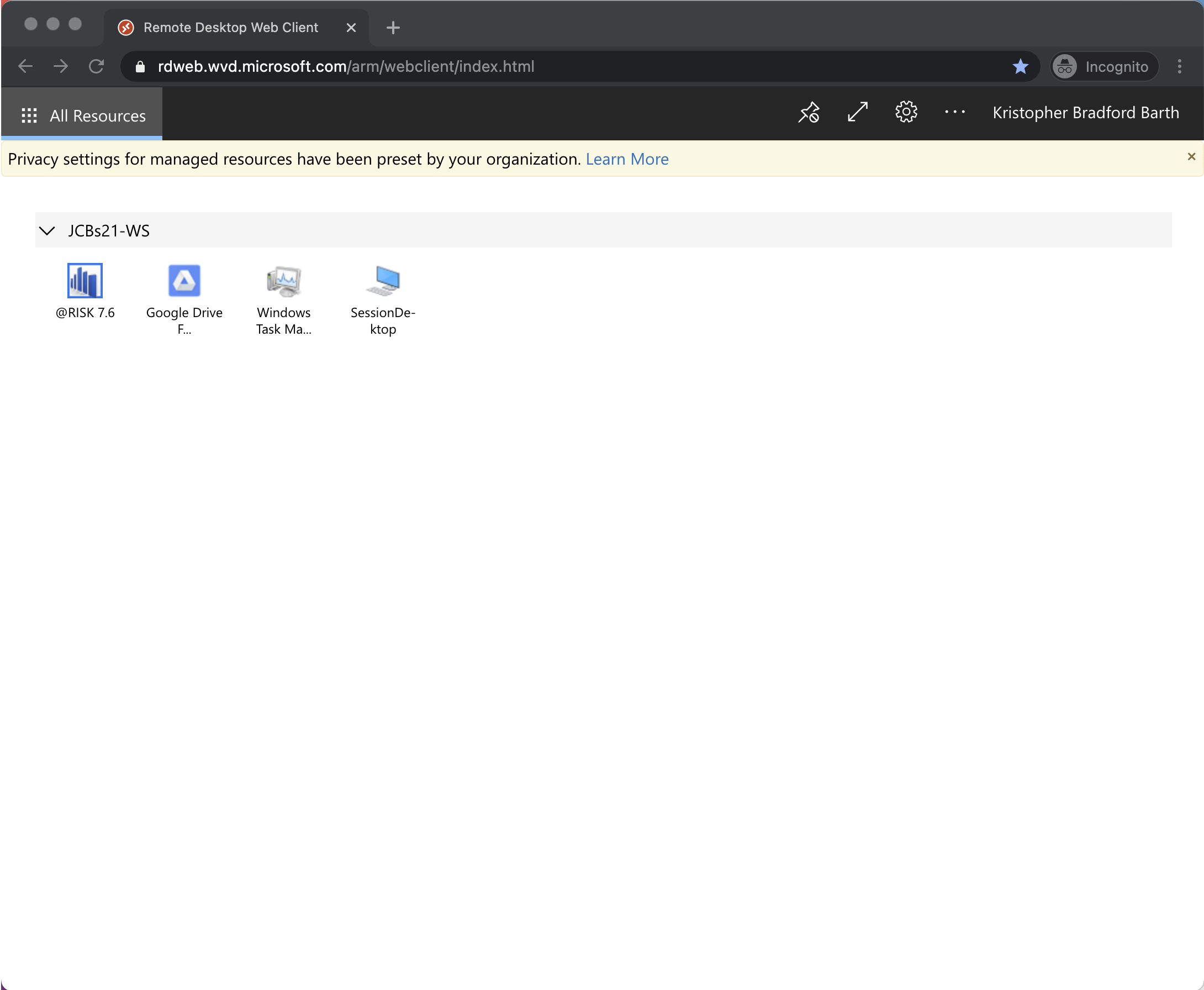
(Note: All logins must use your Cornell Net-ID and password. Personal Microsoft accounts will not work.)

Log on to Remote Desktop Web Client
Launch @Risk and sign in to MS Office (first run only)
Double click the '@RISK 7.6' Application: 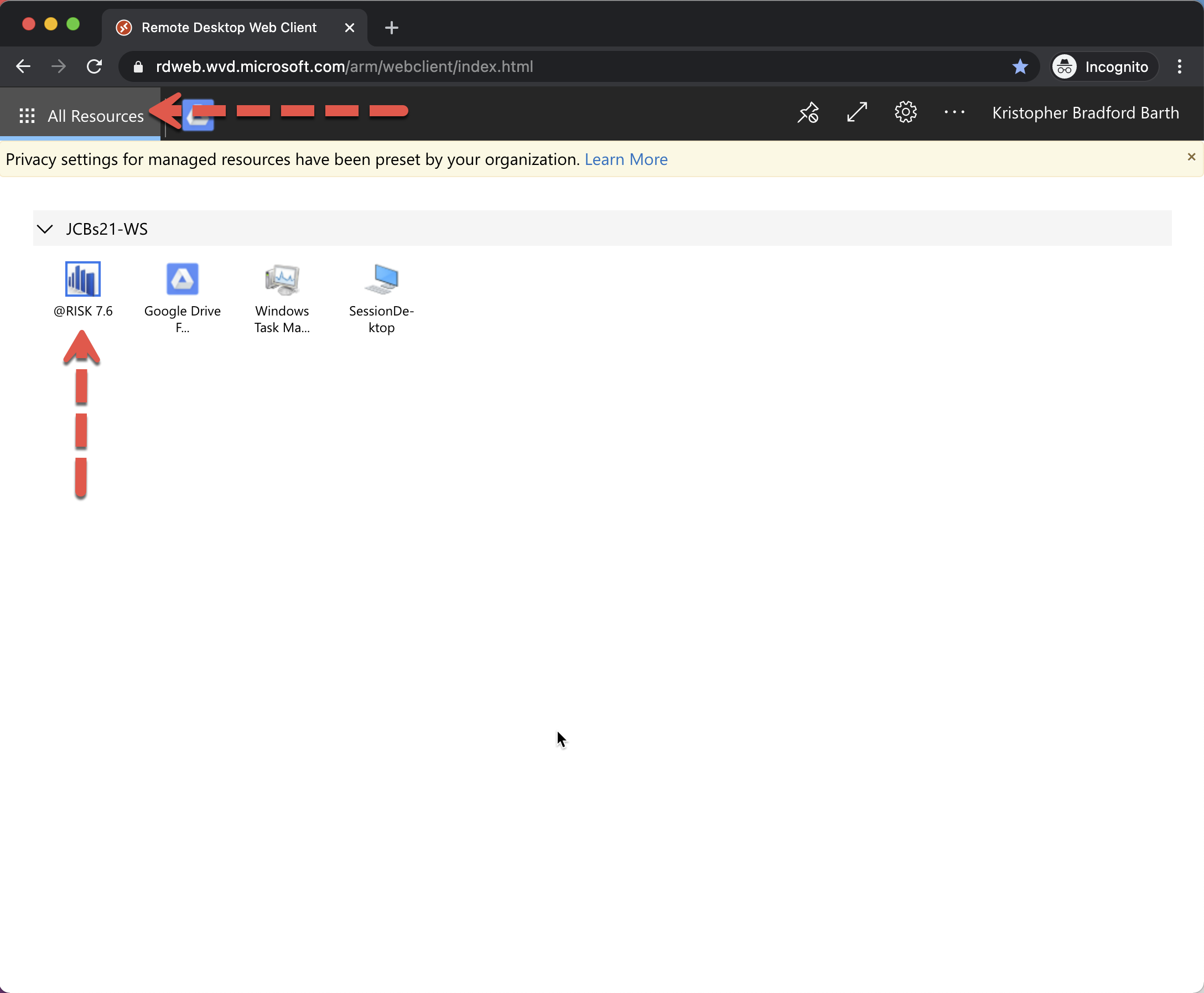
- You will see Excel open and please click 'Sign In'
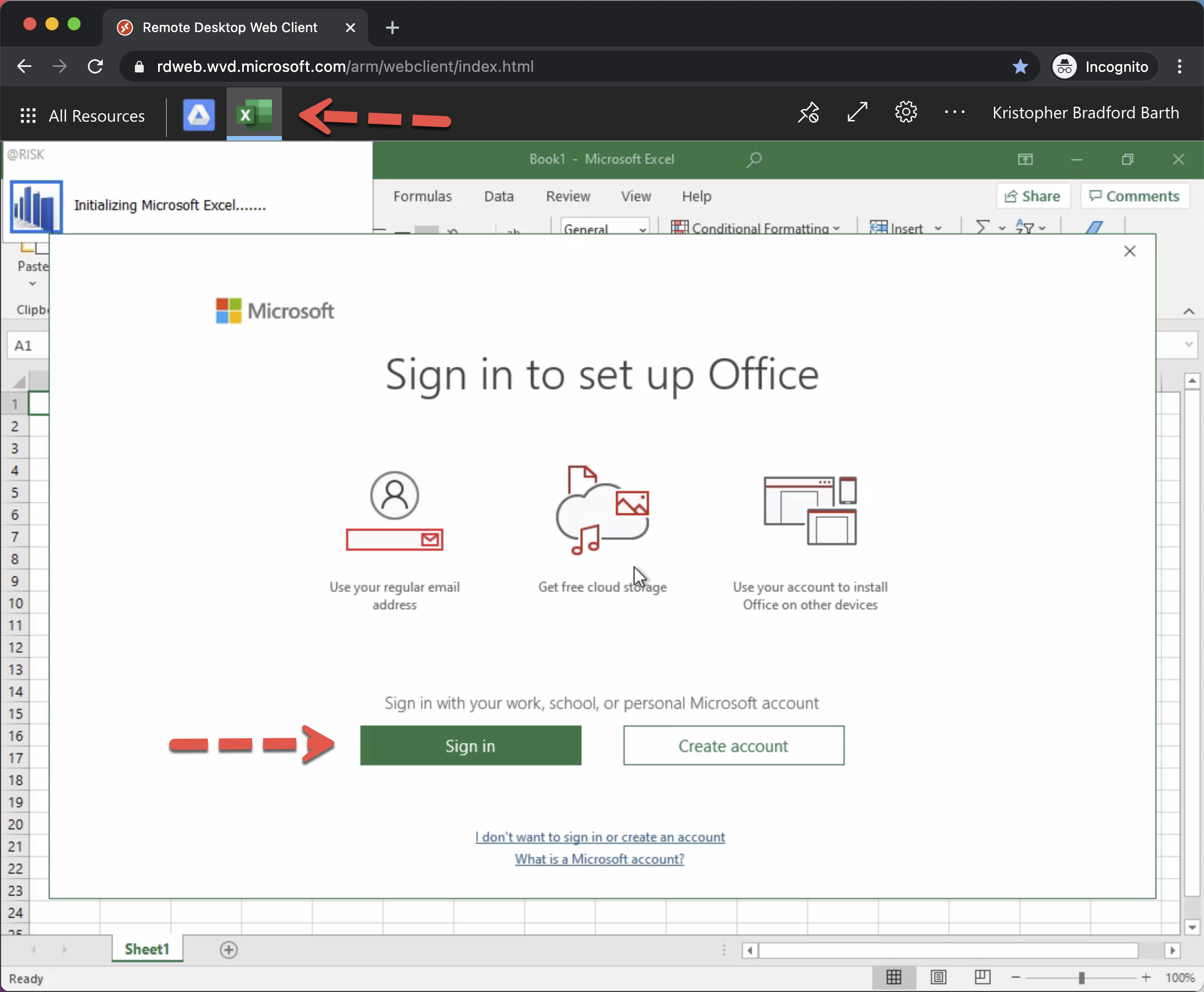
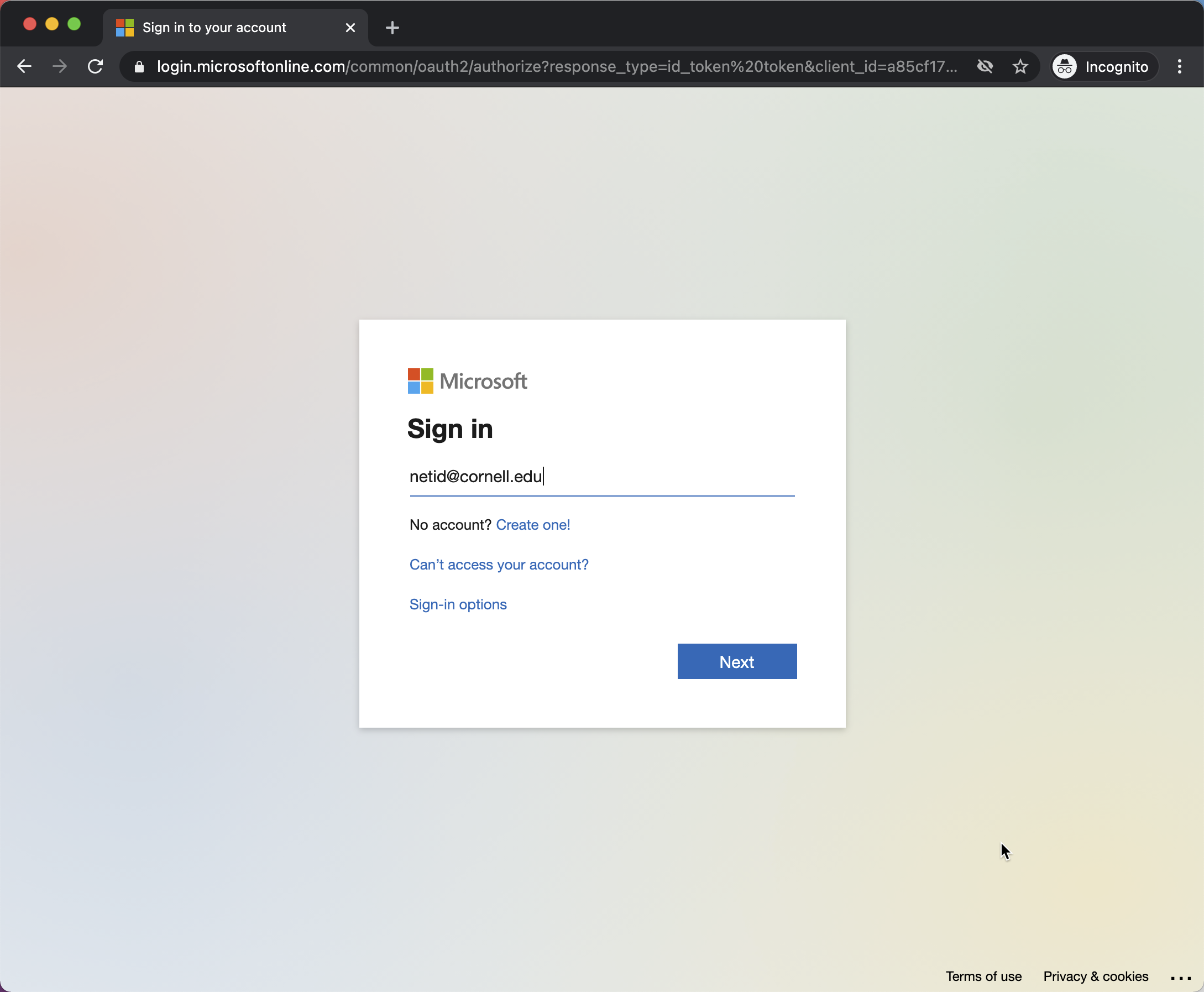
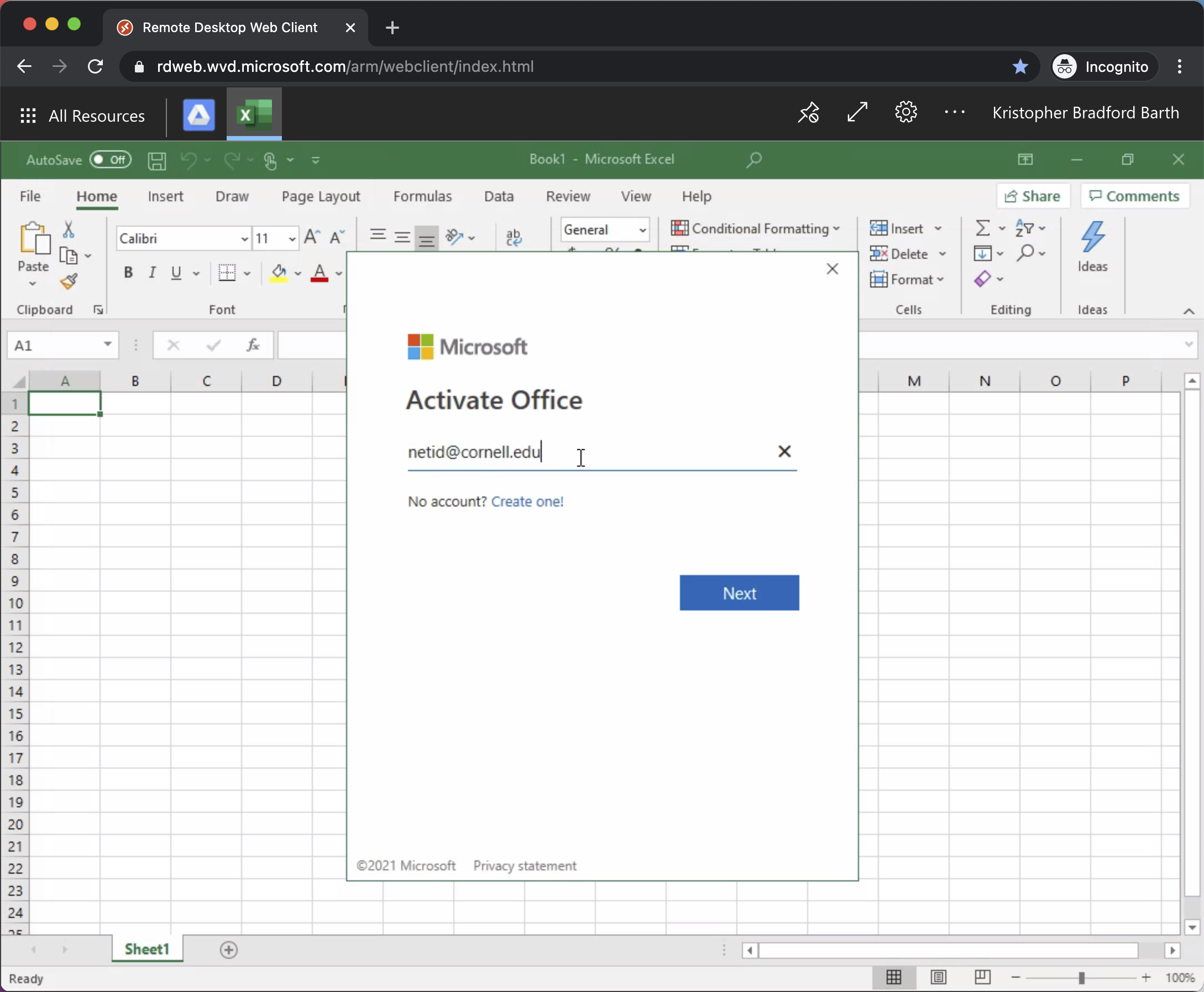
- You will be prompted to Activate Office, please use your netid@cornell.edu to complete this one time activation step.
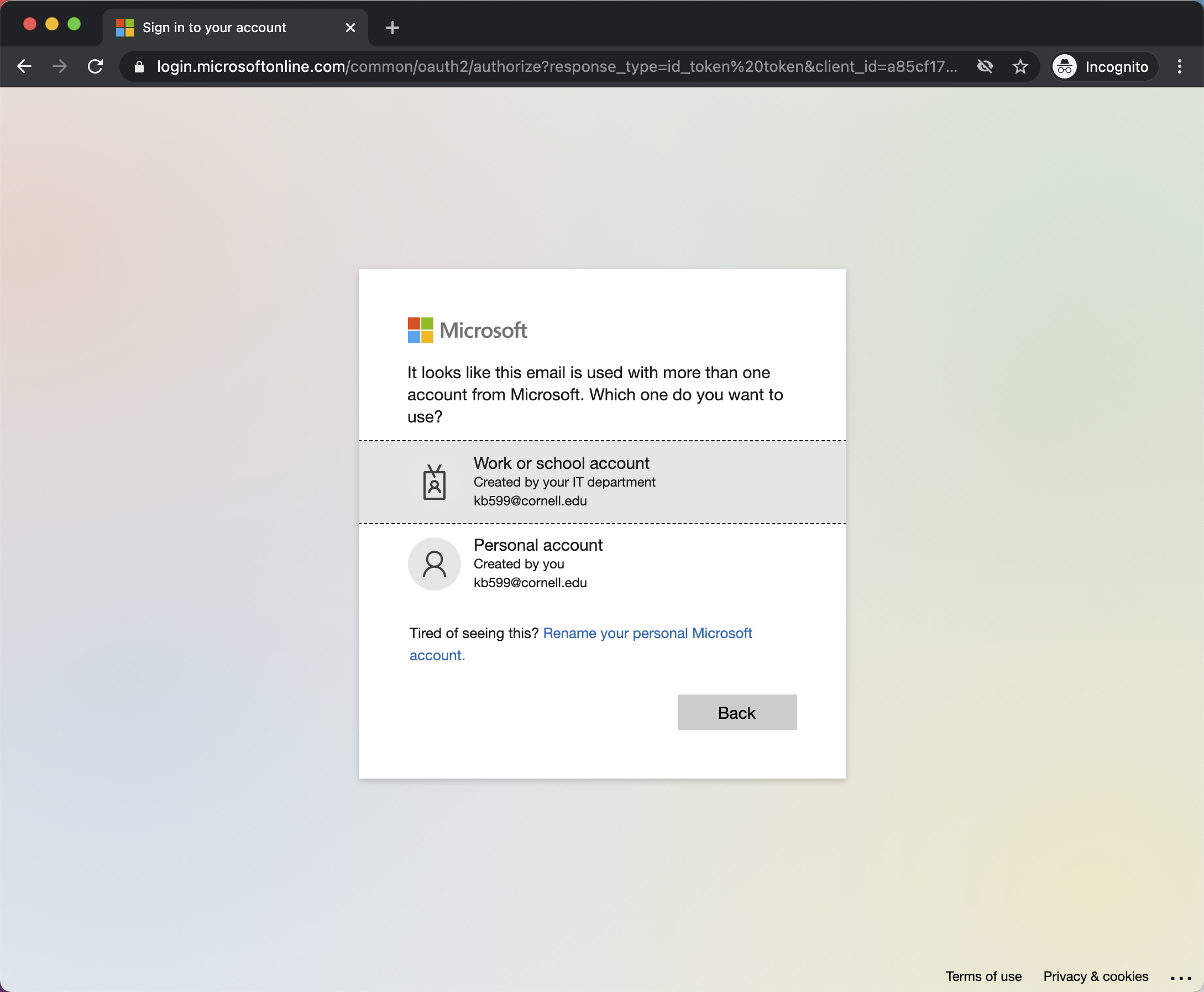
Select 'Work or School account' when prompted: 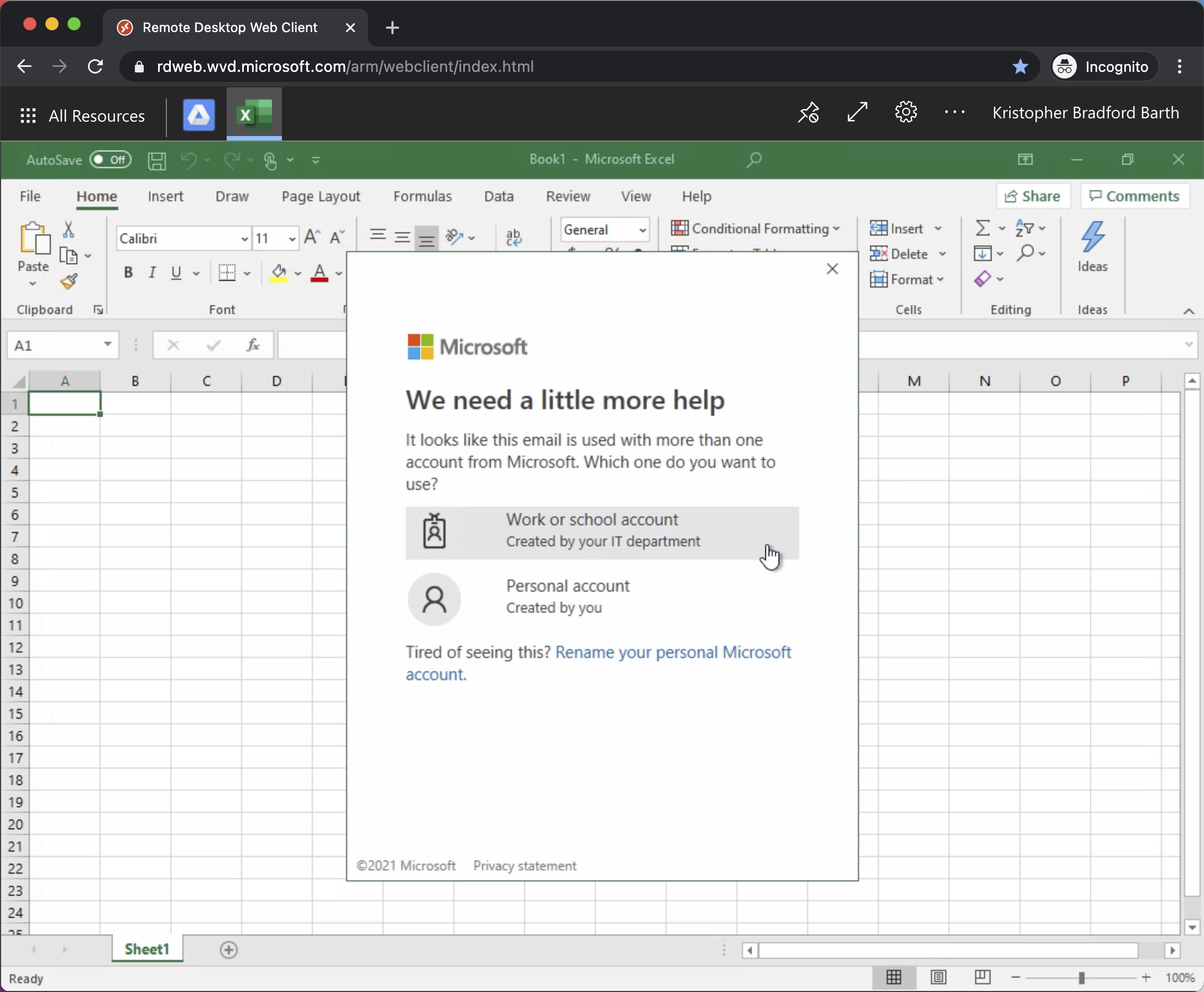
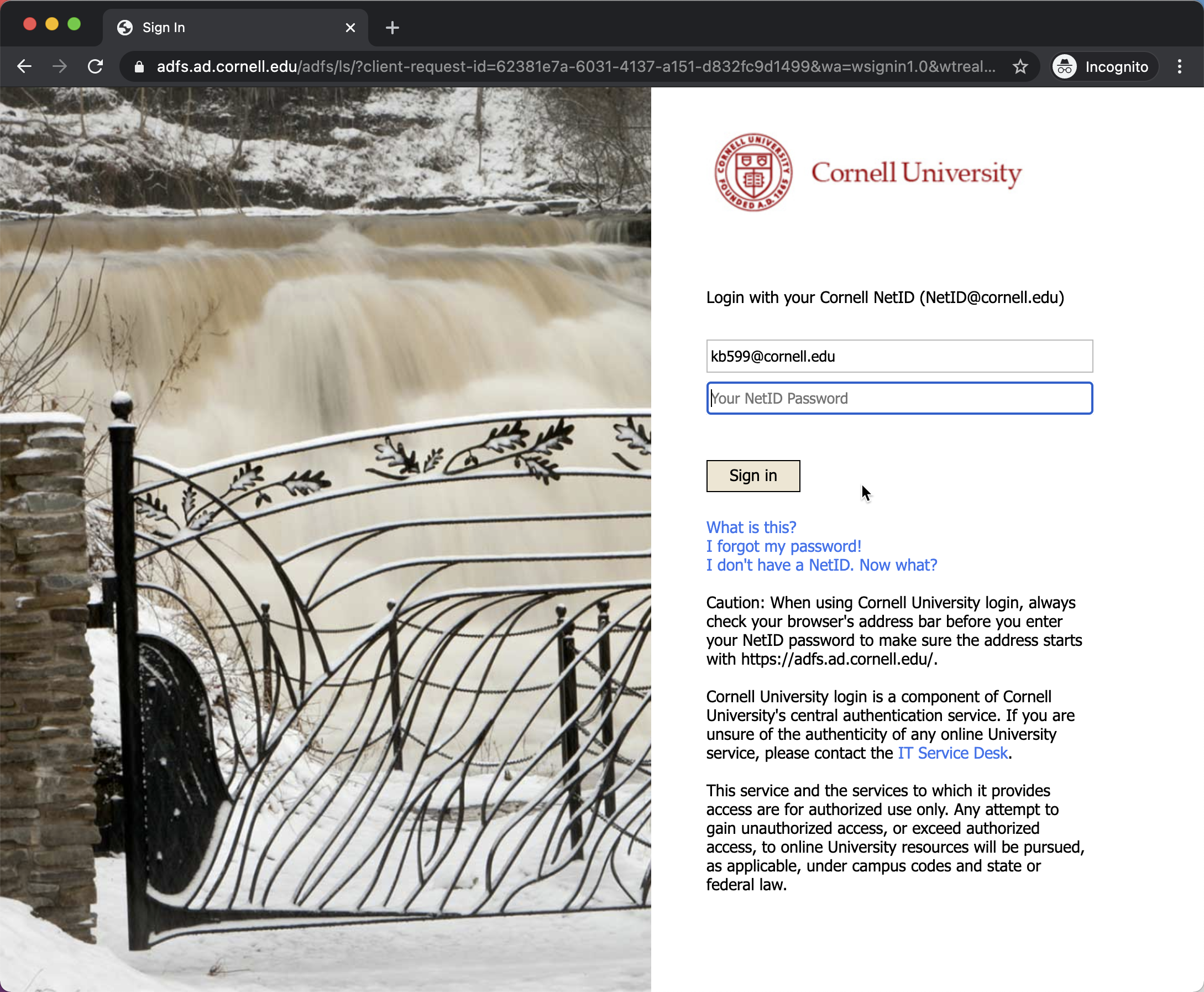
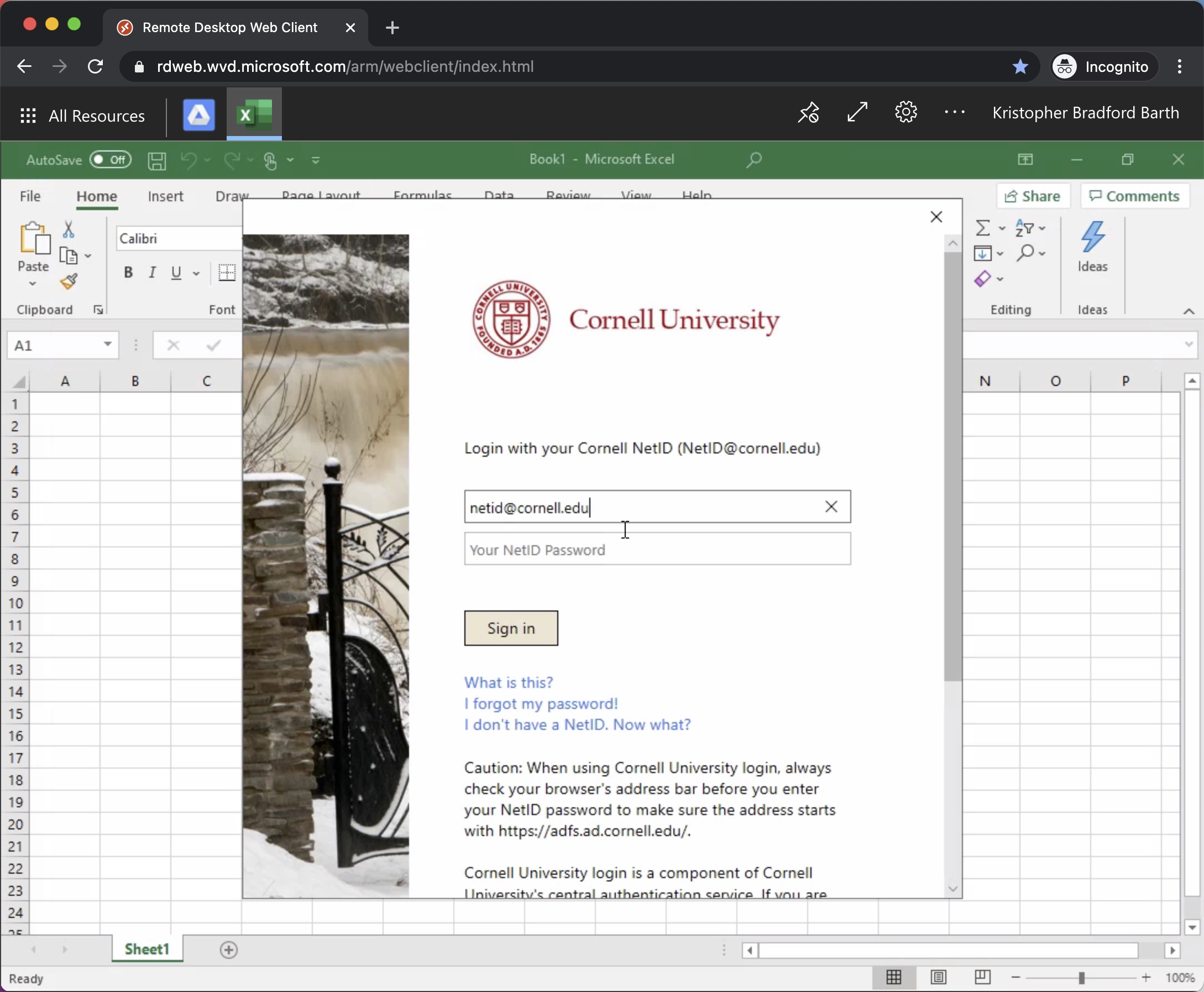
- Sign in to Cornell University with your netid:
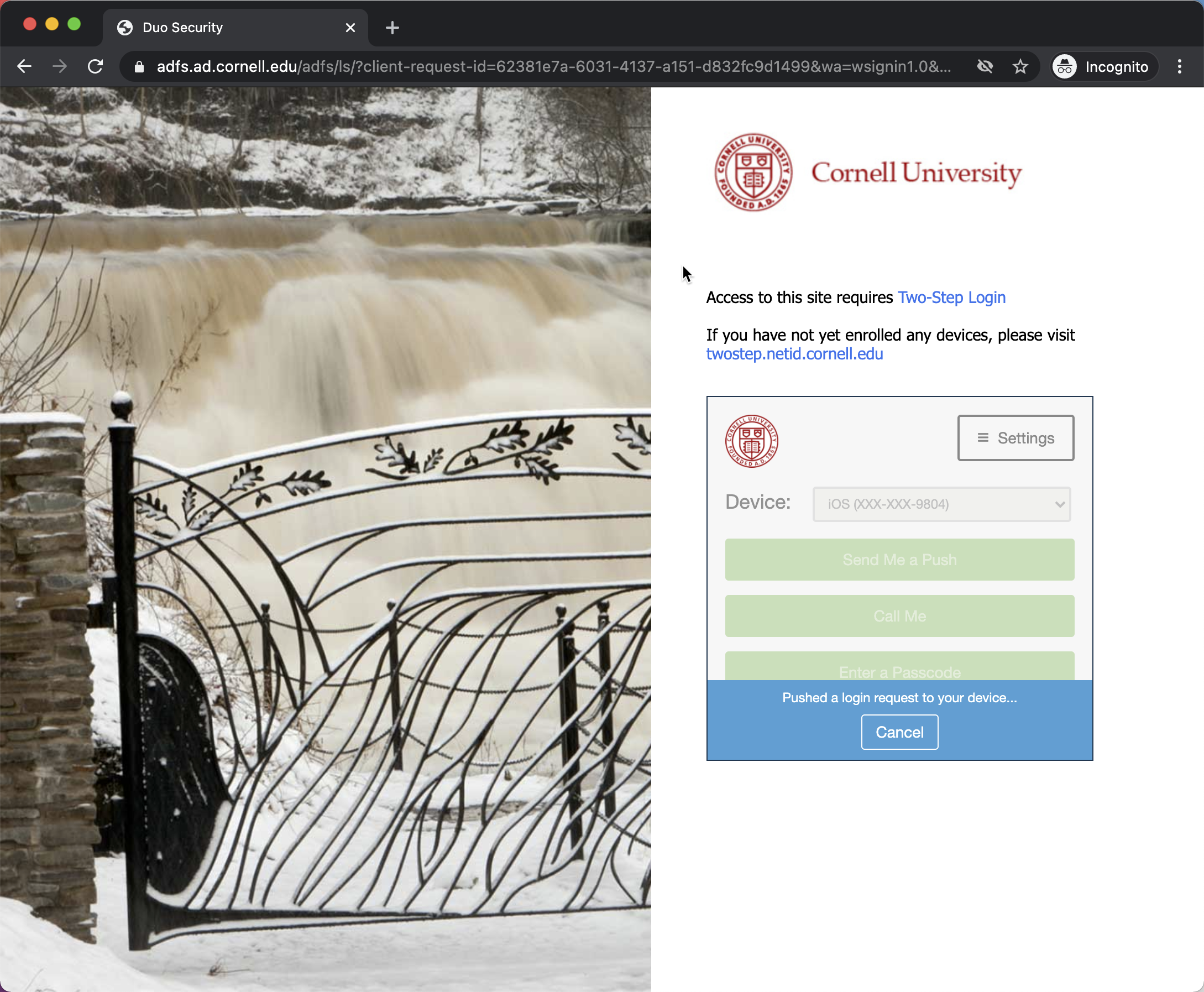
Complete the DUO 2-Factor authentication step: 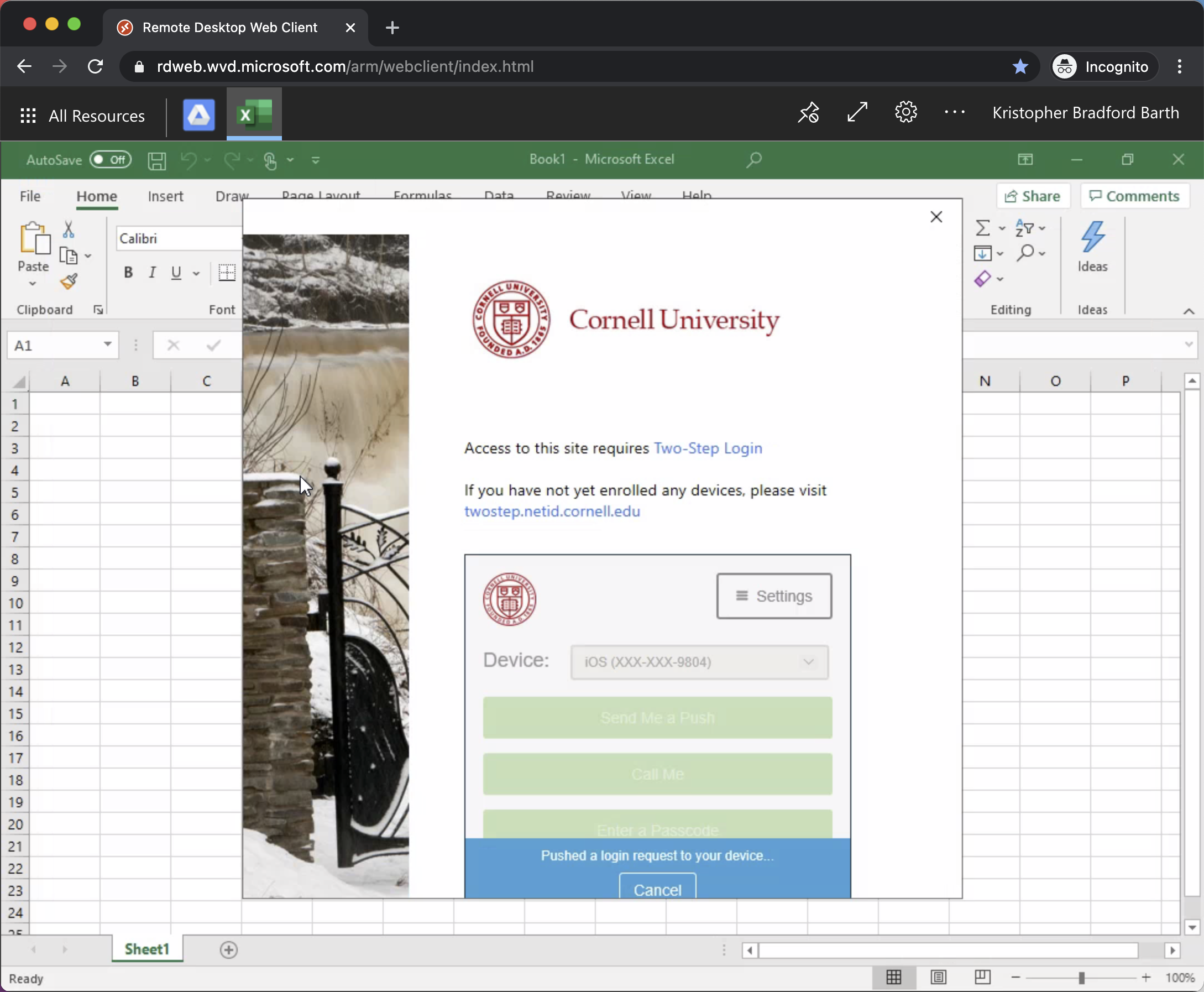
|
Launch @Risk again to complete the plug-in
Click the All Resources button at the top left of the window and click the '@RISK 7.6' Application:
- "@Risk" will run and ask if you want to share statistics, select yes or no
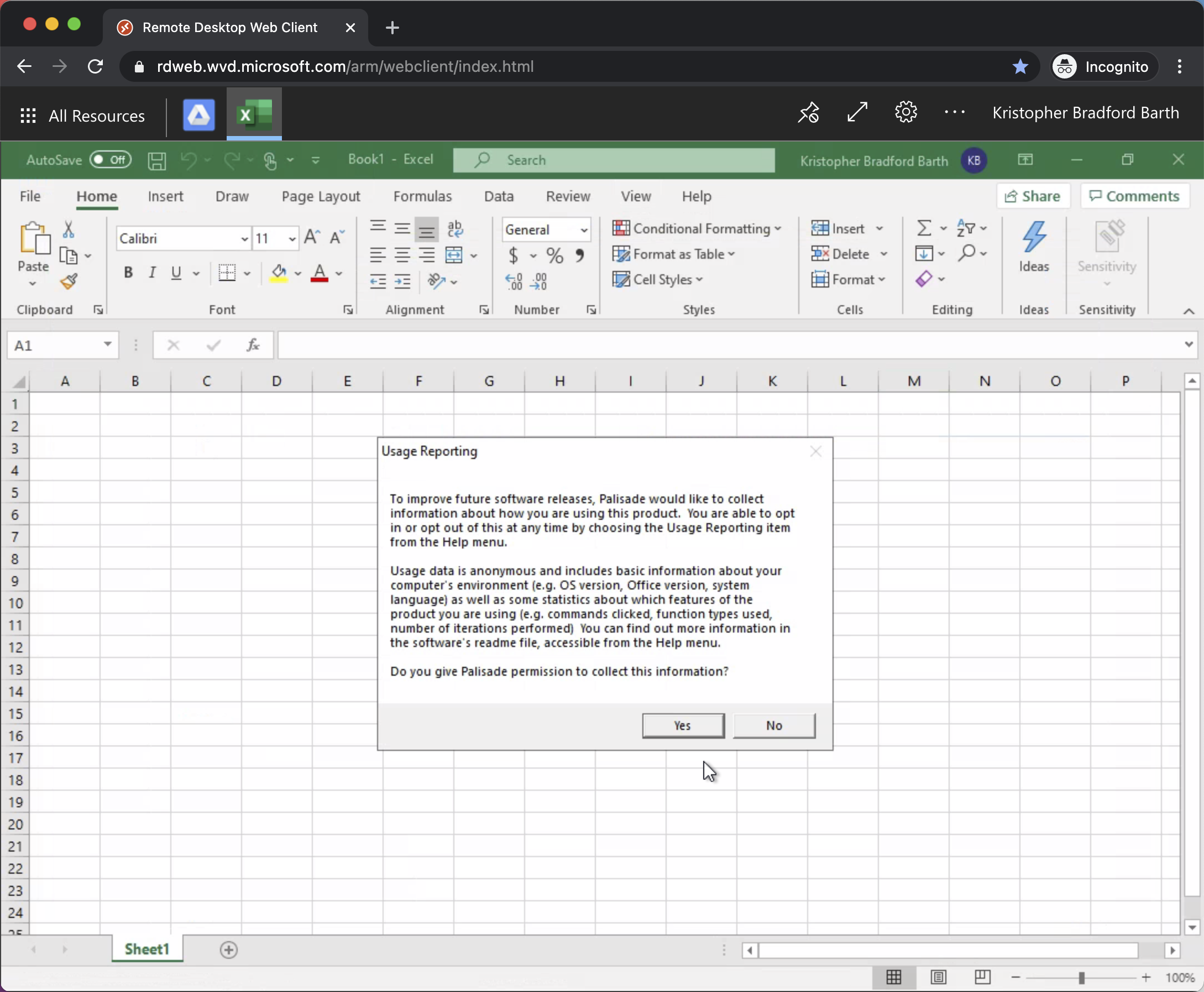
"@Risk" has now launched, chose and option from the splash screen or hit 'Close' 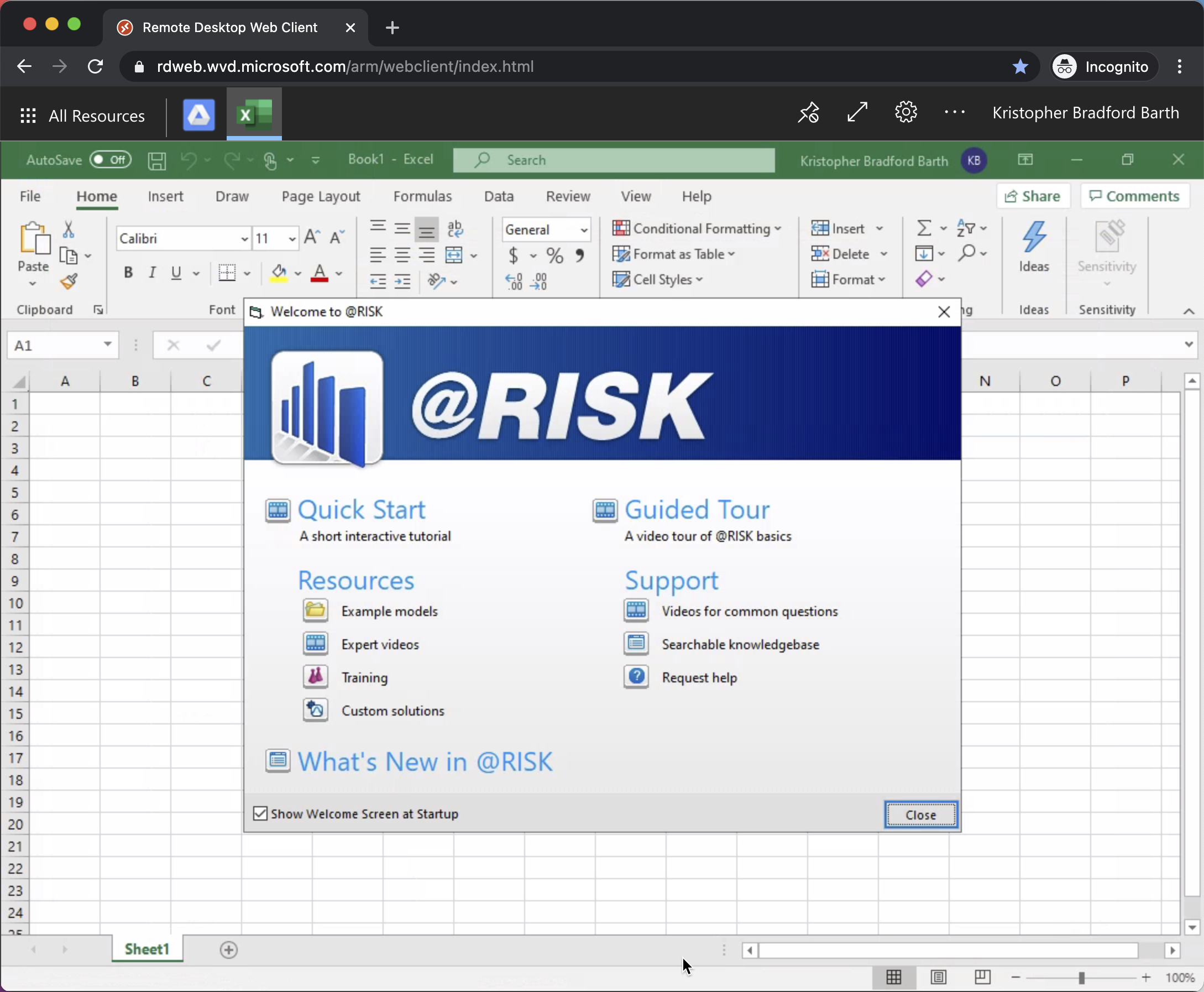
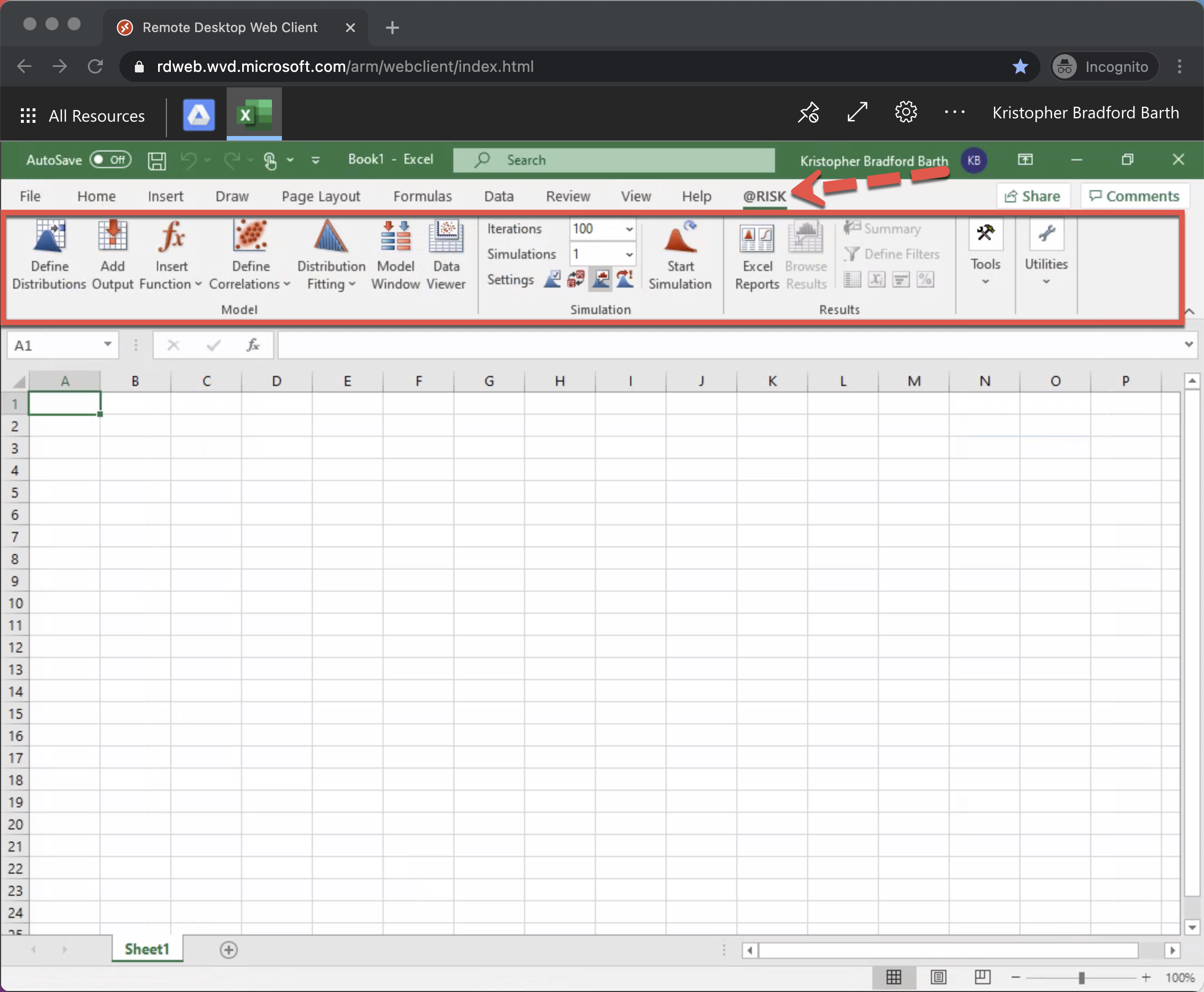
- You will notice "@RISK" is and its functions are now added to the Excel Ribbon:
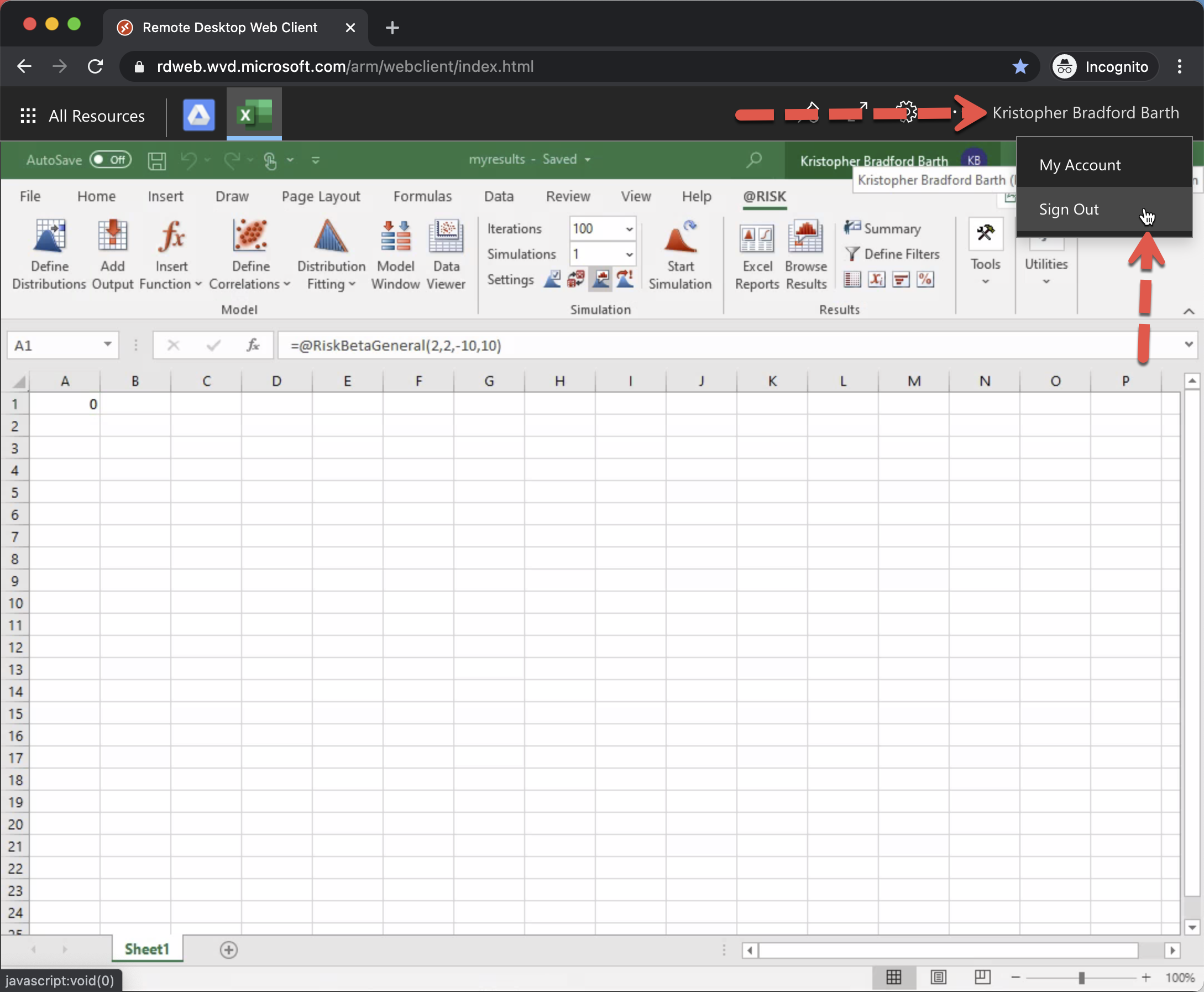
- Once this initial sign on process is complete, you can click your name in the top right corner and select sign out.
|