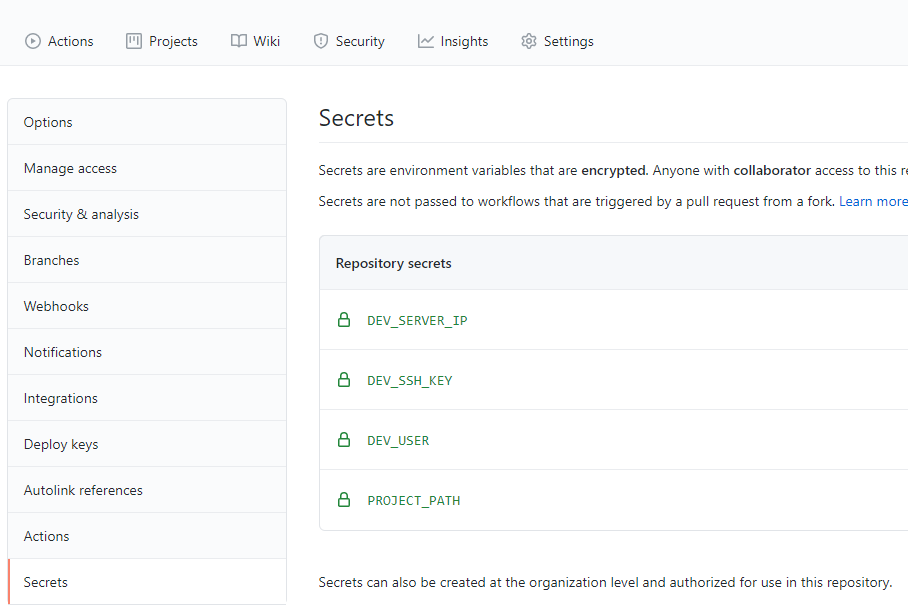
Before we take a look at the actual GitHub action we’re going to generate an SSH key:
ssh-keygen -m PEM -t rsa -b 4096 -C "you@your_mail.tld" |
Our SSH key is required to be in PEM format, hence the -m PEM flag.
Preparations — Copy SSH Key
To log into our machine using our SSH private key we need to add our public key to the machine’s authorized_keys.
We’ll do so using ssh-copy-id:
ssh-copy-id -i /path/to/your/key youruser@yourhost |
This will copy the public key of your key pair to the remote host and add it to its list of authorized_keys.
Or if you are already on on the server via terminal, you just append the new public key to the authorized_keys file.
ssh-copy-id -i /path/to/your/key youruser@yourhostcat <your_public_key_file> >> ~/.ssh/authorized_keys |
Note the double |
name: CI
on: [push, pull_request]
jobs:
  # test:
  #   ...
  deploy:
    name: "Deploy to staging"
    runs-on: ubuntu-latest
    if: github.event_name == 'push' && github.ref == 'refs/heads/master'
    # needs: test
    steps:
      - name: Configure SSH
        run: |
          mkdir -p ~/.ssh/
          echo "$SSH_KEY" > ~/.ssh/staging.key
          chmod 600 ~/.ssh/staging.key
          cat >>~/.ssh/config <<END
          Host staging
            HostName $SSH_HOST
            User $SSH_USER
            IdentityFile ~/.ssh/staging.key
            StrictHostKeyChecking no
          END
        env:
          SSH_USER: ${{ secrets.STAGING_SSH_USER }}
          SSH_KEY: ${{ secrets.STAGING_SSH_KEY }}
          SSH_HOST: ${{ secrets.STAGING_SSH_HOST }}
- name: Stop the server
        run: ssh staging 'sudo systemctl stop my-application'
- name: Check out the source
        run: ssh staging 'cd my-application && git fetch && git reset --hard origin/master'
- name: Start the server
        if: ${{ always() }}
        run: ssh staging 'sudo systemctl start my-application'
|
https://dev.to/s1hofmann/github-actions-ssh-deploy-setup-l7h
https://blog.benoitblanchon.fr/github-action-run-ssh-commands/