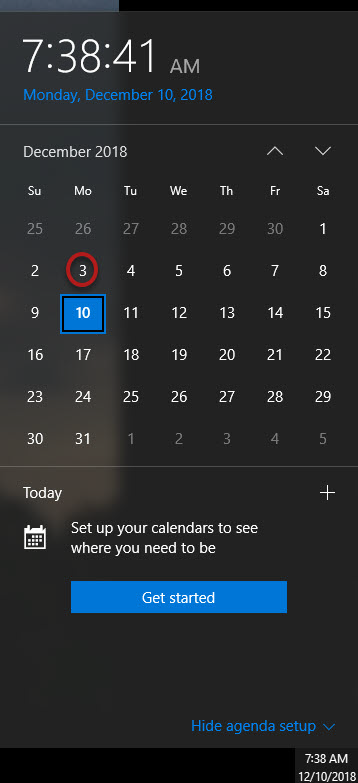
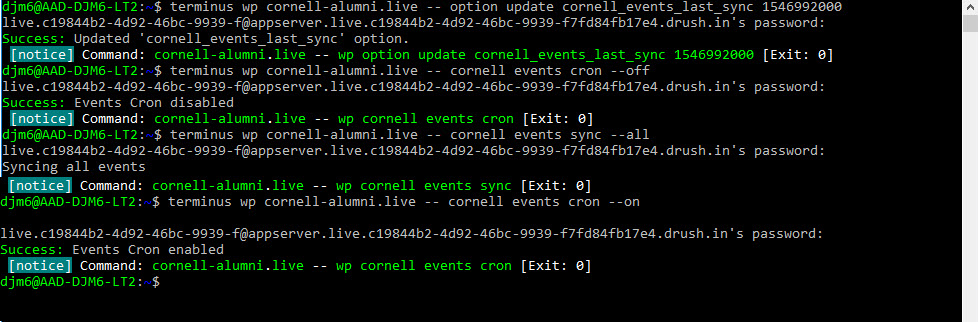
The password required is the one you entered when setting up Terminus
Run that command and the following 3 commands:
Turn the auto sync off: terminus wp cornell-alumni.live -- cornell events cron --off
Start the sync running: terminus wp cornell-alumni.live -- cornell events sync --all
Turn the auto sync on: terminus wp cornell-alumni.live -- cornell events cron --on
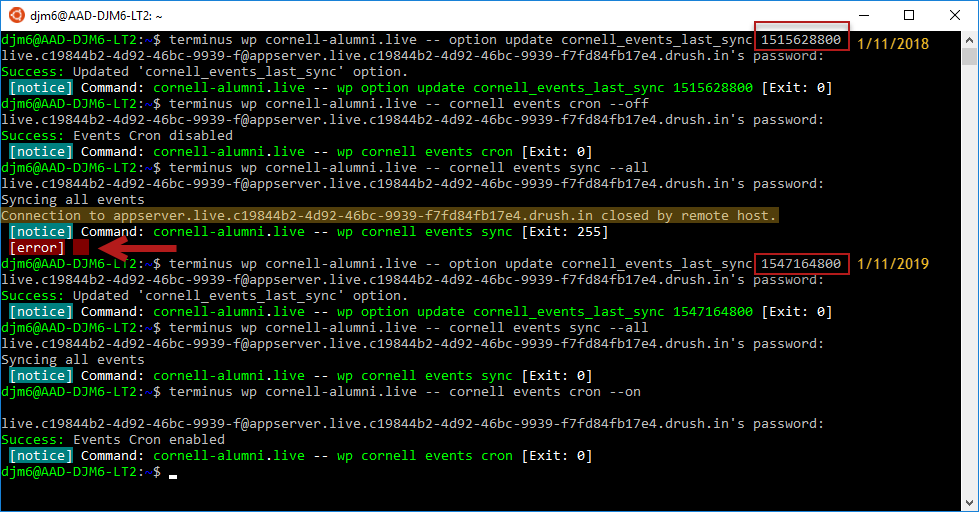
Most likely if you get an error it will be because the date entered was too far in the past, as is shown in the example below. If it error-ed out after you ran the
terminus wp cornell-alumni.live -- cornell events sync --all command, check your timestamp from the starting command using the converter. mentioned in step 1.
As you can see in this example the date of the timestamp is from 1 year in the past instead of 1 week.
Put the correct date in the converter (https://www.unixtimestamp.com/index.php)
Run the terminus wp cornell-alumni.live -- option update cornell_events_last_sync 1547164800 command line again.
Finish up by running the command (terminus wp cornell-alumni.live -- cornell events cron --on) to turn cron back on.