---------------------------------- Basic Information about the updates processor page ----------------------------------
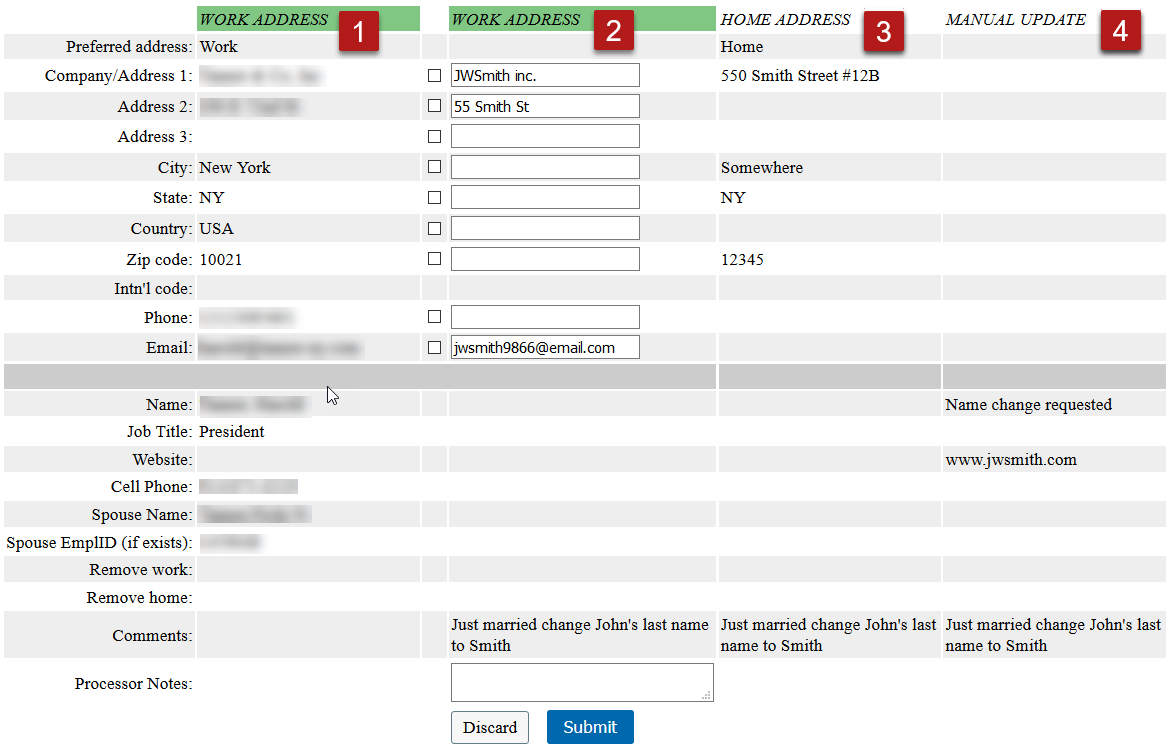
 The leftmost column always shows current alumni data
- Pulls data from the SPI to match changes (in this case "Work" data)
 The second column shows the first of the changes (active update)
- New changes (in this case "Work" data)
 The additional changes to the current record.
- New changes (in this case "Home" data)
- Column 1 will change to match changes to current alumni data.
 The final set of changes for this record (manual changes)
- Manual changes are changes that are made by the processor directly in PeopleSoft
Submit button will submit changes to the active part of the update.
Discard button is to discard the update (Work, Home, or Manual)
The work and home information is fed to unloadable reports.
---------------------------------- How to use the address update sections ----------------------------------
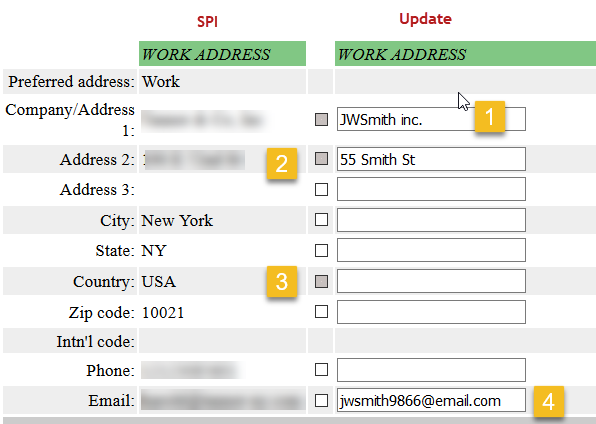
*This information is for both Work and Home address updates:
 Edit the change submitted – check the checkbox and edit the info in the update box.
- Example: JWSmith inc. should be JWSmith Inc.
 Approve the change as is – check the checkbox in front of the update box.
- Leave info without editing the update box.
 Remove a line of information – check the checkbox on that line.
- If blank nothing else needs to be done.
- If not blank, delete the info to transfer a blank update box.
 Dismiss a change – Do not check the checkbox in front of the change.
- Data will not update if you do not check the checkbox.
When done with this address update, select the Submit button at the bottom of the page.
- Submit button will submit changes to the active part of the update.
- Discard button is to discard the whole update (in this case the work address)
This will move on to the next update for the current record. If there is no more updates to the current record, it moves to the next record.
In both cases the checkbox is checked and disabled, this will change the preferred address to home or leave work as preferred and creates updates for preferred as well as the home/work address with all changes to be processed for both.
---------------------------------- How the preferred address changes work ----------------------------------



The preferred address updates are now upload-able instead of being changed manually by the processor.
- If there is already a preferred address, it will show in the SPI column.
- When changes are submitted to a preferred (example 1 or 2) address, the changes will automatically trigger a preferred address change.
- Where there is a preferred address shown the checkbox is checked and disabled (you are not able to un-check the box).
- Submitters now have the choice of "Other" for a preferred address. When a preferred address is neither home or work. They can choose other and are instructed to enter the address in the comments section. These will be in the manual update section.
Examples:
Shows that current preferred work is to be changed to home.
- If preferred address change has been requested, difference will show in the Update column.
- You must submit this form even if no other changes to the address are made.
Shows that current preferred is work and there is no change to the preference.
- Shows current preferred in SPI and Update columns with the checked disabled checkbox.
Shows that currently this alumni has no preferred address. – Process as normal.
---------------------------------- Manual changes section ----------------------------------
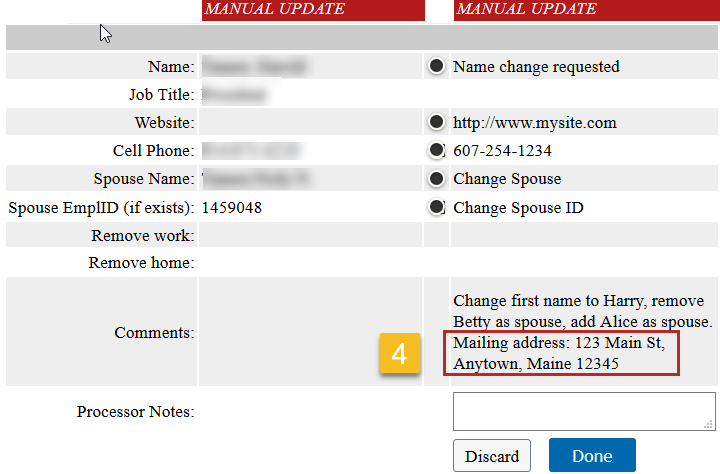
The “Manual Update” information is entered by the processors directly into PeopleSoft.
- Manual update items are the items that have no automated upload process.
- Preferred address is no longer a manual process unless it has been checked as "Other"
As changes are entered, use this page as a checklist:
- Check off the manual changes as the changes have been made in PeopleSoft.
- When all are checked off you will be able to select the "Done" button.
