- For anyone who may be new to the Inventory System
Step-by-step guide
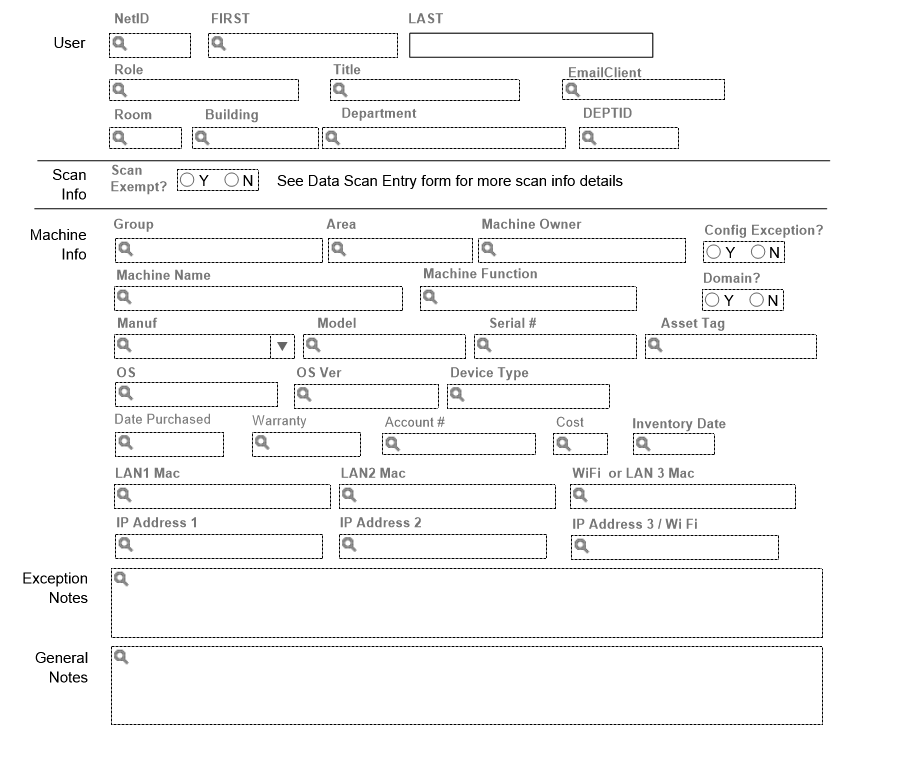
Here is what a blank Inventory page looks like:
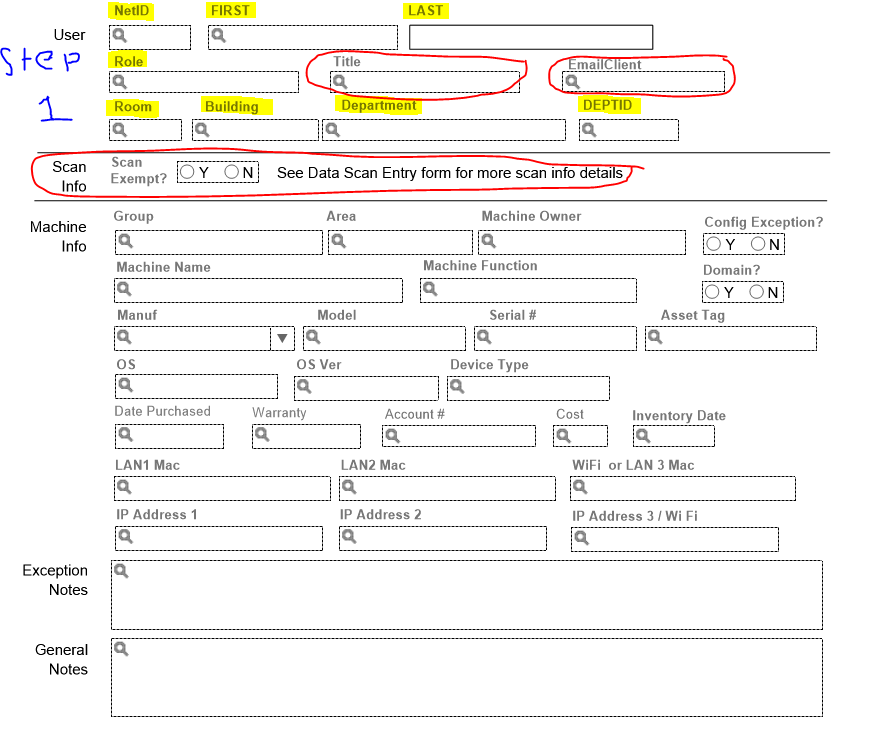
- the First Step will be to fill In the personal information of the person currently using the machine as well as the current location and department of the machine as shown in the highlighted areas below. the fields circled in red can be left blank for the most part as they are not that important. (Note: scan info will normally not be touched as it applies mostly to old Windows XP machines.)
- The second Step is to fill in specific information about the machine. Once again, fields that are generally not touched are circled in red.
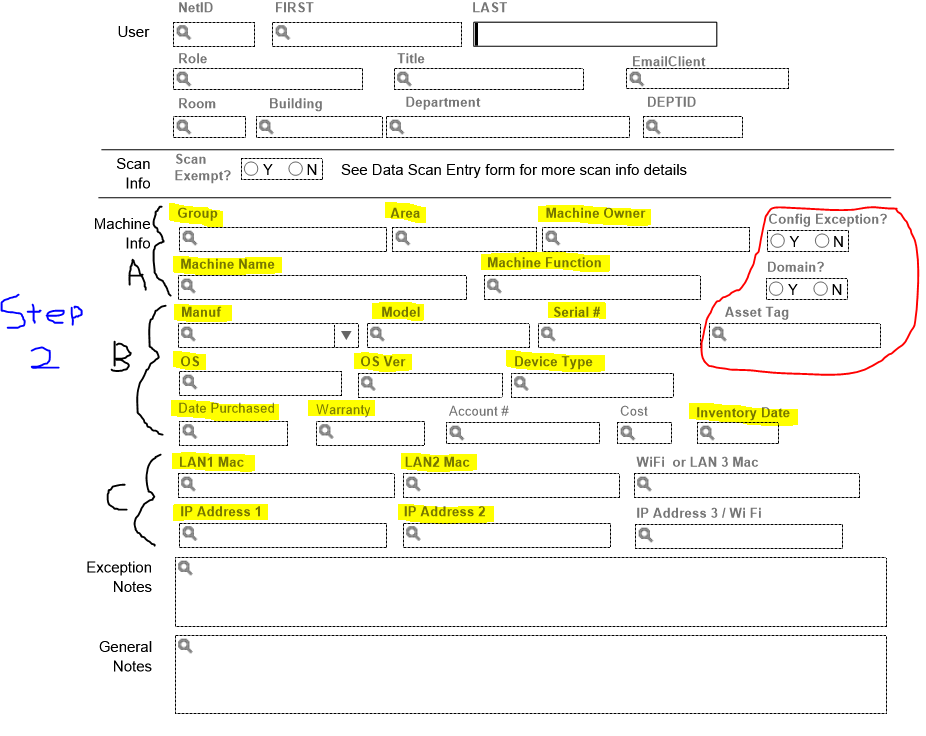
Part A: Is the first part of machine info that should be filled out. It includes:
he research group that the computer is part of
Area of the college that the computer is involved in ( Department use, Instruction, or Research.
The Machine Owner is the department that actually owns the machine and is usually Chemistry or Physics
The Machine Name is the Name of the machine and can usually be found on a label on top of the machine or in System properties
Machine Function is simply the current function that the machine is serving.
Part B: is essential information about the machine that includes:
- Manufacturer: The maker of the machine
- Model of the machine
- The machine serial Number
- For Dell computers this can be found by looking on the top of the computer, or by going into command prompt and typing this command: wmic bios get serialnumber
- for Apple computers the serial number can be found by clicking the apple on the finder bar and clicking "about this computer"
Part C: Essential network information about the machine- Mac and IP addresses: can be found by using the command ipconfig /all in command prompt.
| You may also want to use visual panels to communicate related information, tips or things users need to be aware of. |
Related articles
Related articles appear here based on the labels you select. Click to edit the macro and add or change labels.
