- Install VPN

- Connect to VPN

- Log in to VPN with the tutorial provided in Step 2
OR
Launch the secure mobility client on your computer by typing cuvpn.cuvpn.cornell.edu in the address bar
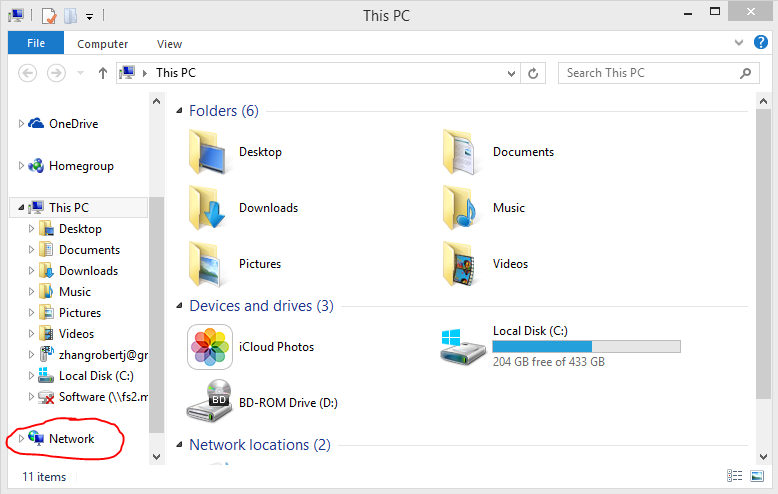
- Navigate to Network in the left bar of Windows Explorer and select Map Network Drive
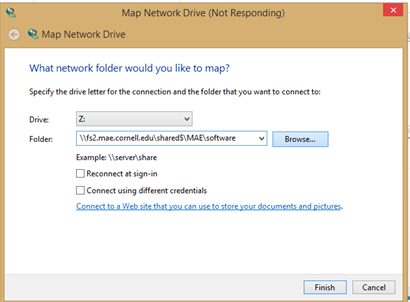
- Map a drive to the link: \\fs2.mae.cornell.edu/shared$/MAE/software
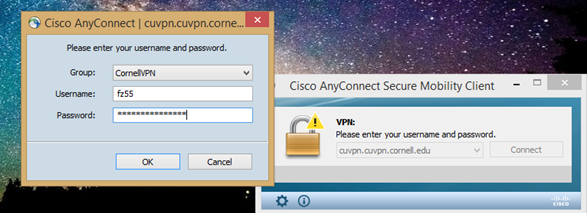
- Enter network credentials, which is your Cornell netID and password. Email Wendy Wakula if any log-in problems ensue: wjw26@cornell.edu
- Select the folder for ANSYS
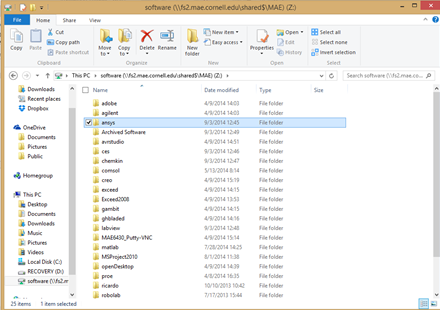
- Locate the ISO in ANSYS>V15
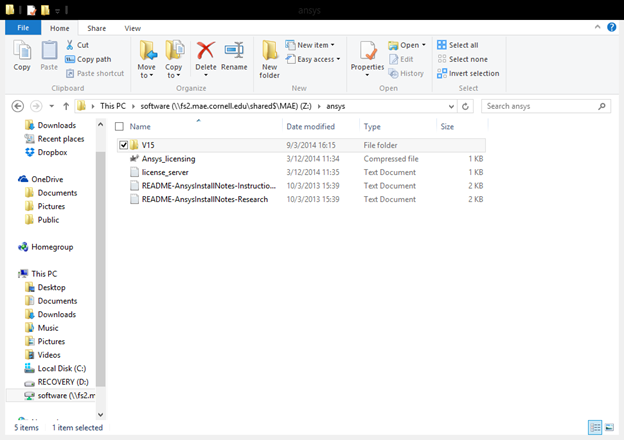
- Copy the two ISO files appropriate to your specific operating system onto a local place on your computer
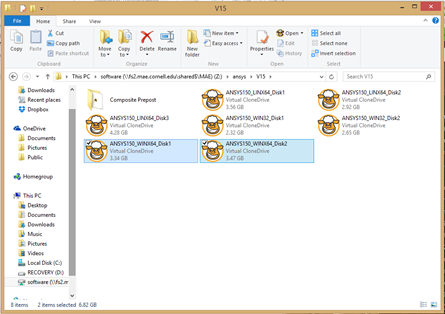
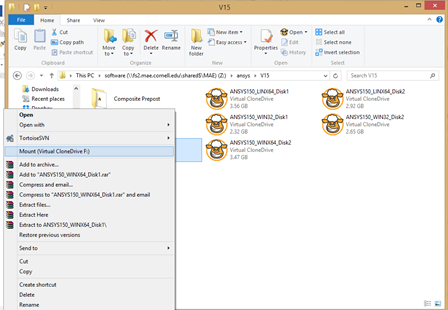
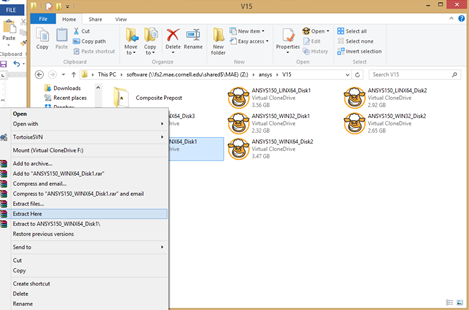
- You can access the files inside the ISO in two ways
- If you have Virtual Clone Drive, mount the ISO files
- If you have 7Zip, extract the ISO files
- Once the set-up menu loads, select 'Install ANSYS products'
- Run the setup according to the Wizard with the following exception:
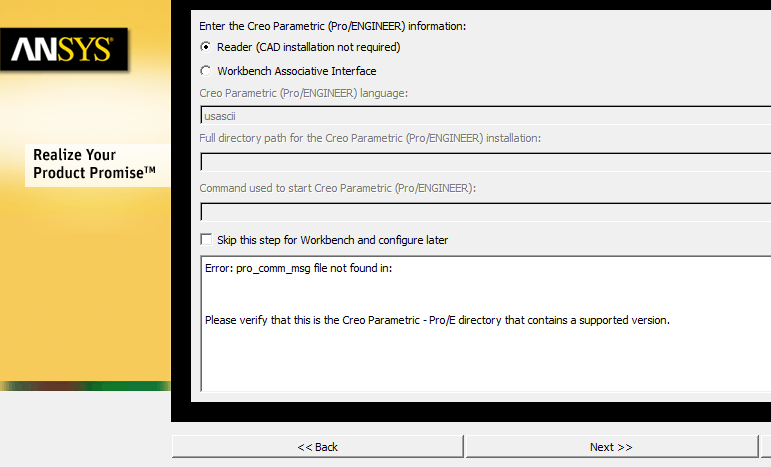
- Check the box 'Skip this step for Workbench and Configure Later' when asked to enter information about various other programs
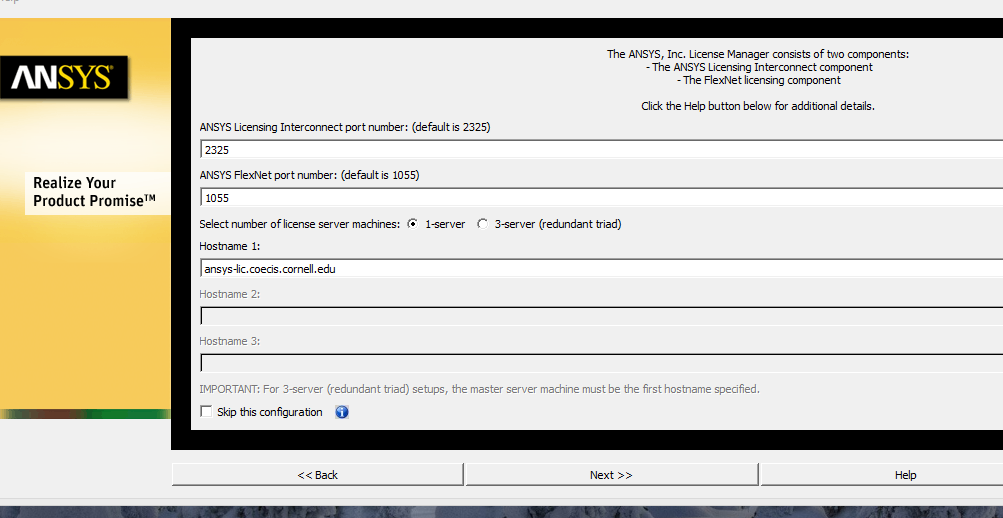
- When you reach the licensing stage, enter into 'Hostname 1' bar: ansys-lic.coeis.cornell.edu
- Return to the set-up menu and select 'Install License Manager'
IF YOU HAVE ANY QUESTIONS: EMAIL itcoeis-help@cornell.edu