|
Author: John Singleton and Rajesh Bhaskaran, Cornell University Problem Specification |
This page of this tutorial is currently under construction. Please check back soon. |
|
Click here for the FLUENT 6.3 version. |
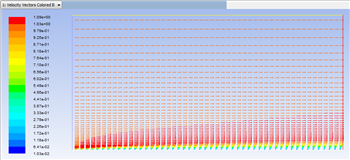
One can plot vectors in the entire domain, or on selected surfaces. Here, the vectors will be plotted for the entire domain. First, click on Graphics & Animations . Next, double click on Vectors which is located under Graphics. Then, click on Display in the Vectors menu. You should obtain, the following output.
https://confluence.cornell.edu/download/attachments/118771111/VectPlot_Full.png |
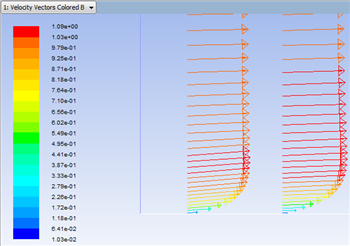
https://confluence.cornell.edu/download/attachments/118771111/VectPlot2_Full.png |
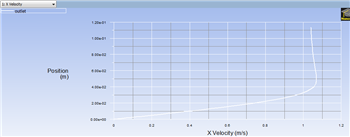
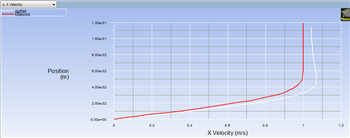
In this section we will first plot the variation of the x component of the velocity along the outlet. Then we will plot the Blasius solution and to see how the numerical solution compares. In order to start the process (Click) Results > Plots > XY Plot... > Set Up.. as shown below.
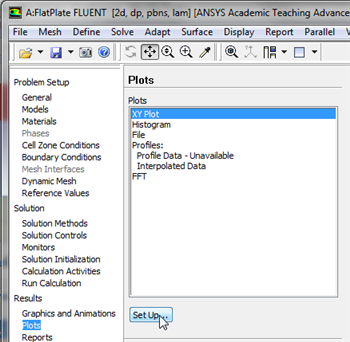
https://confluence.cornell.edu/download/attachments/118771111/xyplotsetup_Full.png |
0 and Y is set to 1. This tells FLUENT to plot the y-coordinate value on the ordinate of the graph. Next, select Velocity... for the first box underneath X Axis Function and select X Velocity for the second box. Please note that X Axis Function and Y Axis Function describe the x and y axes of the graph, which should not be confused with the x and y directions of the geometry. Finally, select outlet under Surfaces since we are plotting the x component of the velocity along the outlet. This finishes setting up the plotting parameters. Your Solution XY Plot menu should look exactly the same as the following image.
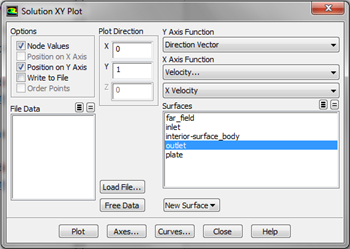
https://confluence.cornell.edu/download/attachments/118771111/SolXY1_Full.png |
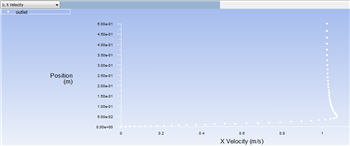
https://confluence.cornell.edu/download/attachments/118771111/XVelPlot1_Full.png |
2 and select nothing for Symbol, as shown below.
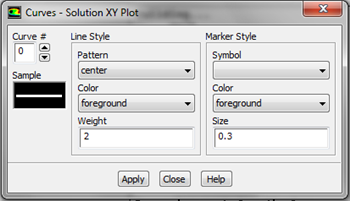
https://confluence.cornell.edu/download/attachments/118771111/CurveMen_Full.png |
0 and set Maximum to 1.2. Your Axes - Solution XY Plot menu, should look exactly like the image below.
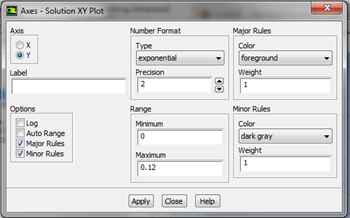
https://confluence.cornell.edu/download/attachments/118771111/AxesMen1_Full.png |
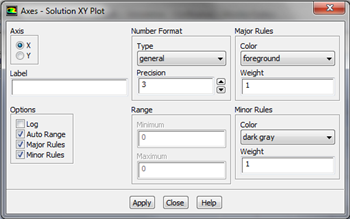
https://confluence.cornell.edu/download/attachments/118771111/Axes2_Full.png |
https://confluence.cornell.edu/download/attachments/118771111/Plot5_Full.png |
https://confluence.cornell.edu/download/attachments/118771111/Plot6_Full.png |
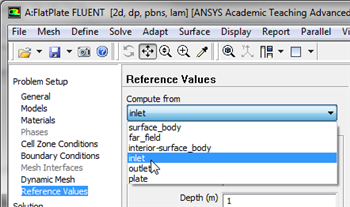
In this section we will create contour plots for the pressure coefficients. Before we begin, we must first set the reference values for velocity. In order to do so, first click on Reference Values then set Compute from to inlet, as shown below.
https://confluence.cornell.edu/download/attachments/118771111/CompInlet_Full.png |
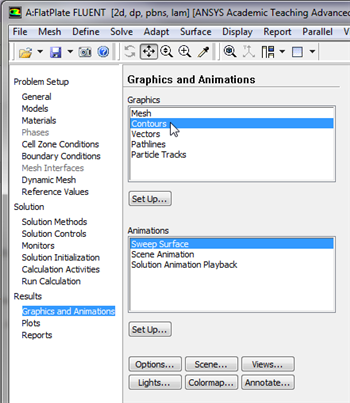
Next, click on Graphics and Animations, then double click on Contours, as shown below.
https://confluence.cornell.edu/download/attachments/118771111/ContPlot_Full.png |
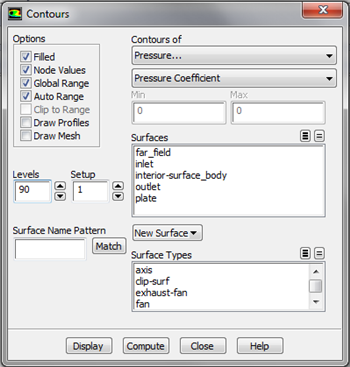
https://confluence.cornell.edu/download/attachments/118771111/Contou_Full.png |
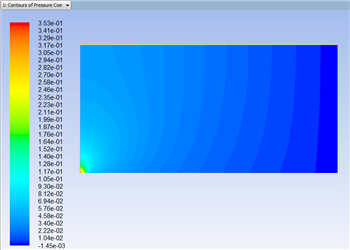
https://confluence.cornell.edu/download/attachments/118771111/ContP1_Full.png |
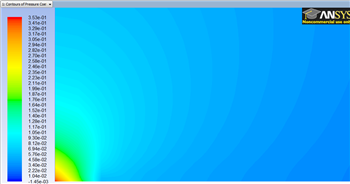
https://confluence.cornell.edu/download/attachments/118771111/ContZoom_Full.png |
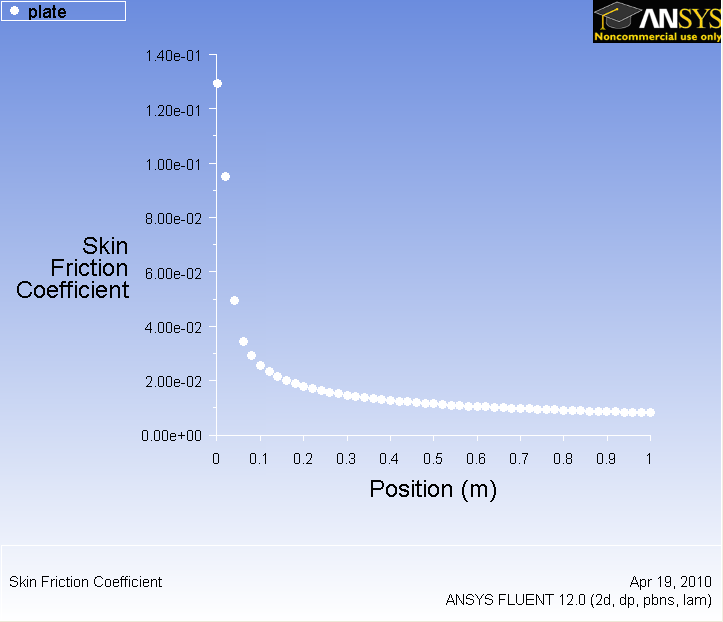
Here, the skin friction coefficient will be plotted as a function of distance along the plate.
Results > Plots > XY Plot
Change Pressure to Wall Fluxes. Then, change Wall Shear Stress to Skin Friction Coefficient. Under Surfaces, select plate.
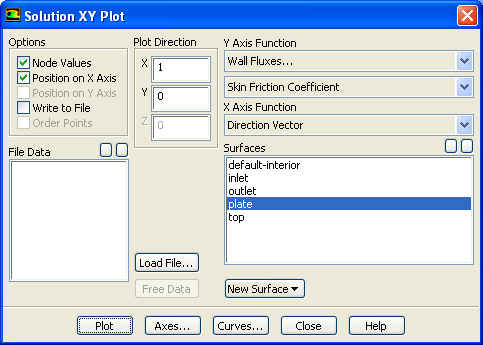
Click Plot.
https://confluence.cornell.edu/download/attachments/118771111/step6_005.png?version=1 |
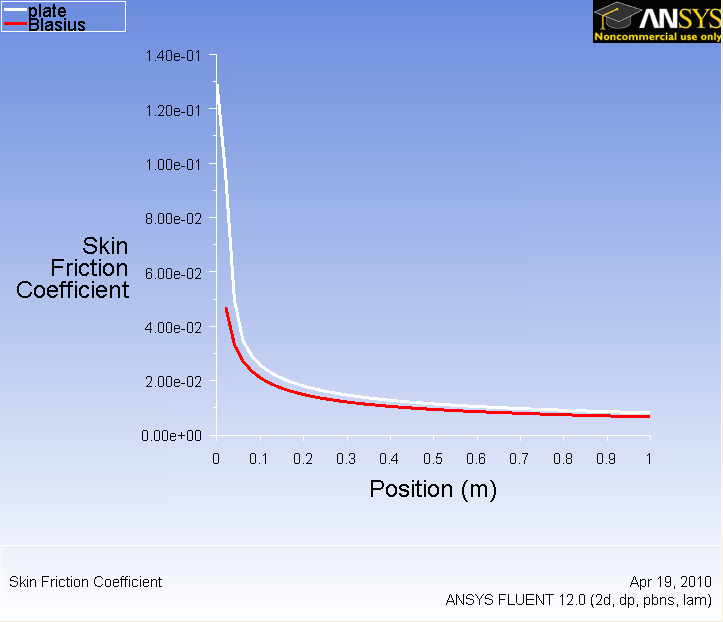
Now, compare your solution to the with the Blasius solution's skin friction by loading the file and then plotting it with your solution. (Download file here)
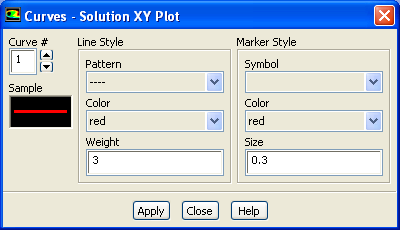
Also, you can change the symbol into lines by going to Curves... and click on the corresponding pattern that you like. Increase the Weight to 3 for readability. Both results should be fairly similar.
https://confluence.cornell.edu/download/attachments/118771111/step6_007.png?version=1 |
Now, we will obtain the drag on the plate.
Go to Step 7: Verification & Validation
See and rate the complete Learning Module
Go to all FLUENT Learning Modules