Scope: Instructions for creating a Finding Aid in the Bulk Importer spreadsheet. For all archival processing staff.
Contact: Fredrika Louise Loew Eirva Diamessis
Unit: ATS/RMC
Date last updated: March 2025
Date of next review:
Contents:
ALWAYS download a fresh copy of the Bulk Importer (download below) to ensure you have the latest version, formatted for our needs.
Alternatively, you can download the canned version directly from ASpace.
Required fields
EAD ID
This is a collection ID number determined by a collection’s number
- For Manuscript collections use the following formula:
- RMM + 0 + collection number
- For University Archives collections use the following formula:
- RMA + 0 + the last four digits of the collection number.
- Example:
call number: 11-5-1565 - EAD ID: RMA01565
Hierarchical Relationship:
This will be a number: 1 for the highest level, 2 for the next level, etc. In general, a Series is level 1, a Subseries is level 2, and the file (or item) is level 3.
Or
1 | Series |
2 | Sub-Series |
3 | File |
4 | Item |
Description Level:
Series
- Series are groups of similar materials. It is possible that a collection is a box list with no series, in which case all items will be at the hierarchical level 1.
- For formatting and for series order, see 8.1 and 8.2
- Always include the date range for entire series in the dates field.
Subseries (if necessary)
- Sometimes, a Series can be broken into subseries. These will be at the hierarchical level 2.
- Always include date range for entire subseries in the dates field.
File (folder) level description
1 | Series |
2 | Sub-Series |
3 | File |
Item level description (rare)
1 | Series |
2 | Sub-Series |
3 | File |
4 | Item |
Title
- Use sentence case. If the list came from the donor in title case, leave as is.
- If the processing staff has created the majority of the titles in the collection, make a processing note at the collection level.
- Keep titles brief. If need be, use the scope and content note to clarify.
- If the title on the folder does not match the contents of the folder, you may rename it. If you feel it would be helpful to the researcher, you can write the original title in the scope and content note.
- Avoid abbreviations or acronyms even if they appear on the folder.
- Correct misspellings if you see them.
- Avoid the word “Miscellaneous,” do your best to describe the kinds of material in the folder.
Series is the general title of a group of documents. Sub-series is the relevant sub-group.
For Series, Sub-series, and any further sub-sub-series, use Title case. For folder or item titles, use sentence case.
- Always include date range for the entire series in the date fields.
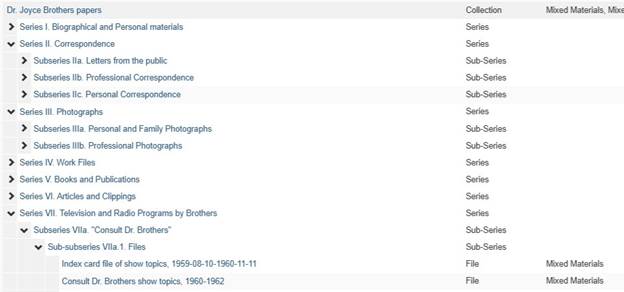
- For the titles of the series, numbering follows the Roman numbering I. II., II., IV. For the titles of the subseries, we follow a combination of Roman and Latin.
- Example: Series III. Research Material, or IIIb. Programs, Consulting, and Other Collaborations
Examples of numbering series and subseries
Series I. Title of series 1
Subseries Ia. Title of subseries 1
Subseries Ib. Title of Subseries 2
Subseries Ic. Title of Subseries 3
Sub-subseries Ic.1. Title of Sub-subseries 1
Series II. Title of series 2
Series III. Title of series 3
General rules about titles at folder level (folders):
See separate page
Series Order
The number, order, and name of Series varies widely from collection to collection. We try to maintain consistency across collections whenever possible, and have created lists of the most common Series in the standard order. If a series below is not represented in the collection, it is not used.
Faculty papers
- Biographical material
- Correspondence
- Research files or Subject files
- Teaching materials and coursework
- Presentations/Lectures/Conferences/Workshops
- Publications
- Publications by Others
- Departmental or Administrative Files
- Photographs [only if the photographs do not fit in another series]
- Memorabilia/ephemera [only if the objects do not fit in another series]
- AV material [only if the AV material does not fit in another series
Department records
- Organization history
- Administrative files [day to day operations of the department. Includes correspondence]
- Minutes [make as a series if it is a substantial amount. Add as a subseries if small amount]
- Publications/annual report
- Directors/chairs files
- Course/teaching
- Correspondence
- Events/publicity
- Photographs [only if the photographs do not fit in another series]
- Memorabilia/ephemera [only if the objects do not fit in another series]
- AV material [only if the AV material does not fit in another series]
Family/Personal papers
- Biographical [or Personal] material
- Correspondence
- General Documents
- Photographs [only if the photographs do not fit in another series]
- Memorabilia/ephemera [only if the objects do not fit in another series]
- AV material [only if the AV material does not fit in another series]
*Note: Family Papers frequently have separate series for different family members.
Container Instance Type
The standard is “Mixed Materials”
Top Container Type
From the drop down, choose the top container. Usually this is a box or mapcase folder.
Top Container indicator
The number of the top container.
Component Unique Identifier
- The Unit ID goes here– V-#, F-#, MU-#, etc.
- Write the format (i.e. U-matic, mini-DV, VHS) in the form/genre field
Date From/To Field
- Dates always reflect the dates represented by the materials in the folder, not dates that they refer to. For instance, if you have a reproduction of a diary, the date should reflect the date of the reproduction, not the original. The original diary date can be reflected in the title.
- If items within a folder are undated, but are assumed to fall within the range of the dated material, do not add "undated" to the date span. For example, if a folder contains items from 1930-1970, and an item is assumed to be from the 1950s or 1960s, do not add undated to the date range.
- Correct: enter 2016-07-22 for July 22, 2016.
- For year and month enter: 2016-07
- For a season, i.e. Summer, 2016, enter 2016 in the date from field and “Summer, 2016” in the Expression Field.
- If contents are undated, add “Undated” in the Expression Field
- If the contents were never checked and the dates are unknown, add "Date unknown" to the Expression Field.
- If dates are approximate, select "approximate" from the Date Certainty menu to indicate circa
- Select “Bulk, Single, or Inclusive” from drop down menu for “Date Type”
- If there are bulk dates for a folder (i.e. 1967-1969; 1978-1980, 1989) than put the entire date range in the Date To and Date From fields (i.e. Date From: 1967 - Date To: 1989), and select “Bulk” from the Date Type drop down.
- If there is a very odd outlier you can add a column for expression and reflect that there. For instance if the contents of the folder are from 1901-1990 but there is only one item from 1901 and the rest of the material is from 1989-1990, then enter 1901 in the Date From, 1990 in the Date To field, and in the expression write “1901, 1989-1990”
Scope and Content field (i.e. Intellectual Description)
- Do not overuse this field.
- This is an open field. Use it to describe the contents more fully or call attention to something in the folder. If the folder is “Correspondence 1857-1865” and you see there is a letter from Lincoln, you can write that here as “Includes a letter from Lincoln to Cornell, dated March 2, 1862”
- For some collections the scope and content note can be used to better describe contents where a lot of information is available about an object.
- If you wish this information to be separated into different lines in the finding aid, you must enter each in a separate Scope and Content Notes column.
Other fields as needed
Restrictions Apply field
- Select “True” if restrictions apply, otherwise leave blank.
Processing note field
- Can add information about the arrangement of a file or series or any information that would be relevant to researchers (such as “all folder titles were supplied by the Archivist”)
- Example: Arranged chronologically and then by last name of correspondent.
Dimensions (Almost never used)
- Describes the SIZE of an object.
- Useful for oversized items or artwork.
- Describes WHAT the object is
- Use AAT or LOC for these.
- Example: Posters, videocassettes
Physical Description
- Describes STATE, material, etc.
- Example: Content is very fragile
Other Notes
See Common note types in ASpace
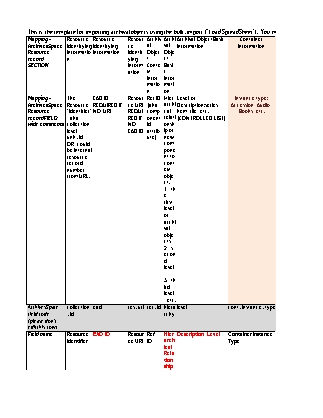
Download Bulk Importer here:

 Katerina Dimitriadou-Shuster, last updated on Mar 13, 2025
6 minute read
Katerina Dimitriadou-Shuster, last updated on Mar 13, 2025
6 minute read
