Versions Compared

Key

  • This line was added.
  • This line was removed.
  • Formatting was changed.

Scope: This document provides guidelines for Ordering staff to process POOF2 orders and send items ordered each day

Contact:   Masayo Uchiyama

Unit: Ordering

Date last updated: 3 4/269/20252026

Date of next review: March 2026 
2027


Download Open Cyberduck and download print order marc files
Open from Cyberduck

Create purchase order in Data Import App

and upload files
Open FOLIO Orders App to search PO

Send PO via EDIFACT for Harrass-e

Create CSV file or Print PO for non-EDIFACT vendors
Send orders to each vendor via email with CSV file or print PO as PDF

Review order details, Print PO or create CSV in Orders App

Send printed orders to a vendor by email with PDF or CSV attachment

Harrassowitz (code: Harrass-e) orders get sent via EDIFACT

A. Open  A. In Cyberduck, download marc files of print orders submitted through Oasis Ally and POOF previous work day. which are sent via POOF2 in previous day

  1. Double click each file to download. Files get sent to your download folder.
  2. Use MarcEdit to update order marc record details (vendor code, location, fund code, etc.)  as as needed.
  3. Compile file into marc and renameto save changes. 

B. Use Lehigh App to create PO in FOLIO. https://folio-order-import-dev.aws-ecs.library.cornell.edu/order-import-poc/import  (when you remote, use https://folio-order-import-dev.aws-ecs.internal.library.cornell.edu/order-import-poc/import)

  1. Choose a file and send request, wait for results (PO, POL, Title, number of holdings, HRID number, ISBN number, series title, selector’s notes for LTS) Carefully review results.
  2. If there is a series title, search in Inventory app to verify it is not a part of on-going orders.
  3. If more than one holding in results, click the title to go to the inventory app. Verify it is not a duplicate order. Unless selector instructed as intentional duplicate.
  4. Write down PO and number of PO Lines in memo pad as your record.

NOTES: Lehigh app gives you an error message without any results if there is no sufficient fund. Search new PO in Orders app, and you will find pending PO created by Lehigh app. This pending PO can be deleted. 
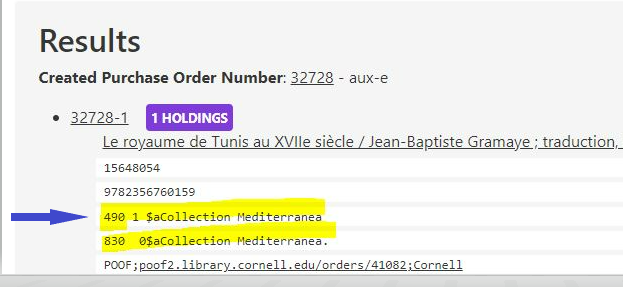
Image Removed

Create PO in Date Import App

  1. Choose order files and select appropriate job profile for firm orders. 
  2. Carefully review each PO Line. Check duplicate titles, standing order if a record has a series title.


C. Do a compound search in Orders App for current day’s firm orders created by Lehigh App then create CSV file for EDI vendors.   Data Import

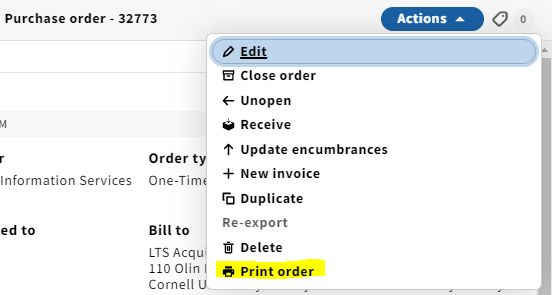
  1. Print order. Click action, select "Print Order", save as PDF.
  2. For Yankee
  3. Compare the information for each PO number displayed in FOLIO search result and PO number in your note pad.
  4. Non-EDIFACT vendors
  5. , create CSV file
  6. in Orders App
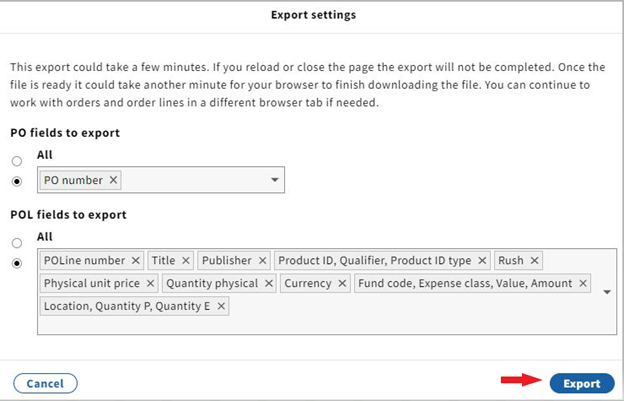
  7. . Click action button on right hand corner of middle pane, and select Export results (CSV).
  8. When you click Export results (CSV), Export settings window pops up. We need PO number from PO field.
  9. POLine
  10. PO Line number, Title, Publisher, Product ID (ISBN),
  11. Rush, Physical unit
  12. Estimated price, Quantity physical, Currency, Fund code
  13. &
  14. , Location and instructions to vendor from POL fields to export. Click Export once selection is done.
  15. Alternatively, you can print order in PDF format. Click action in right hand corner of right pane, select Print order. Save as PDF and use PO number for the file name.
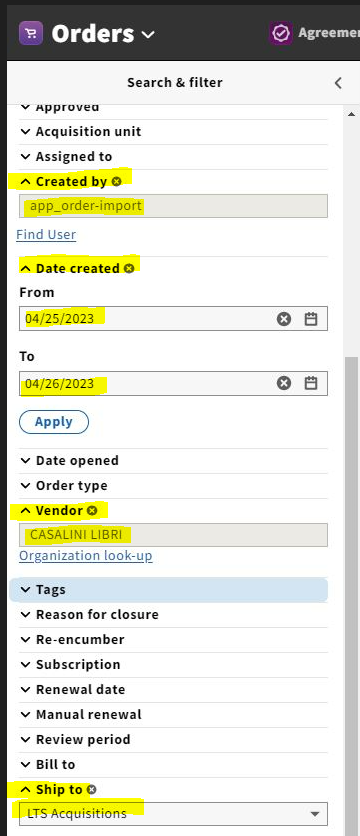
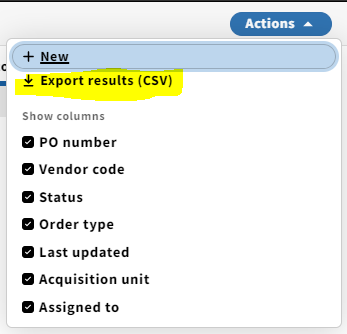
Image Removed

Image Removed

Image RemovedImage Removed

  1. For Yankee orders, GOBI API is an alternative workflow. Skip step B and place firm order directly in GOBI. 
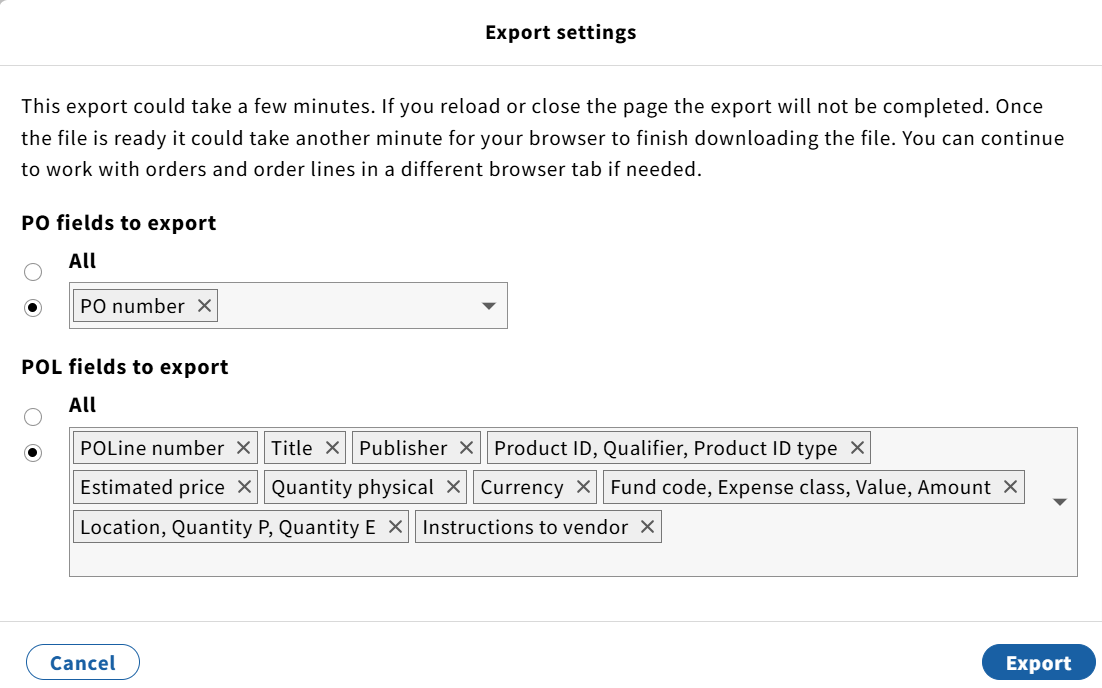

Image Added


D. Send printed orders to a vendor by email with PDF or CSV D. Examine CSV files and cleanup unwanted information and save. Send PO by an email to each vendor with CSV file as attachment. For printed PO, send by an email to each vendor with PDF as attachment.

NOTES: Some vendors send us order confirmation/acknowledgement and they should be filed in each vendor’s folder of print mailbox for our record.
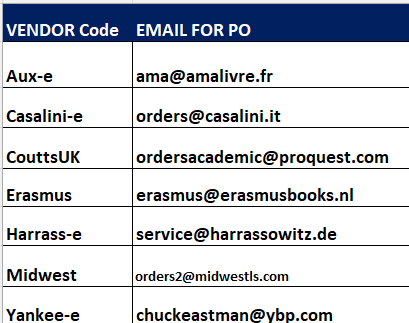
Image Removed

notifications. Email can be saved in print ordering mailbox.
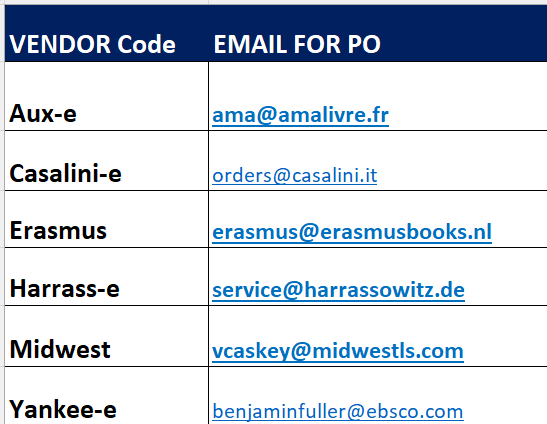


Image Added

E. Harrassowitz orders get sent via EDIFACT

  1. In Data Import, select job profile name 'Harrassowitz firm orders' to create purchase order.
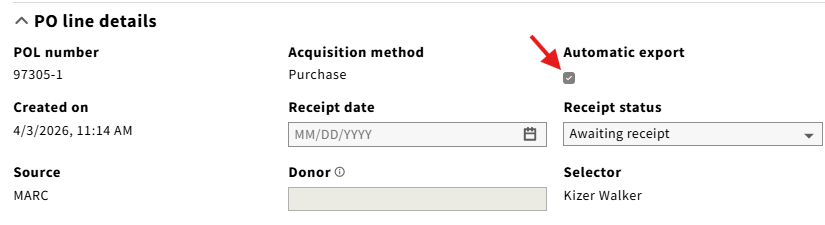
  2. Review each PO line and confirm the box of 'Automatic export' is checked in PO line details.
  3. Orders get

E. Send CouttsUK and Harrass-e PO numbers via EDIFACT
  1.  Go to action, select 'Unopen'.
  2.  Go to action, edit then check re-encumber box and save & close.
  3.  Select each PO Line. Action edit.
  4.  In PO line details, check 'Automatic export' box.
  5.  In vendor, enter notes in 'Instructions to vendor' filed if needed. (notes example: This ed, v.1 only, intentional duplicate)
  6.  Repeat step 4-5 on all PO lines.
  7.  Go back to PO and action, select 'Open'.
  8.  EDIFACT vendor PO gets sent automatically at 5:00 PM.
  9. Order acknowledgement email is sent by the vendor.

Image Added