*** This version of Confluence is for testing only and contains a copy of content from June 29th 2026. No changes will be preserved. ***

Scope: This document outlines the process that Library Technical Services serials staff follow when closing out a serial record due to a cancellation.
Contact: Joanna Cerro
Unit: Serials Management
Date last updated: 2/17/2022
Date of next review: February 2023
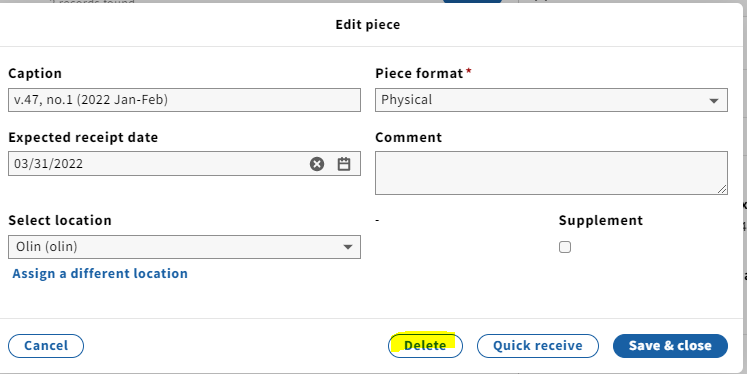
1. In the Receiving app record of the cancelled serial, delete all pieces populating the Expected field by clicking each individual piece (if we know we won't be receiving the issues) and selecting Delete.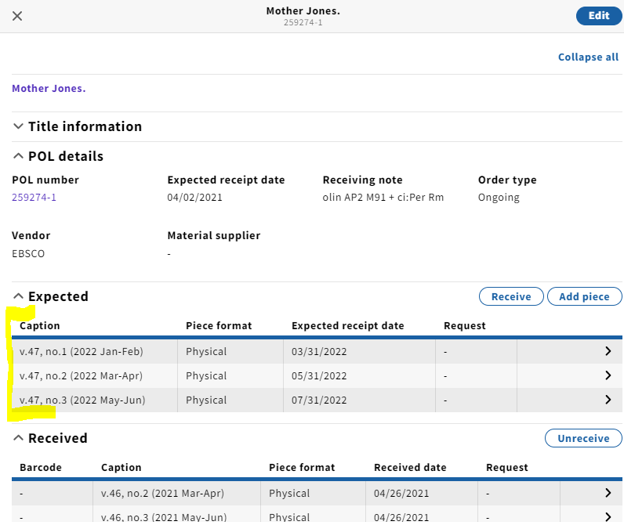
2. Open the Instance record in the Inventory app by clicking on the title at the top of the Receiving record, which is a link. You'll want to open the link in a new tab so you can easily navigate back and forth between Receiving and Inventory.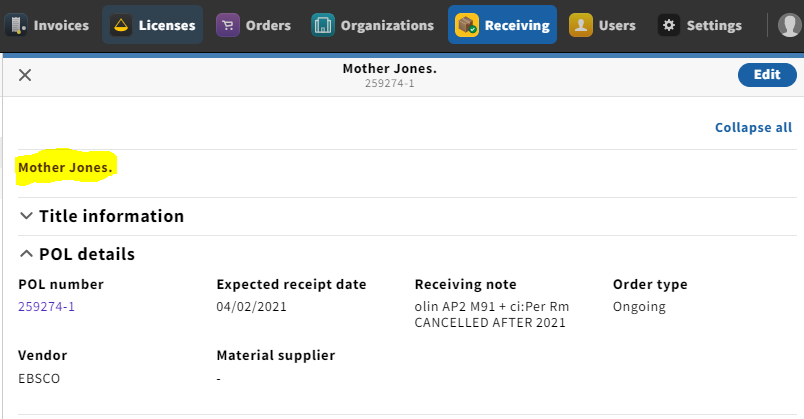
...
7. Scroll down to Acquisition and update Receipt status to Not currently received for a cancelled subscription.
(Note that for ceased titles, you'll want to update the Receipt status to Received and complete or ceased).
8. Click Save & close at the bottom of the screen when done.
...
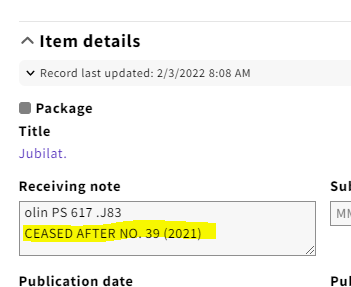
13. You'll want to indicate that the ongoing order has been cancelled after a given year in the Receiving note field. 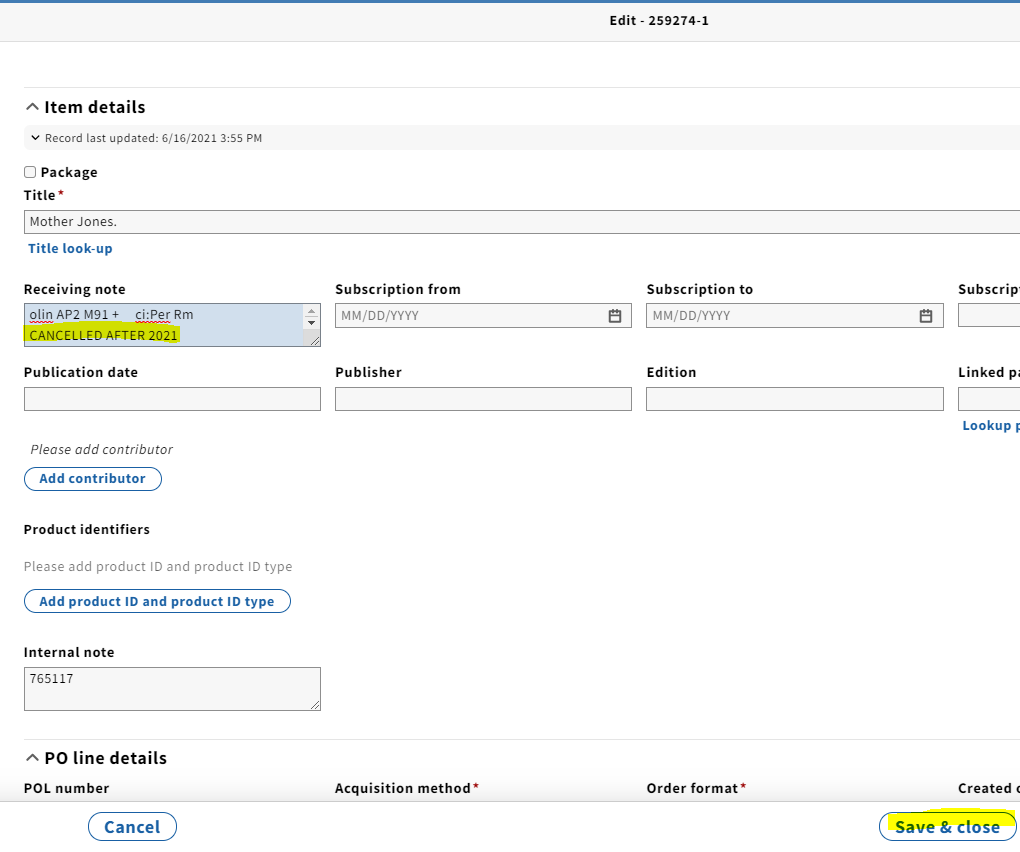
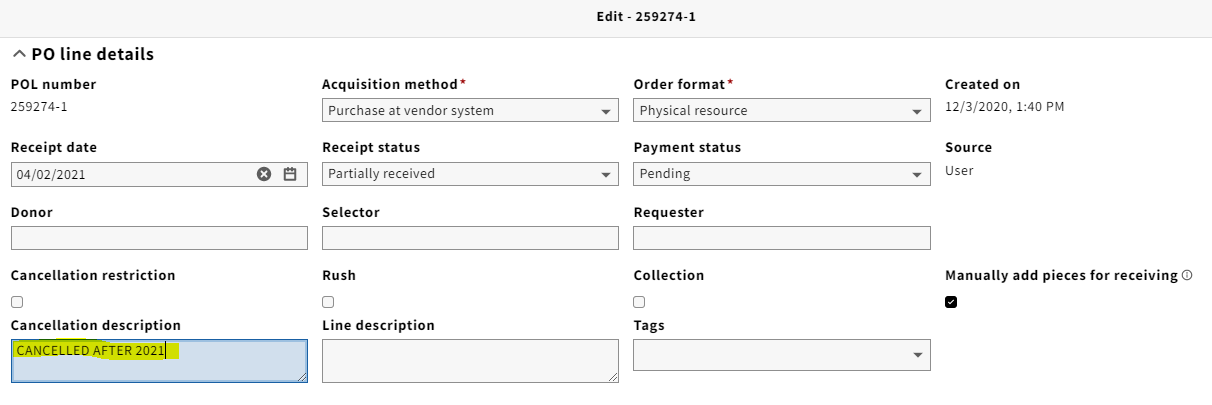
14. Under Scroll down to PO line details, and change both the Receipt status and Payment status (as long as the last invoice has been paid) to Cancelled from the drop-down menu.

15. Scroll down to Cancellation description and add your cancellation note again.
Alternatively, this can be noted in the Instructions to vendor field, which is a field we used in Voyager to note a cancellation.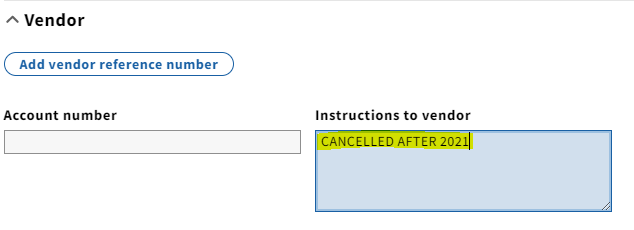 Click Save & close
16. If this is the only line item on the purchase order, you will want to close out the PO. Note that only open orders can be closed. Take the following steps to do so:
...
