Coldfusion 10
A quick reference page for CIT Hosting's Coldfusion 10 service.
Adobe Coldfusion 10 documentation: http://helpx.adobe.com/coldfusion/archive.html
Apache and Tomcat
Coldfusion 10 no longer uses "jrun" to control the Coldfusion service. Adobe has changed (perhaps upgraded) to deploy their Coldfusion application within a Tomcat container.
When you go to the Status page of your VM to stop/start services, you will see an Apache instance as well as a Tomcat instance. In most cases, if you make changes to Coldfusion (via Coldfusion Administrator, or add new jar files) you'll only need to restart the Tomcat service (CF9 would have restarted the JRUN service).
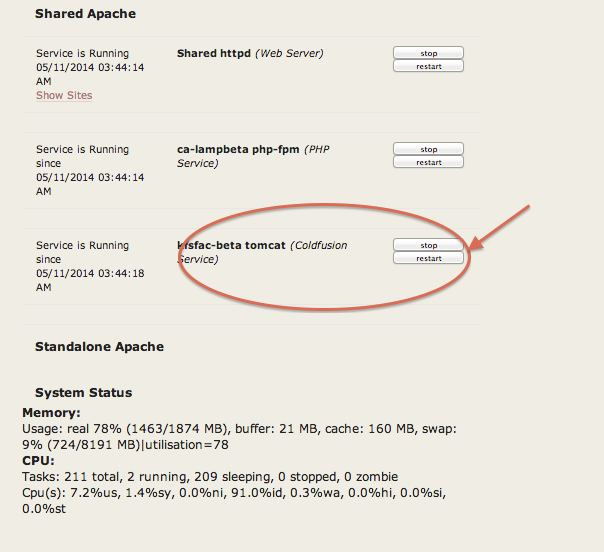 Image Added
Apache will need to be restarted if you've created a Custom Apache Include file.
Coldfusion Administrator (CFAdmin)
Hosting Customers have the ability to configure and control their Coldfusion 10 service. The Coldfusion Administrator is CUWebauth protected (netid and password), and the access is granted from the permits or AD Group that were assigned/given at the time of the request.
- You can get access to your CFAdmin interface by logging into the Hosting Dashboard
Welcome to Coldfusion 10!
Welcome to ColdFusion. This page is designed to walk you through some of the features and areas of your ColdFusion space, explain how to add URLs to your site beyond your initial staging hostname, and link you to other resources.
Suggestions are always appreciated, so please let us know if there is material that is unclear, could be improved, or additions that we should make to this page. Thank you!
Getting Started
Hosting Dashboard and Instance Splash page
- Once your Hosting Virtual Machine (VM) has been created and instance(s) set up, you can access information and the VM from the Hosting Dashboard via https://dashboard.hosting.cornell.edu
 Image Removed. This is a one stop shop to controlling services on your VM (yes you can stop and start your instances), as well as finding specific information about your instance(s). The Hosting Dashboard should list all VM's you have access to based on the AD Group or Permit that's been assigned to them.
 - Once you've logged into the Hosting Dashboard, and you find the VM that you were assigned, if you click on that VM name (should look like webhost###.serverfarm.cornell.edu), the dashboard takes you to the Status page of that VM. This shows you what services are running, and this is where you can stop/start/restart/configtest Apache and/or Coldfusion.
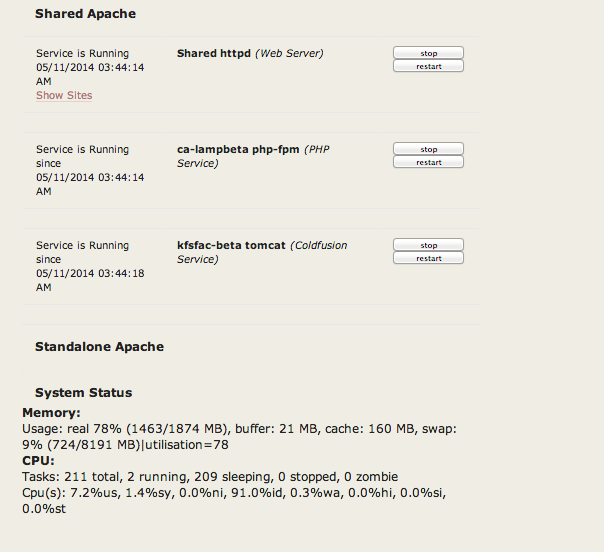 Image Removed
 - At the bottom of the Status Page there are "Quick" links to the instances created on the VM. These are links to the Splash page of each instance(s) and any virtual hosts that have been configured for those instances.
 Image Removed
 - Webdav
- CFAdmin
- Password Seed
- Updating Coldfusion
- and search for either the VM name (webhost###) or instance name, and click on the Splash Page link.
- From the Splash Page, there is a tab near the top called CF Admin. By clicking here it will use your CUWebauth credentials to log you into CFAdmin. You are now ready to administer or configure how this Coldfusion 10 instance runs.
- Some items of interest within CFAdmin:
- Server Settings: Many items below allow you to manipulate how java/jvm works. Also configuration tweaks can occur in some of these options to help with performance. Ones to pay particular attention to (we've left most if not all in default values from install):
- Request Tuning
- Mappings
- Scheduled Tasks - CF 10 has slightly different options, and more configuration variables for scheduled tasks. Also tips for setting up scheduled tasks can be found here
- Java and JVM - You now have the ability to change Heap sizes and java/jvm Arguments as needed. No need to contact webservices to edit these. A restart of Coldfusion/Tomcat from the Dashboard will be required if any changes are made on this page.
- Data & Services Menu: Data Sources - to set up your connections to backend databases. For information on how to set up connections to Oracle databases, please see Connecting to Oracle databases with Coldfusion 10
- Security: Controls who has access to CFAdmin. CIT has CUWebauth potected CFAdmin so there's no need to create addition accounts or change the Administrator settings. If you need to grant someone access, add their NetID to the permit on the Cornell Stack.
- Allowed IP Addresses: CIT has automatically restricted access to CFAdmin to Cornell Campus IP's or Cornell VPN IPs. You can add additional IP addresses if needed, otherwise to access CFAdmin you will need to be on the Cornell network or VPN.
- Server Update: Coldfusion 10 allows customers to download updates directly from Adobe and apply when you're ready.
- There's many other options and settings within CFAdmin and we strongly encourage customers to become familiar with CFAdmin. Coldfusion 10 offers more granularity and control to the customer.
Adding Customized JAR Files
Customers can add their own jar files to their environments by using a webdav client and uploading the files to the /jars directory, OR you can drop them in the server10/lib subdirectory. A restart of the Coldfusion instance will be needed.
- The order JAR files are loaded can be important depending on the functions you're looking to achieve. You can manipulate how jar files are loaded by where they are located (what path) and via JVM settings (also done via CF Admin). This is considered advanced Coldfusion/java configurations and modifying the JVM should not be taken lightly.Installing JDBC database drivers (i.e. Oracle)

