 Sign-up for free online course on ANSYS simulations!
| Include Page | ||||
|---|---|---|---|---|
|
Items to note before we start:
This guide is geared towards a Windows user, but the process is very similar for Linux users.
This requires access to both the Cornell VPN and to the MAE Shared network drive.
- Install VPN
 (skip if on Cornell campus network and jump to step 4)
- Choose the appropriate installation link for the operating system that you are using.
- This will require Administrative privileges.
- Connect to VPN

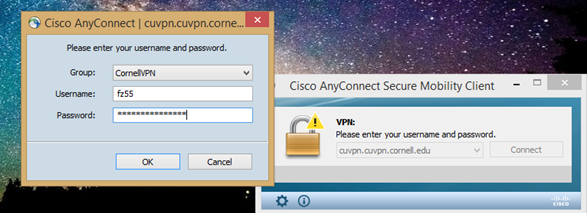
- Log in to VPN
- Navigate to My Computer/This PC
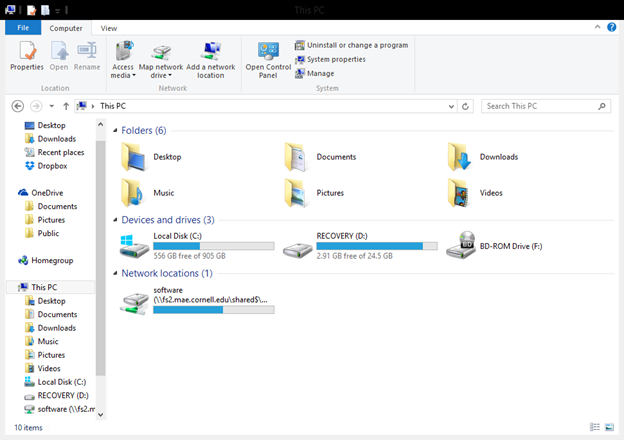

- (skip if on Cornell campus network)
- Log in to VPN with the tutorial provided in Step 2 (skip if on Cornell campus network)
OR
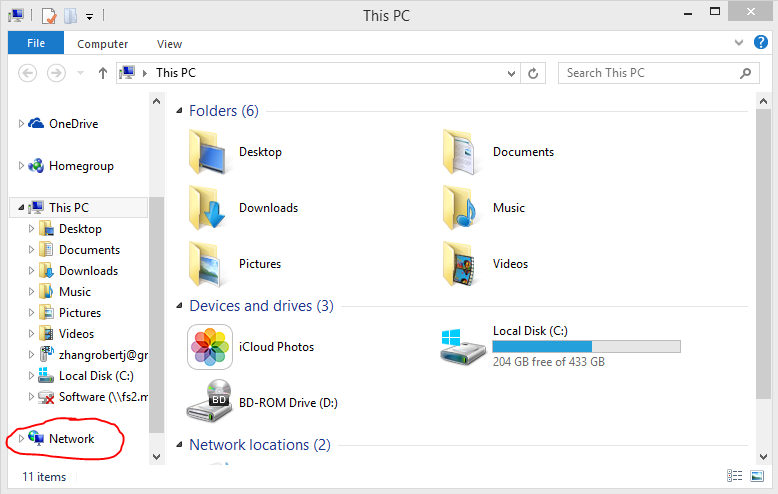
Launch the secure mobility client on your computer by typing cuvpn.cuvpn.cornell.edu in the address bar - Open Windows Explorer and right-click on Network in the left bar of Windows Explorer and select Map Network Drive
- Map a drive to the link: \\fs2.mae.cornell.edu/\shared$/\MAE/\software
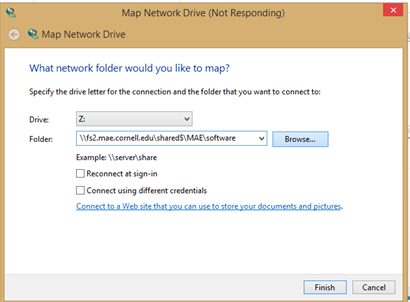
- Enter network credentials, which is your Cornell netID (might have to add @cornell.edu) and password. This will work only if you have been provided with access to the network drive.
- Select the folder for ANSYS
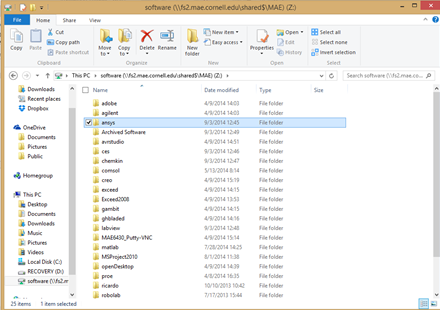
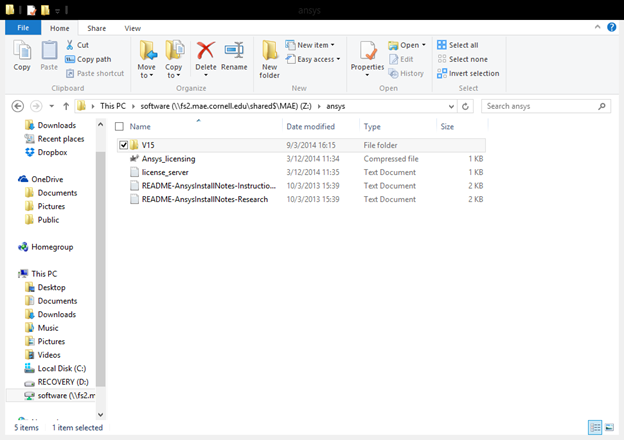
- Locate the ISO in ANSYS>V15
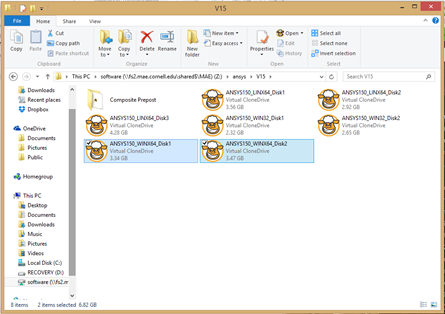
- Copy the two ISO files appropriate to your specific operating system
- You can access the files inside the ISO in two ways
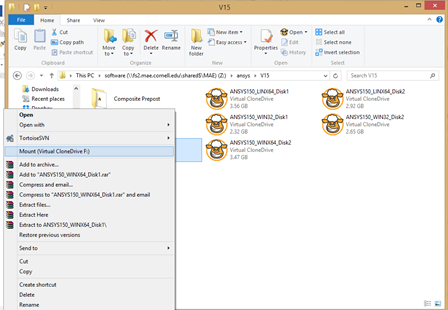
- If you have Virtual Clone Drive, mount the ISO files
- If you have 7Zip, extract the ISO files
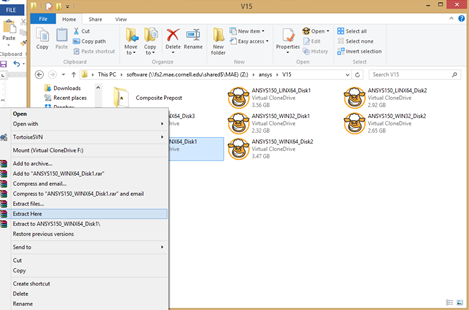
- If you have Virtual Clone Drive, mount the ISO files
- Run the setup according to the Wizard
- Find "setup.exe" for the appropriate version and run it as administrator. Note that at some points, the installer is slow to respond.
- For licensing, enter the following information:
- When you reach the licensing stage, enter
- into 'Hostname 1' bar: ansys-lic.
- coecis.cornell.edu
- For port number, enter 1055
If you need help, read the READ-ME in the immediate path: ansys
...
- have any questions about this process, please email itcoecis-help@cornell.edu.