Note: This page is currently a work in progress. Have questions? Contact Nicole at npg4@cornell.edu
Eclipse - Subversion for Macs
 Eclipse, an open development platform, can be used on Macintosh, Windows, and Linux operating systems in order to access files stored on Source Forge. However, an SVN plugin must be installed to properly configure Ecilpse to retrieve files from the AguaClara Source Forge Repository.
Note: This tutorial assumes that you already have a source forge account through forge.cornell.edu. If this is not the case please contact Alissa Diminich (mailto: alissa.diminich@gmail.com) and ask to be added to the AguaClara project in source forge.
...
File Management with Eclipse
Modifying Files
- Open the file you wish to modify from where it is saved on your computer within the Eclipse workspace. Make changes and save the file on your computer.
- Find the file within the Workbench in the open Eclipse Application.
- Right click on the file and select Team > Commit.
- Select the files you wish to modify and click ok to modify the file in question.
Adding Files
...
- Add new files and folders to the project location in your workspace on your computer. i.e. Make changes to the files directly on your computer.
...
- Right click on the folder within your Workbench in Eclipse that holds the changes you have made. Go to Team > Update. The new files you wish to add should appear within Eclipse with question marks.
...
- Click on the folder containing the new files and select Team > Commit. You should be brought to a screen listing the files to be added.
...
- Select the files you wish to add to the repository and then click ok to add the new files.
Screen Shots
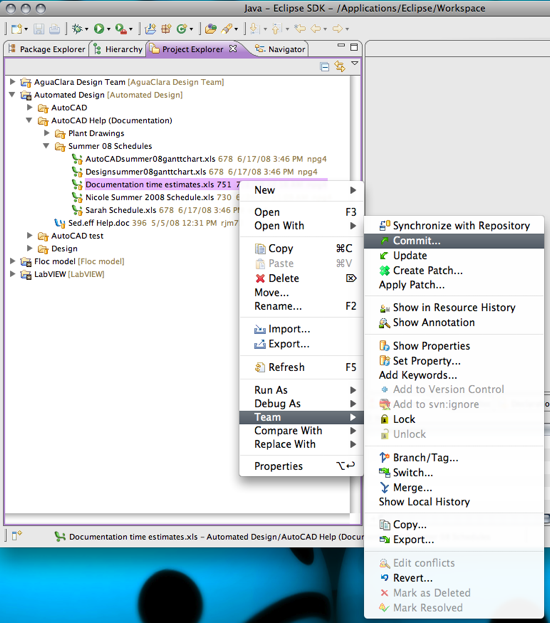 Image Added
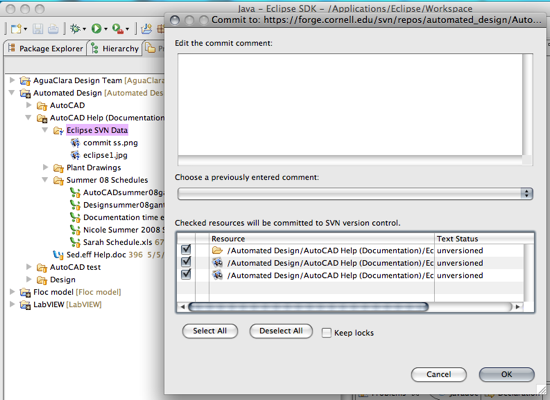 Image Added See the screenshots below for visuals.
