 Sign-up for free online course on ANSYS simulations!
| Include Page |
|---|
...
|
...
|
| Include Page |
|---|
...
|
...
|
...
Physics
...
Open the Model Window
...
Setup
...
Fix The Left Side of The Beam
...
Specify Young's Modulus
| HTML |
|---|
<iframe width="560" height="315" src="https://www.youtube.com/embed/SWRnNrWwrZU" frameborder="0" allowfullscreen></iframe> |
Specify Boundary Conditions
| HTML |
|---|
<iframe width="560" height="315" src="https://www.youtube.com/embed/TIMyW47UHW0" frameborder="0" allowfullscreen></iframe> |
Go to Step 5: Numerical Solution
Apply a Point Force to The Right Side of The Beam
...
Assign Cornellian to The Beam
The material Cornellian that was created earlier needs to be applied to the beam. In order to do so, expand Geometry,  . Next, click once on Line Body,
  , which will appear underneath Geometry. Then expand "Material" which is located under "Details of "Line Body"". Then click on the arrow on the far right and change the specified material to Cornellian as shown below.
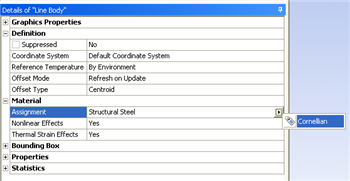
Leave the Setup window open for the next step.
Go to Step 5: SolutionSee and rate the complete Learning Module