Versions Compared

Key

  • This line was added.
  • This line was removed.
  • Formatting was changed.

If a record exists in Inventory for the resource being ordered, information that is present in the Inventory instance record can be used to populate certain fields in the purchase order line (POL), decreasing the amount of manual input that must be performed.

Precondition: Create Purchase order (Create link here to the instructions for creating purchase orders/several options to choose from

...


 1. Once

...

Add steps this side--

...

Add images this side--

...

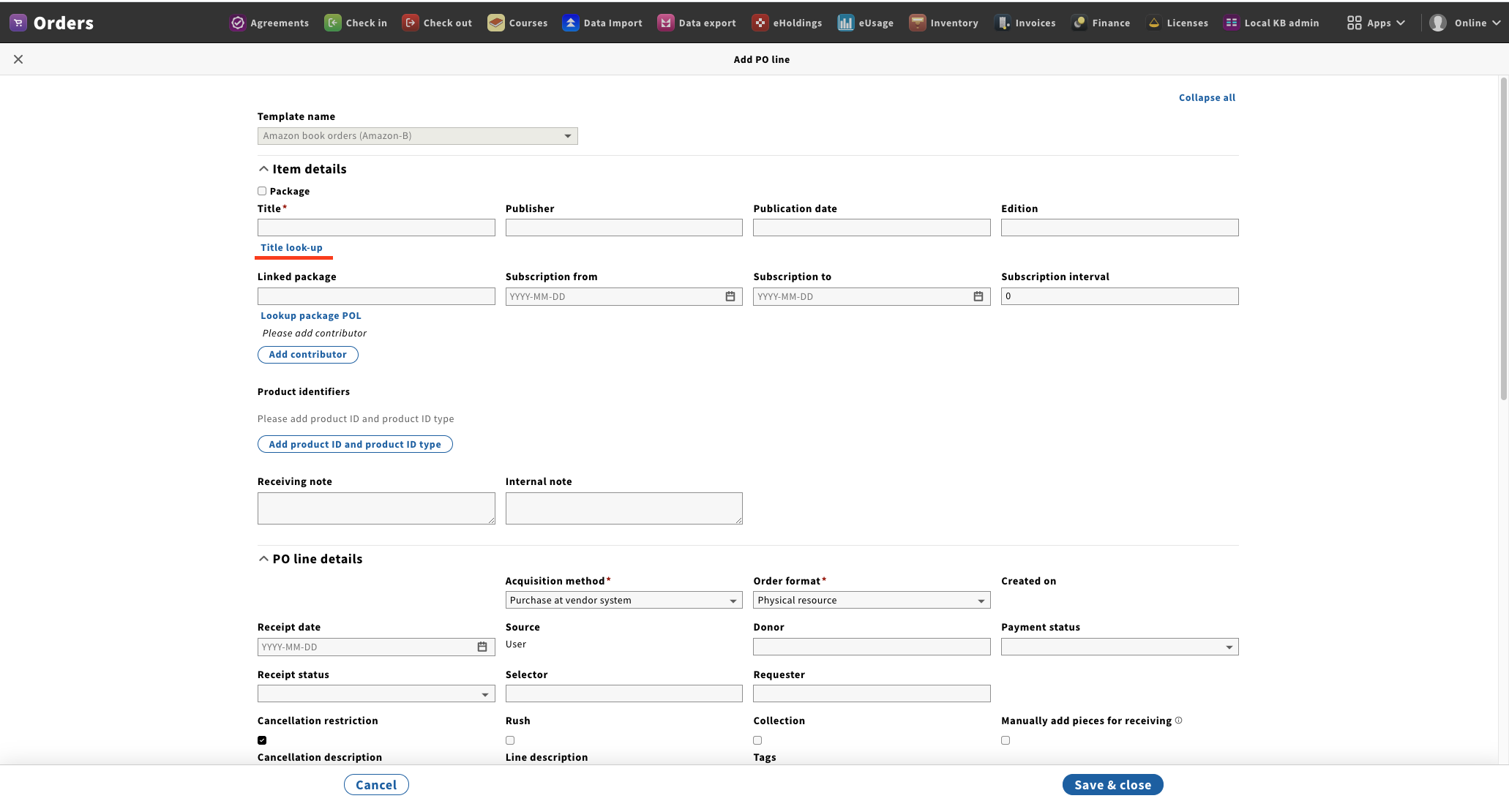
you have created the purchase order and have it displayed in the right-hand pane of your screen, scroll down until you see the section called "PO Lines;" next to this, you should see a button that says "Add PO line." Click the button.

...

You will be taken to a screen where you can enter the information specific to your new line item.

...


Image Added

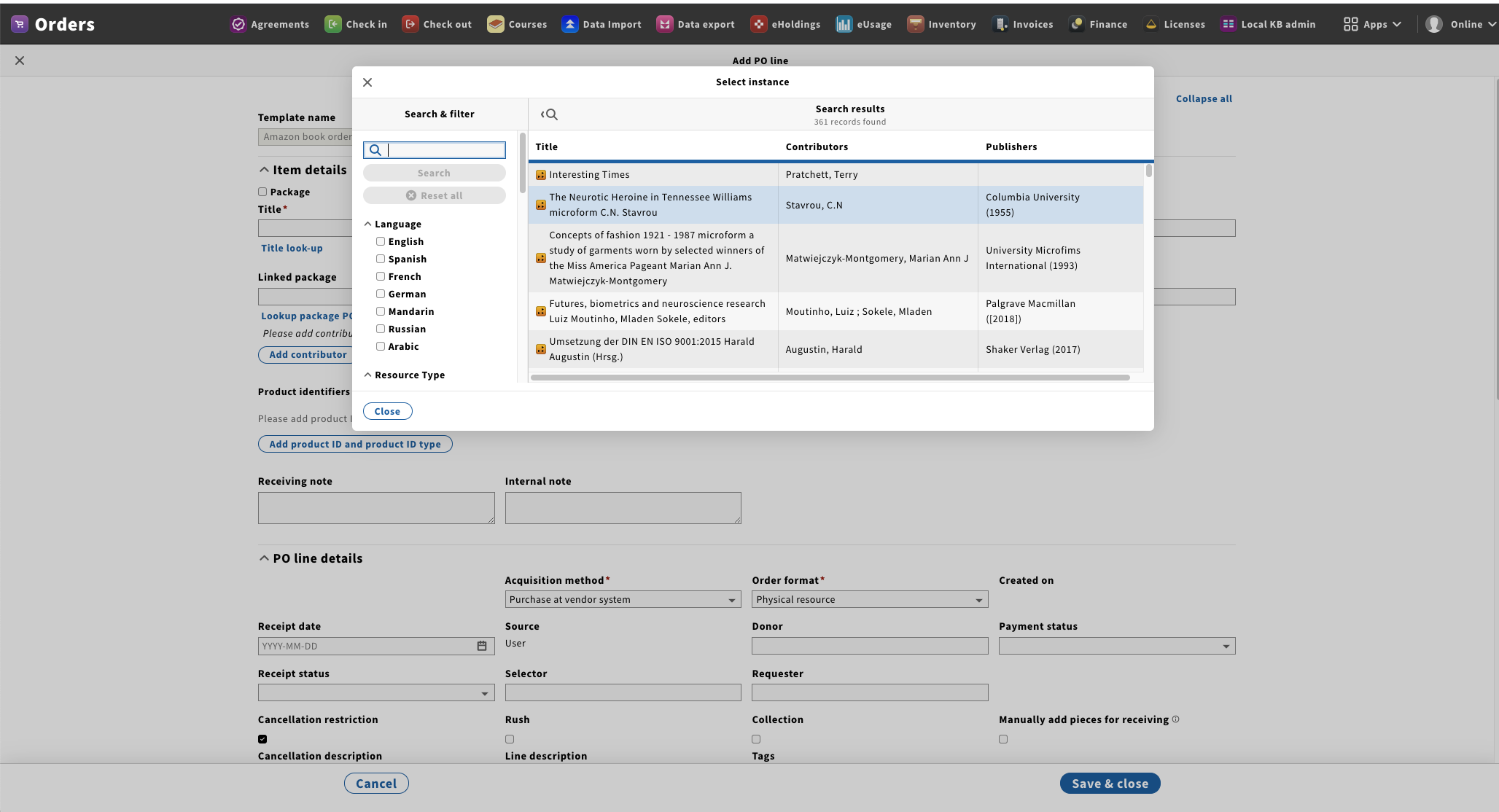
2. Near the top of the "Add PO line" screen, click on "Title lookup" and use the "Search & filter" box in the left pane of the resulting "Select instance" screen for the instance you want to use as your PO line. Scroll through the search results and elect the desired instance.

...

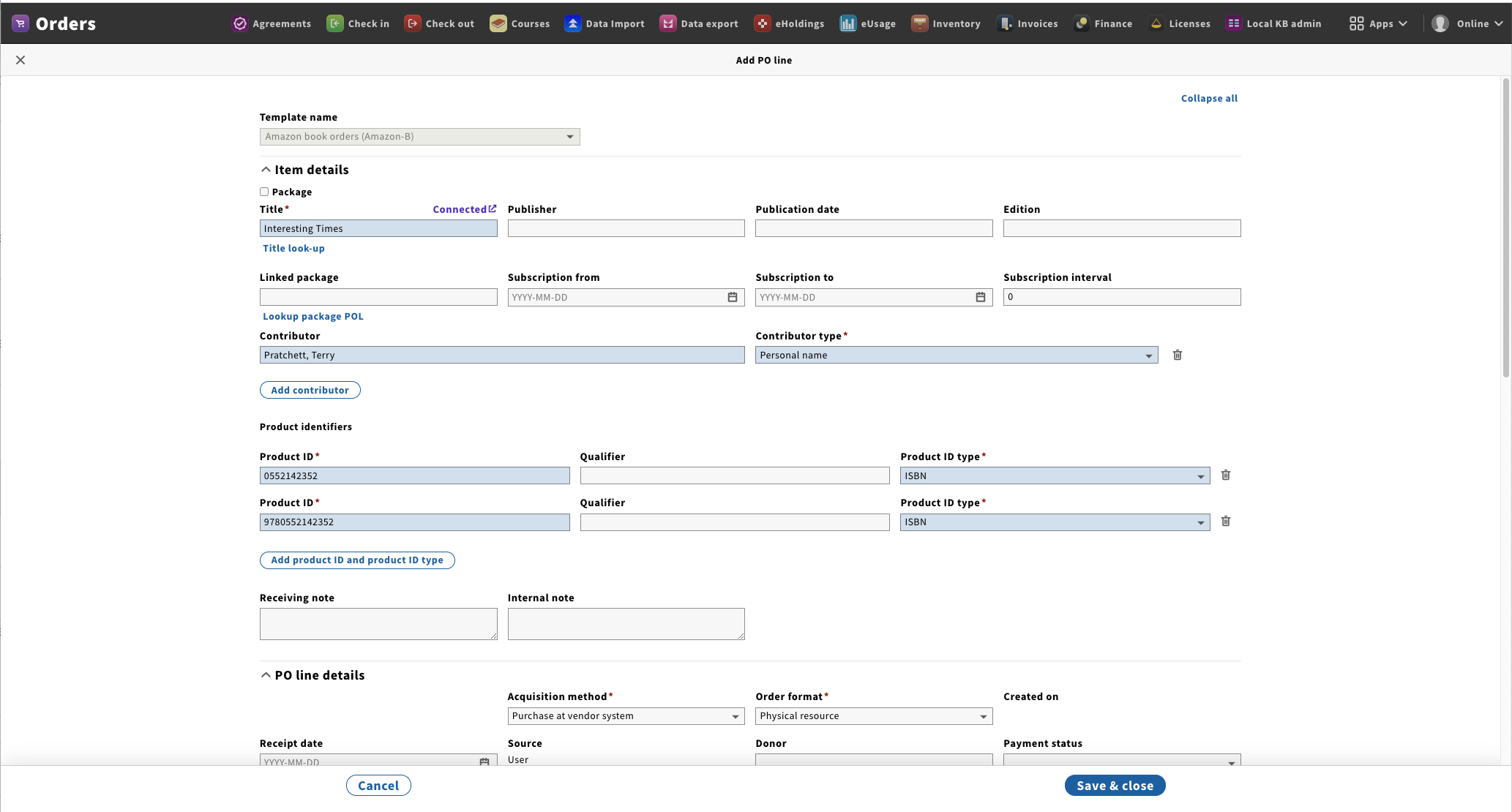
The "Item details" section of the "Add PO line" screen is populated with data from the instance record and a "Connected" hyperline appears above the title field.

...

Image Added

3. Click hyperlink above title field.

...

User is taken to instance record in inventory app.

...

...

Image Added


Pajerek; Jan. 2021/alw

...

---------------------------------------------------------------------------------------------------------------------------

...

1

...

Once you have created the purchase order and have it displayed in the right-hand pane of your screen, scroll down until you see the section called "PO Lines;" next to this, you should see a button that says "Add PO line." Click the button.

...

You will be taken to a screen where you can enter the information specific to your new line item.

Image Removed

...

2

...

Near the top of the "Add PO line" screen, click on "Title lookup" and use the "Search & filter" box in the left pane of the resulting "Select instance" screen for the instance you want to use as your PO line. Scroll through the search results and elect the desired instance.
Image Removed
Image Removed

...

The "Item details" section of the "Add PO line" screen is populated with data from the instance record and a "Connected" hyperline appears above the title field.

...

3

...

Click hyperlink above title field

...