...
- Now you've logged into the Hosting Dashboard, you find the VM that you were assigned, if you click on that VM name (should look like webhost###.serverfarm.cornell.edu), the dashboard takes you to the Status page of that VM. This shows you what services are running, and this is where you can stop/start/restart/configtest Apache and/or Coldfusion.
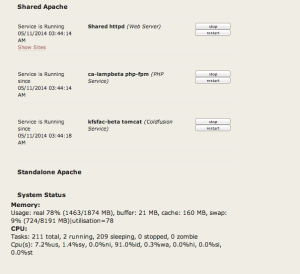
- At the bottom of the Status Page there are "Quick" links to the instances created on the VM. These are links to the Splash page of each instance(s) and any virtual hosts that have been configured for those instances.

- Instance Splash Pages contain important information for that specific instance. Remember, virtual machines could be running several instances, and each instance could be serving out different websites, and potentially running different software (some with Coldfusion, some not).
- NOTE: You must be on the Cornell network or signed into the Cornell VPN to open the Splash page of an instance in your browser
- Splash page information include (and will vary depending on what is activated on the instance):
- The Instance name
- Tabs to the Hosting pages, Logs, and Status page (service control)
- Path to the Home directory/document_root that Apache is configured for
- Webdav URL to use to upload your files
- Services enabled for this instance
- The holdingID running the instance (very important for separation of services/access permissions: see here for more information)
- Dot "." access file editor: used to modify .htaccess and .wdaccess files
- PHPShell - provides Shell-like access to the VM (there are limitations)
- Links to log files
- Apache server status
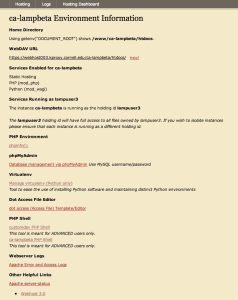
- Please see Cornell Stack Instance for more detailed information on an instance.
Webdav access
The Cornell Stack continues to support Webdav access to upload/modify/delete the files for your website/application. The access URL previously used for Hosting services in Coldfusion 9 and LAMP2 are not valid for Cornell Stack access. The webdav url is specific to the VM your instance(s) lives on.
...
and so forth allows to have multiple sites "living" in the same instance with virtualhosts configured to use slightly different document_roots (http://yoursite1.cit.cornell.edu Image Removed points to htdocs/yoursite1/; http://yoursite2.cit.cornell.eduImage Removed points to htdocs/yoursite2/; and so on).
However, you are of course free to organize your site in the best way possible for you. The new Cornell Stack also allows for multiple LAMP like instances in a Shared-Apache configuration. Please see {Small sites or apps|https://confluence.cornell.edu/x/kgz_DQ] as an example. To find out more on the Shared Apache, please see Introduction to CIT Hosting Services Cornell Stack#shared
Git/Mercurial files - EXPERIMENTAL
If you requested to have git or mercurial installed and setup on your VM and instance, you will see additional subdirectories like "repos", "git", or "hg". For more information on version control options and setup, please see GIT Info or Mercurial Info.
...

