 Sign-up for free online course on ANSYS simulations!
...
This guide is geared towards a Windows user, but the process is very similar for Linux users.
This requires access to both the Cornell VPN and to the MAE Shared network drive.
- Install VPN (skip if on Cornell campus network and jump to step 4)
- Choose the appropriate installation link for the operating system that you are using.
- This will require Administrative privileges.
- Connect to VPN (skip if on Cornell campus network)
- Log in to VPN with the tutorial provided in Step 2 (skip if on Cornell campus network)
OR
Launch the secure mobility client on your computer by typing cuvpn.cuvpn.cornell.edu in the address bar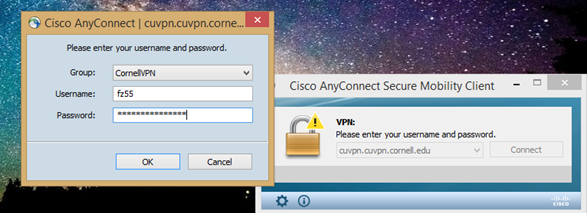
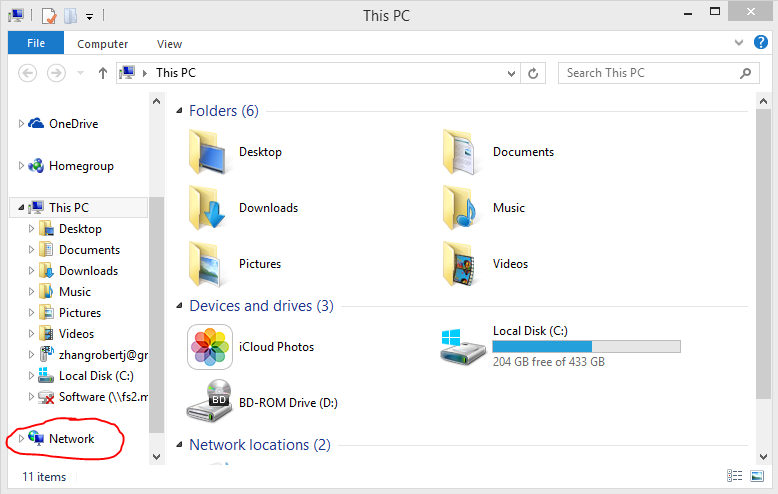
- Open Windows Explorer and right-click on Network in the left bar of Windows Explorer and select Map Network Drive
- Map a drive to the link: \\fs2.mae.cornell.edu\shared$\MAE\software
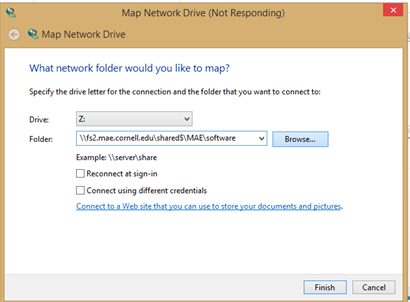
- Enter network credentials, which is your Cornell netID (might have to add @cornell.edu) and password. This will work only if you have been provided with access to the network drive.
- Select the folder for ANSYS
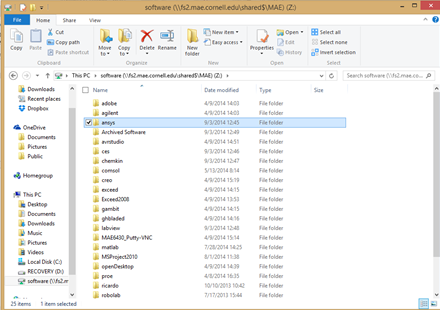
Open the folder labelled with the operating system you are using - Find "setup.exe" for the appropriate version and run it as administrator. Note that at some points, the installer is slow to respond.
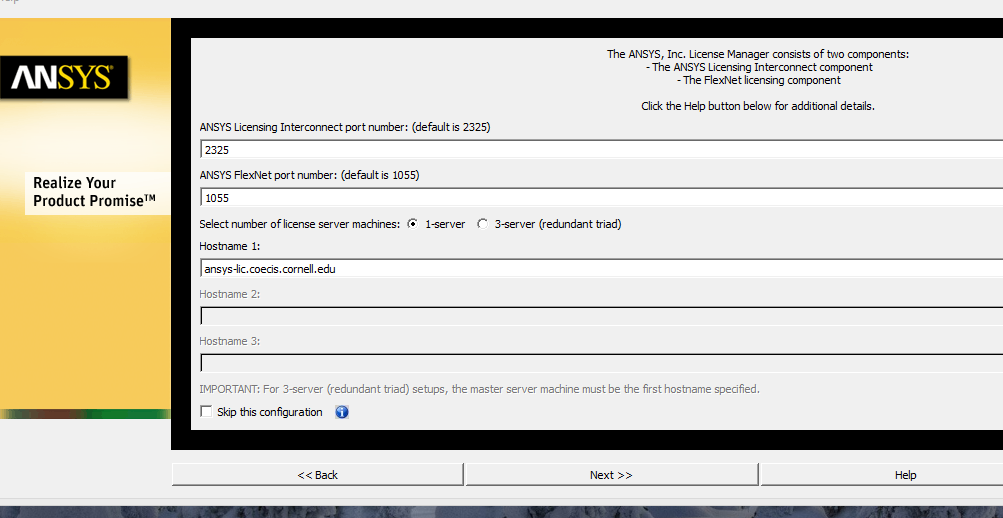
- For licensing, enter the following information:
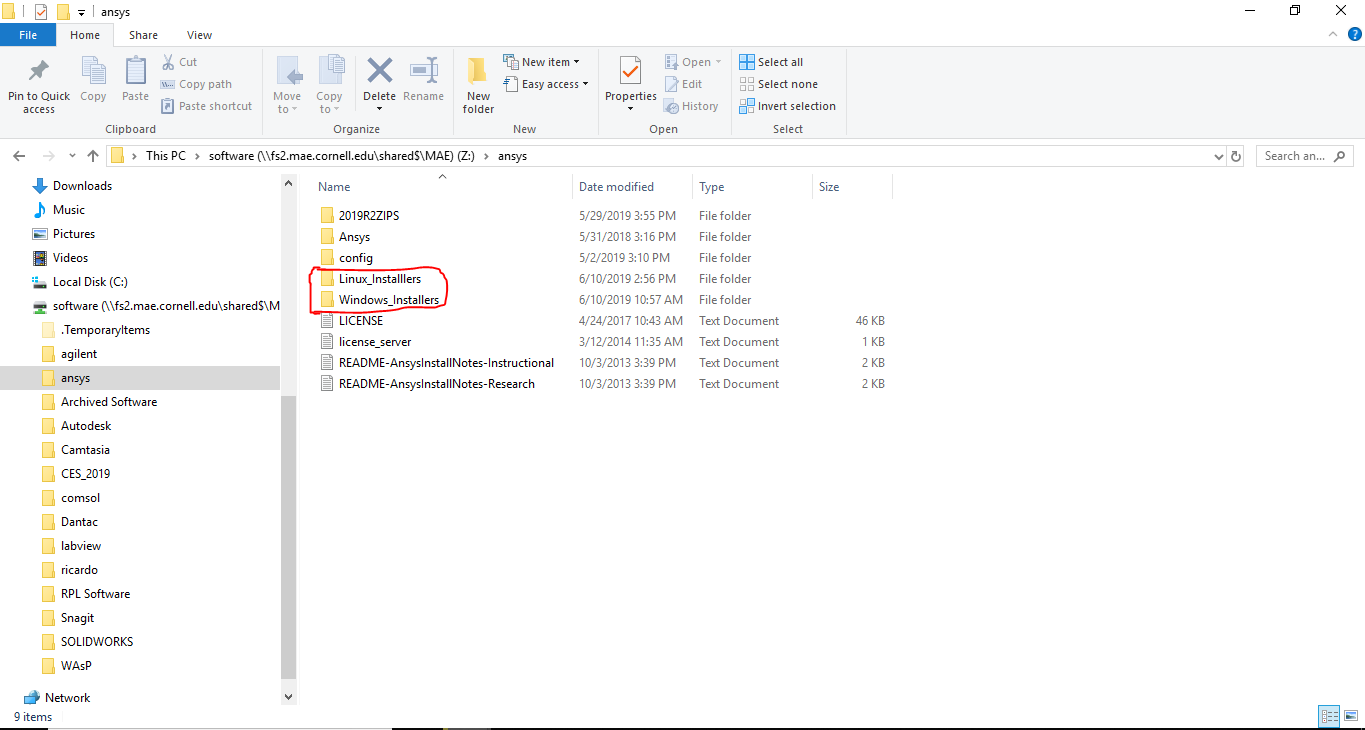
Copy the two folders labelled Disk1 and Disk2 onto a local place on your computer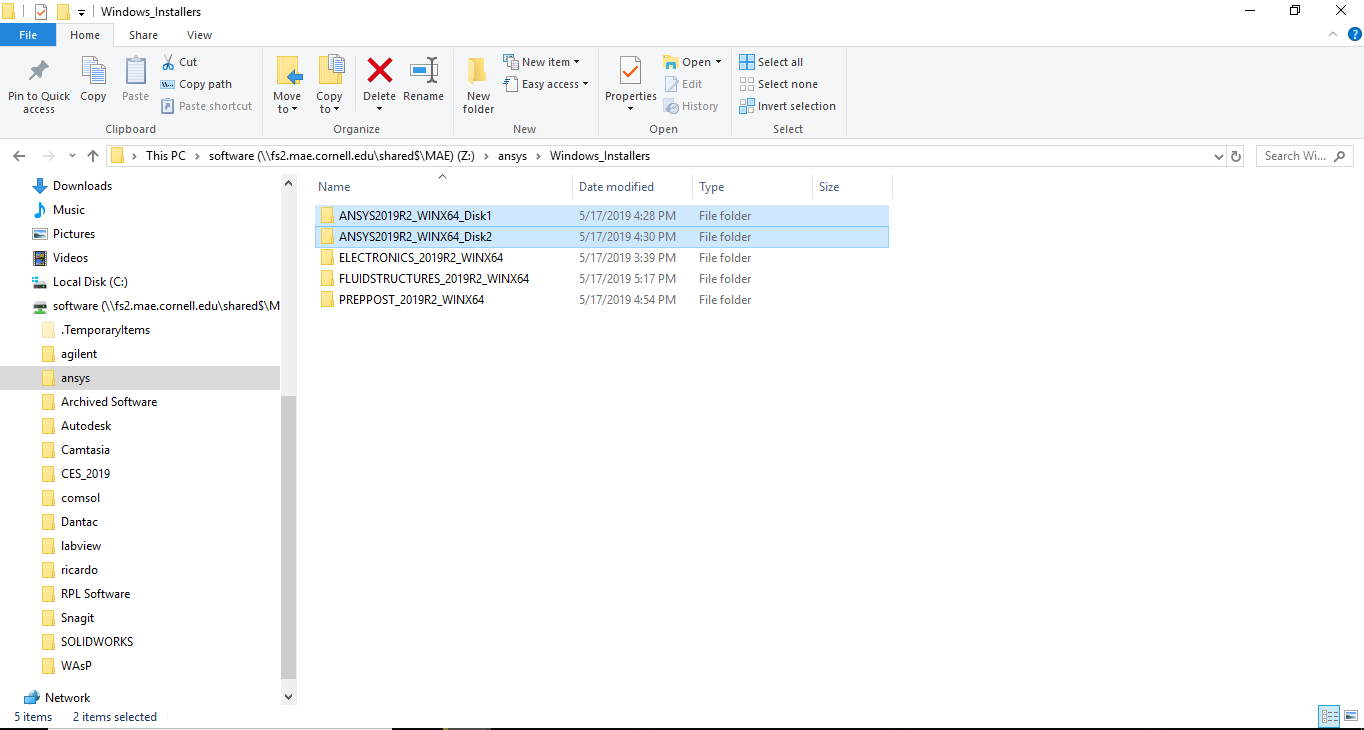
Alternatively, you can access the disk files directly through the 2019R2ZIPS folder (or whatever version is the most recent one supported by Cornell) and copy both of them to your local machine.
You can then access the files inside the ISO in two ways:If you have Virtual Clone Drive (which can be downloaded for free), mount the ISO files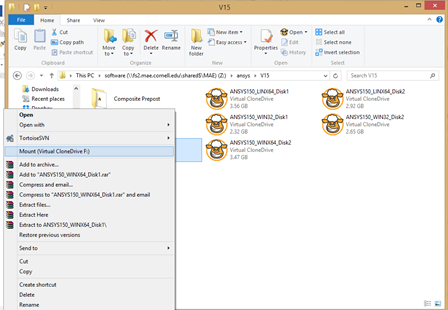
If you have 7Zip, extract the ISO files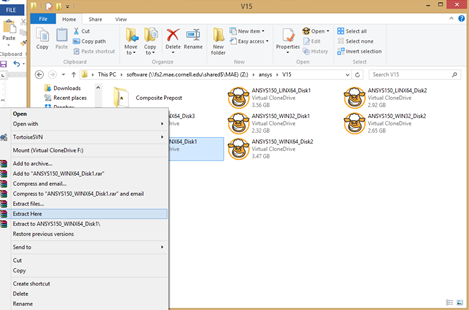 Once the set-up menu loads, select 'Install ANSYS products'
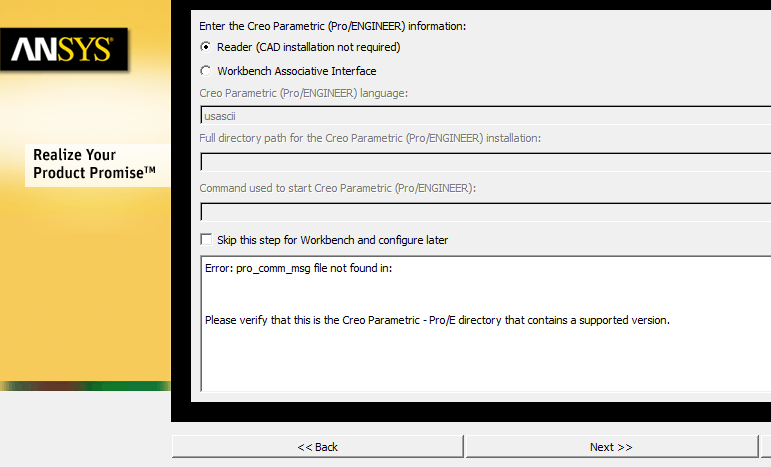
Run the setup according to the Wizard with the following exception:- Check the box 'Skip this step for Workbench and Configure Later' when asked to enter information about various other programs
- When you reach the licensing stage, enter into 'Hostname 1' bar: ansys-lic.coecis.cornell.edu
Return to the set-up menu and select 'Install License Manager'- For port number, enter 1055
If you have any questions about this process, please email itcoecis-help@cornell.edu.