*** This version of Confluence is for testing only and contains a copy of content from June 29th 2026. No changes will be preserved. ***

When trying to develop and debug in container environment, in lieu of local machine
Yueteng | yh958@cornell.edu
| Table of Contents |
|---|
Multiple versions of docs are kept in this page in the following order:
...
Solved these problems:
docker-compose up| Code Block | ||
|---|---|---|
| ||
docker volume rm $(docker volume ls -f dangling=true -q) |
...
alpine Linux.alpine Linux does not include many necessary libs for development, explaining why Python extension fails and additional lib installation (RUN apk *) in DockerfileDockerfile: The base image FROM is changed to python:3.8.6, a full-feature image. You will also see many lines commented out, unnecessary for the moment.docker-compose.yml : This is used for development (also the default one). You can see all env variables for development.docker-compose-prod.yml: This will be for production. Not finished yet.docker-compose.debug.yml.old: Just some backup. Ignore it.| Code Block | ||
|---|---|---|
| ||
# Path for online repo backend-online/dev-backend # Path for offline repo backend-offline/dev-dashboard |
...
Note: If there is an error message says "cannot import name 'Markup' from 'jinja2', you can try to fix it through the means provided by ImportError: cannot import name 'Markup' from 'jinja2'. (Basically type python3 in terminal, then type 'from jinja2.utils import markupsafe', then 'markupsafe.Markup()'. The error will likely to be fixed.
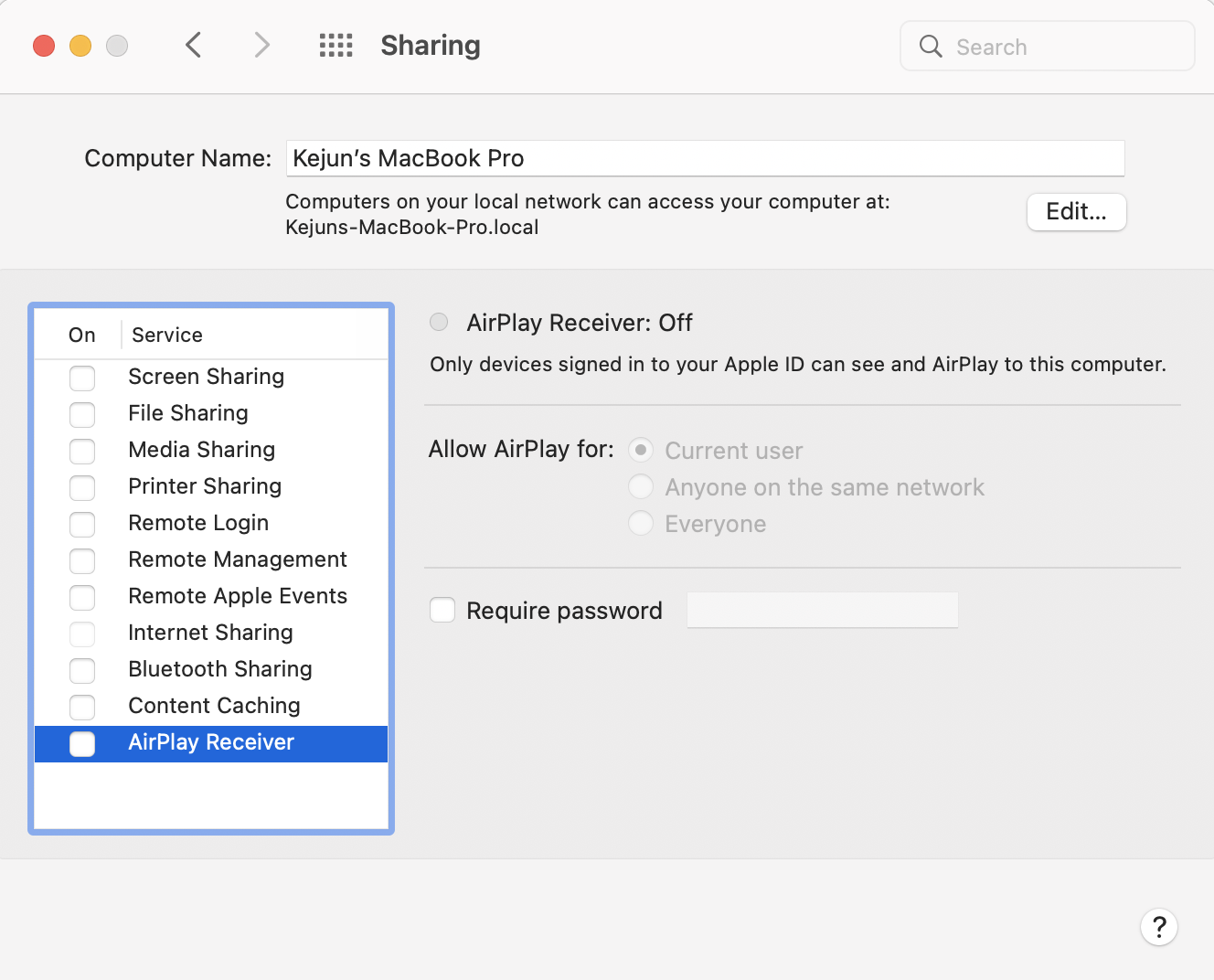
If you are using Mac and get an error message when running the container for the first time, saying "Ports are not available: listen tcp 0.0.0.0:5000: bind: address already in use", it is likely that your Mac AirPlay server is running on this port (even when you try to kill -9 the process, it restarts automatically). To solve this problem, deactivate the AirPlay Receiver by:
Go to System Preferences › Sharing, and unchecking AirPlay Receiver to release port 5000
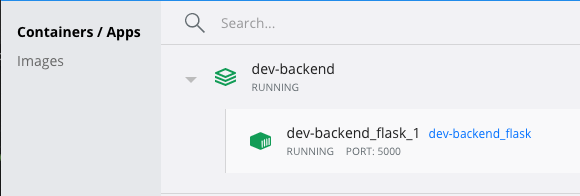
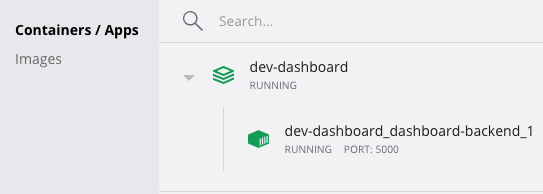
You should see a new container running.
...
Remote - Containers Python On VS Code, click the Remote button at bottom left > Attach to running container > Click the container name in the menu.
...
It might show loading/downloading analysis at the bottom status bar, after which it should work properly.
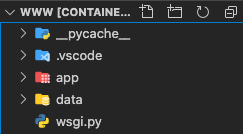
Everything under www, if changed:
...
Try the above to see auto-reloading is working.
On VS Code, click the Remote button at bottom left > Close remote connection.
...
In terminal, run the command above. It will shutdown and remove container (as you can see it disappears from Docker Desktop > Containers / Apps)
...
| Gliffy Diagram | ||||||
|---|---|---|---|---|---|---|
|
Note: This guide is based on VS Code. I've also tried IntelliJ IDEA (including PyCharm), but unfortunately it doesn't work on my laptop. If interested, see the link below under "Read more"
On VS Code, make sure you've installed these two extensions:
...
Launch docker (you don't need to start the project container)
Click the remote container button > Open folder in container > Open your working directory with Dockerfile inside the repo. For instance, for backend-offline subteam, choose backend-offline/dev-dashboard/dashboard-backend
...
When completed, you'll notice VS Code has deployed an image (name starting with vsc-) in your docker, and has inserted/started an container (name including some random scientist/mathematician).
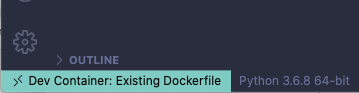
Click the button to the right of the container button, to choose your interpreter/SDK.
...
If you run it, it should show in terminal the same output as above. Note the 2nd line Linux shows it's been run in container (not local machine of Mac OS/Windows)
Everything you've coded is done in the same git repo.
If you choose to stop the container after finish coding, it's alright. Next time VS Code will automatically start it when you open the working directory as in steps above
Guide from VS code: https://code.visualstudio.com/docs/remote/create-dev-container
...
