 Sign-up for free online course on ANSYS simulations!
| Include Page | ||||
|---|---|---|---|---|
|
| Include Page | ||||
|---|---|---|---|---|
|
Geometry
Launch ANSYS and Save
| HTML |
|---|
<iframe width="560" height="315" src="https://www.youtube.com/embed/XPm9FWMy0Rk" frameborder="0" allow="accelerometer; autoplay; encrypted-media; gyroscope; picture-in-picture" allowfullscreen></iframe> |
The link below takes you to the Cornell IT web page which explains how to link your google drive account while using Apps on Demand.
Link: https://it.cornell.edu/appsondemand/set-google-drive-file-stream-apps-demand
| Info |
|---|
MAE 3240 Spring 2020: At this point if you prefer, you can skip the geometry (step 2) and mesh (step 3) videos by downloading the file below and continuing to Model Setup (step 4) also linked below.
Completed Geometry and Mesh File: Flat_Plate_Mesh.wbpz
Model Setup Link: https://confluence.cornell.edu/x/ak0UBw |
Create Domain
| HTML |
|---|
<iframe width="560" height="315" src="https://www.youtube.com/embed/EGcooy3KCz4" frameborder="0" allow="accelerometer; autoplay; encrypted-media; gyroscope; picture-in-picture" allowfullscreen></iframe> |
| Panel |
|---|
Problem Specification |
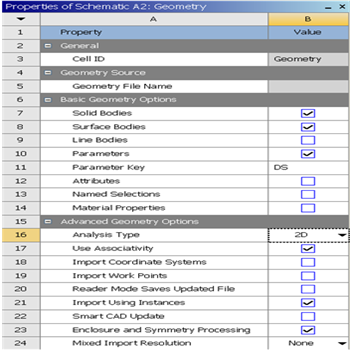
Step 2: Geometry
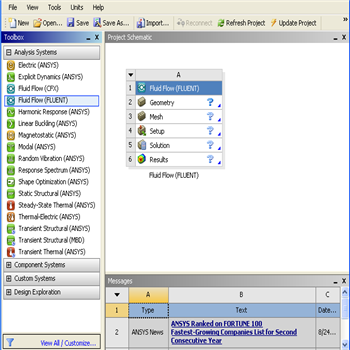
Since our problem involves fluid flow, we will select the FLUENT component on the left panel.
Left click (and hold) on Fluid Flow (FLUENT), and drag the icon to the empty space in the Project Schematic. Here's what you get:
...