*** This version of Confluence is for testing only and contains a copy of content from June 29th 2026. No changes will be preserved. ***

Scope: An overview of the online tool used for creating new sequential shelflist numbers for audiovisual materials and microforms. (Replaces CLAMSS)
Contact:
...
...
updated: May 2026
Date of next review: November
...
2026
Call numbers for all microforms, sound recordings and video recordings in locations that require accession numbers will be assigned by using the
...
FOLIO "generate call number" function, following the steps as outlined below:
Access the online program at https://clamms.library.cornell.edu/.
Choose Type of microform or multimedia from drop down menu. Select Videodisc for DVD or blu-ray format.
From Location drop down menu, choose appropriate library location.
To add a number:
Click on Add Microforms Holding or Add Multimedia Holding button as appropriate. This brings you to the next screen allowing you to assign the next sequential accession number for the desired location. Use number that follows the number in the Last Used area. Please try not to skip numbers.
Add the next sequential number in the New Number box and add the FOLIO record's Holdings HRID in the New Mfhd ID box.
Use the box labeled New Notes as appropriate.
Click on Submit.
To delete a number:
The Delete button can be accessed through the History [for net ID] button on the main CLAMSS page. Scroll to the end of the History screen and find the Enter number to delete box and also a box to indicate the location of the number to be deleted. Complete the deletion process by filling in desired number, location, and type.
...
In the FOLIO Holdings record, select the Call number type "Other scheme." Then click on "Generate call number" which appears beneath the Call number entry box.
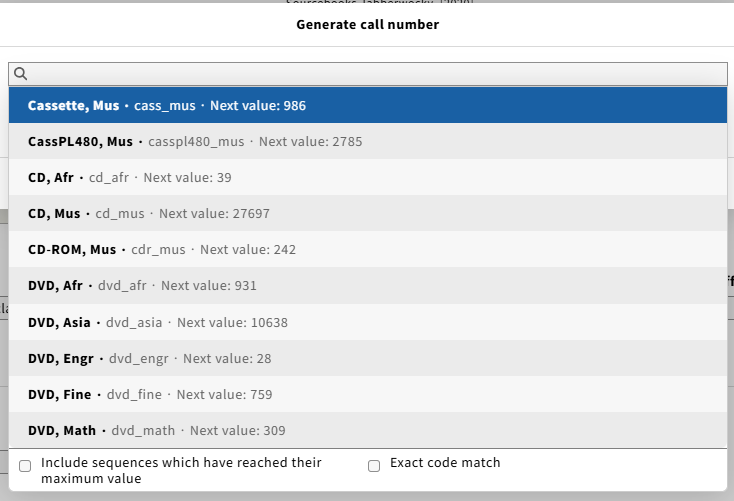
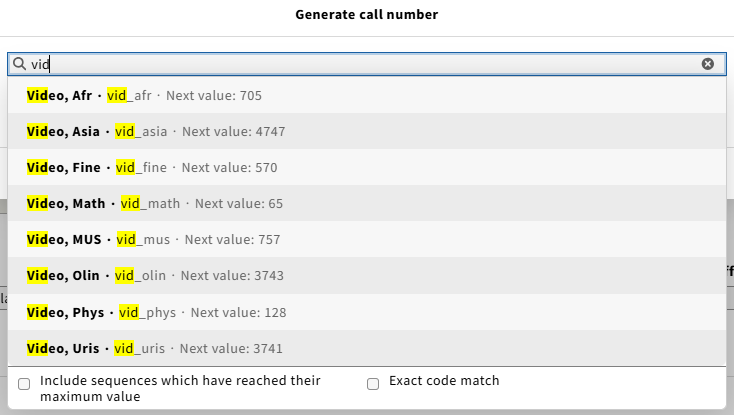
This opens a list of defined sequences based on material type and location.
Select the appropriate material type and location.
You may need to type the beginning of either the location or the material type to find the sequence you need. See illustrations.
The Call number generator will select the next number in the appropriate sequence and add it, along with any other standard text for that material type and location. Once the number is assigned, the field can still be edited, so be careful not to change the number.
Make sure that the permanent location and the location you have chosen for the call number generation match.
If a number is erroneously assigned, reach out to a cataloging supervisor.
For more information about this function, see Inventory: Call number generator and settings.