Scope: The document below outlines the procedures procedure that LTS staff follow to process Electronic Data Interchange (EDI) invoices for Firm Orders. These invoices are supplied by CUL vendors and are bulk loaded into VoyagerFOLIO.
Contact: Lisa Maybury
Unit: Monographs Receiving
Date last updatedreviewed: 03/0203/20202026
Date of next review: March 2021
Retrieving the EDI invoice
Receiving linked (pending) line items
Receiving unlinked line items
Completing the invoice
2027
...
A staff member in Acquisitions loads an EDI invoice file into Voyager. After the load is completed, she/he prepares an information sheet, noting the vendor code and the voucher number of the EDI invoice. This information sheet will go along with the corresponding paper invoice when it arrives but discarded before the invoice is put in the folder to the Library Finance and Budget Office.FOLIO via the Data Import app
| Anchor |
|---|
A | A | Retrieving the EDI invoice
Search for the EDI invoice by invoice number (remember to delete or add prefixes for a complete search) and verify that the following information is correct:
- Invoice date
- Status is "Open"
- Bill to location is set to LTS Acquisitions
- Calculated total amount matches the total of the invoice
- Lock total box is checked
- Adjustments are added for any shipping/postage and the fund is correct
- Invoice number (adding any leading zeros or letters when necessary)
- Voucher number
- Bill to location is set to Endowed Accounting
- Vendor code
- Fund number for postage
...
- Vendor name
- Payment method
- Attach/upload the electronic copy of the invoice
- Save & close
...
Receiving linked line items
- Click on the first invoice line
- The invoice POL will appear and you will then click on the PO line number
- This will take you to the POL in the "Orders app". In the upper right hand corner, click Actions--Receive
...
- Maximize the display of the invoice record
- Highlight the first line item to receive
- Select MARC view to review the bibliographic record
- Verify that the title received is an exact match with title ordered
- Receive the line item POL following receiving guidelines
- Update Bibliographic Instance and Holdings records following FOLIO guidelines
...
...
Completing the invoice
...
- Verify that the fund code has the current fiscal year; update if necessary
- Check status of each line item. If it is not received complete, follow steps B, 2-6 above
- Compare paper invoice total with lock total amount in Voyager FOLIO to make sure they agree
- Save and close the Voyager invoice
- Date stamp and initial vendor's paper invoice
- . Invoice totals should match as seen below:
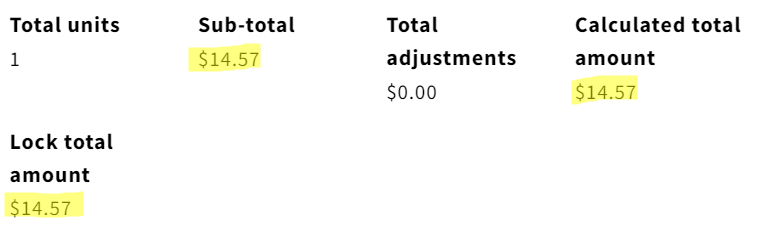 Image Added
- Change invoice status to "Reviewed"
- The invoice will then be available for payment by Library Place the paper invoice in the appropriate folder for routing to Library Finance and Budget Office.

