*** This version of Confluence is for testing only and contains a copy of content from June 29th 2026. No changes will be preserved. ***

This procedure has been archived and will no longer be updated. For the related regularly-updated procedure, please follow this link: https://confluence.cornell.edu/pages/viewpage.action?pageId=436189299
1. In the Receiving app record of the ceased serial, delete all pieces populating the Expected field if we know we won't be receiving the issue(s). Click each individual piece and selecting Delete.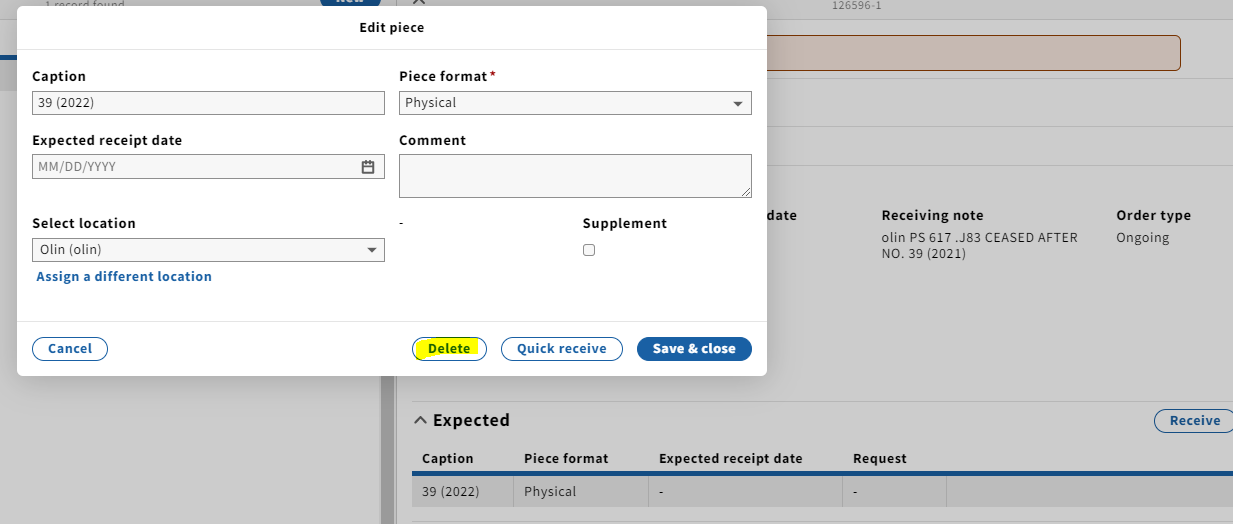
2. Open the Instance record in the Inventory app by clicking on the title at the top of the Receiving record, which is a link. You'll want to open the link in a new tab so you can easily navigate back and forth between Receiving and Inventory.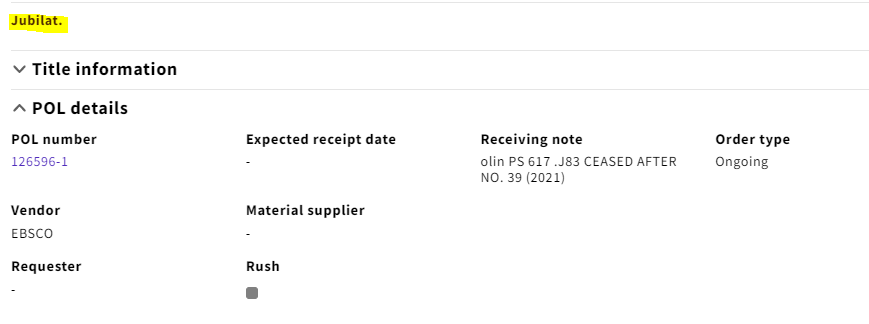
3. Open the holdings record by clicking View holdings next to the appropriate location.
4. Select Actions and then Edit in the upper-righthand corner of the holdings screen.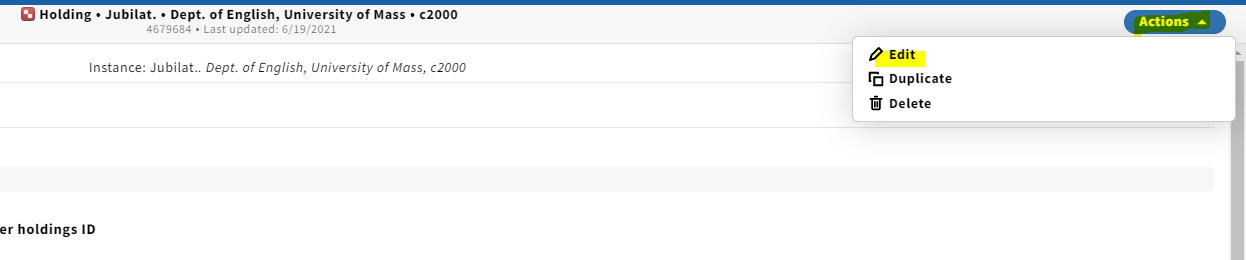
5. Make sure the holdings statement is accurate and shows the final completed volume before cancellation.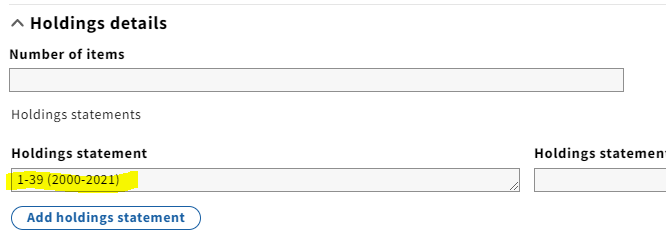
6. Scroll down to Holdings notes, click Add note, select Note for type and add the ceased publication statement. Be sure to check the staff only toggle since this note should be private.
7. Scroll down to Acquisition and update Receipt status to Received and complete or ceased
8. Click Save & close at the bottom of the screen when done.
9. Click the X in the upper-lefthand corner of the screen to exit the holdings record.
10. Exit out of the Inventory app tab and go back to the Receiving app tab.
11. Navigate to the POL by right-clicking on the linked POL# and opening in a new tab.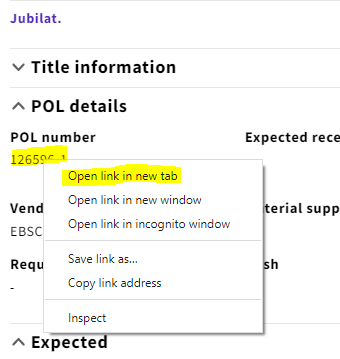
12. Select Actions and then Edit in the upper-righthand corner of the POL detail screen.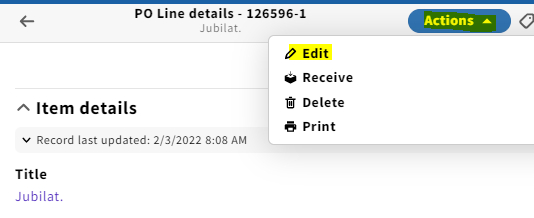
13. You'll want to indicate that the ongoing order has been ceased after a given year in the Receiving note field.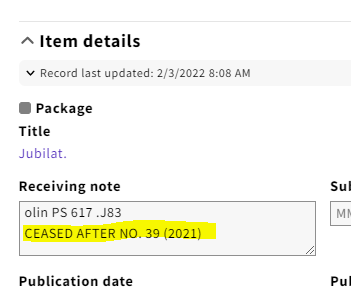
14. Scroll down to PO line details, and change both the Receipt status and Payment status (as long as the last invoice has been paid) to Cancelled from the drop-down menu.
15. Click Save & close
16. If this is the only line item on the purchase order, you will want to close out the PO. Note that only open orders can be closed. Take the following steps to do so:
a. Click the arrow on the upper-lefthand corner of the POL details pane, which takes you to the PO itself
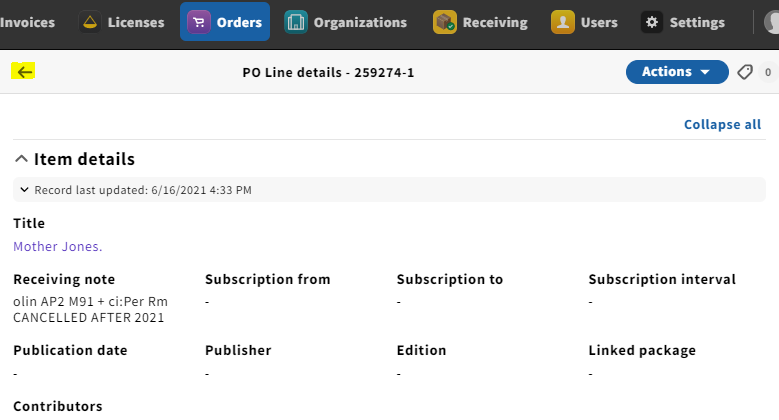
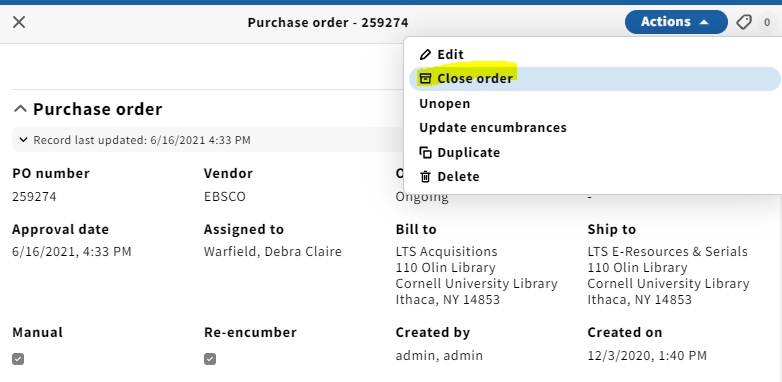
b. Click Actions and Close order
c. A pop-up box will appear where you can indicate why you are closing the PO. Select Ceased under the Reason dropdown menu and note when the publication was ceased.
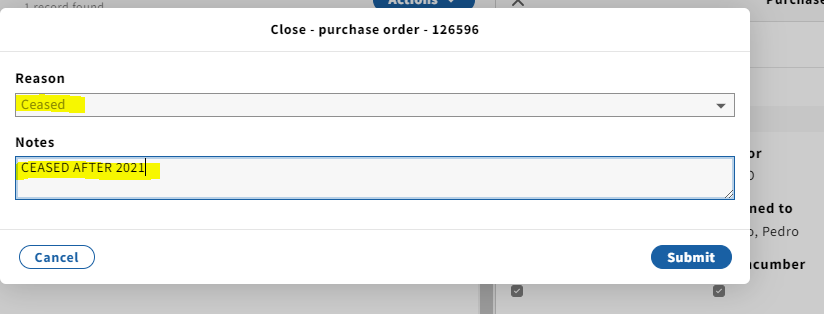
d. To close the order, click Submit. A confirmation message appears and the order’s status changes to Closed.
Scope: This document outlines the process that Library Technical Services serials staff follow when processing a serial that has been ceased. Note: In the case of a ceased serial, Paul Heckathorn (pjh25) should be notified after taking the steps below.
Contact: Joanna Cerro
Unit: Serials Management
Date last updated: 2/17/2022
...
