*** This version of Confluence is for testing only and contains a copy of content from June 29th 2026. No changes will be preserved. ***

PROCESSING INVOICES REMOTELY
All procedures developed or modified in response to the COVID-19 outbreak will be kept here. When updating an existing procedure with temporary changes, post those changes here, linking or referring to the original. Where things are in conflict, the Temporary COVID-19 procedure is to be followed.
INVOICE PROCESSING—COVID-19
The temporary guidelines below should be followed for processing invoices remotely:
For invoices that are emailed to us as pdf’s, or are readily available for download through their online customer portals (EBSCO, Harrassowitz and HarrassowitzCasalini)
Download the invoice, save it and process as you normally would in Voyager. When done, fill out the attached template using Adobe.
Using Adobe’s signature feature (circled in red below and located on the menu bar), initial the document.

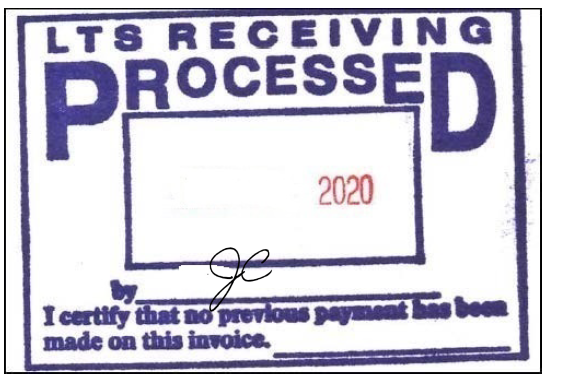
You should then date it using the text feature, which is also located on your menu bar after you sign (circled in purple).

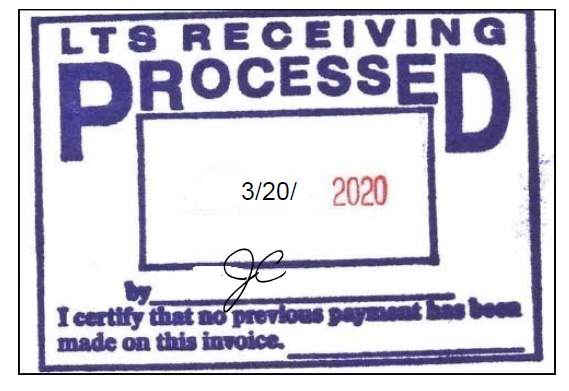
Using the same text feature, fill out the bottom portion of the form. If it’s a multi-line invoice, you can put “multiple” for the fund.
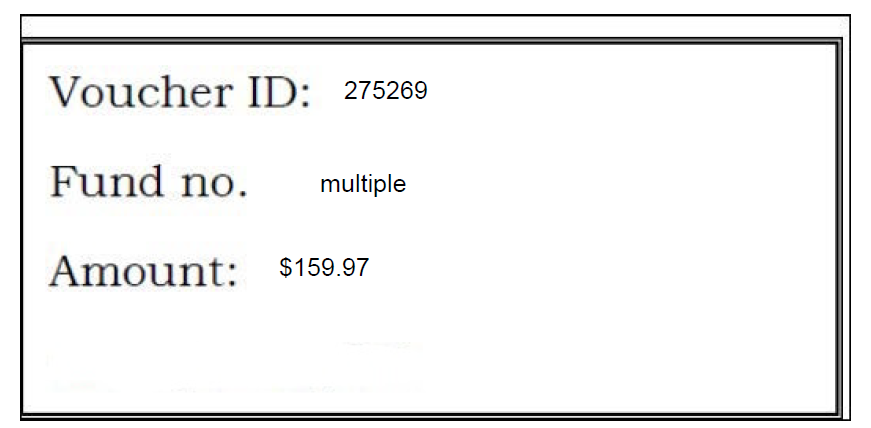
“Add Text” feature, Add to the invoice, “LTS Receiving, the date, your initials and the Voucher Number” Make it large enough so that it can be easily seen.
See the example below:
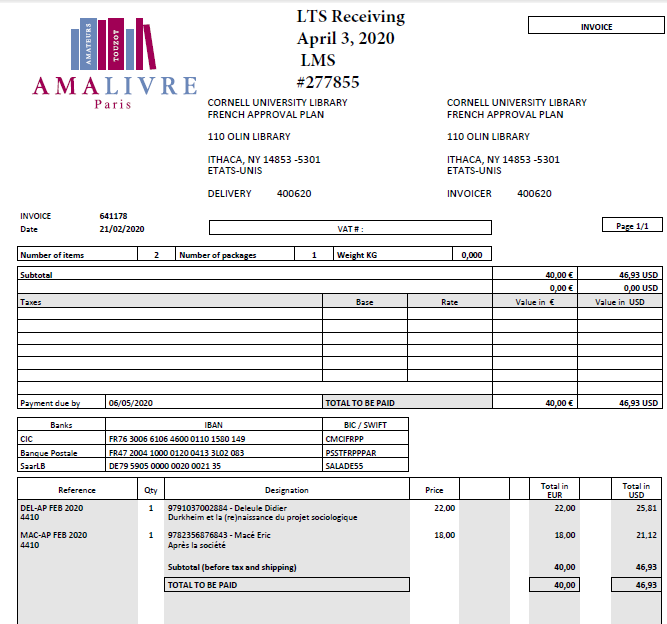
Accounting has set up a shared folder for LTS & Finance & Budget – FBO-LTS (X:\FBO-LTS).
Within the shared drive, there are 4 folders:
Please submit the invoices in the following format:
After saving, attach the form along with the invoice and send to libacct@cornell.edu with the vendor name in the Subject line along with “Invoice” and the invoice number. For example “Amazon Invoice# 12345”.
If you’re paying an e-resource invoice that requires approval by Liisa or Jesse, you should send - submit the invoice along with a copy of their email approving the invoice and send that as well.
For those of us with pcards, Library Accounting has informed us that we are allowed to bring them home. When making a pcard payment, we should follow the same guidelines
Using the receipt typically sent by email, save it and attach the completed form. In the subject line, you should indicate that it was paid using pcard (ex. EBSCO Invoice# 1234 – paid with pcard). When prompted by central accounting to upload the receipt into the Pcard Portal, be sure to attach the form along with the receipt.
BATCH PROCESSING
payment as:
Academic Complete Load: COVID-19: ProQuest Ebook Central - temporary access until 06/19/2020
