...
File Management with Eclipse
Modifying Files
- Open the file you wish to modify from where it is saved on your computer within the Eclipse workspace. Make changes and save the file on your computer.
- Find the file within the Workbench in the open Eclipse Application.
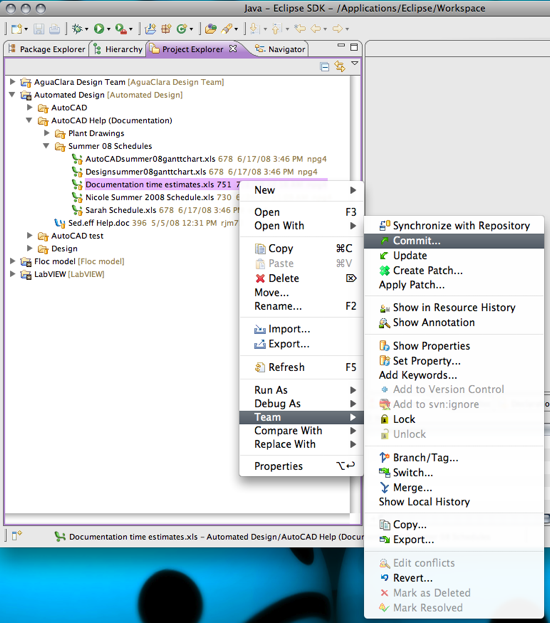
- Right click on the file and select Team > Commit.
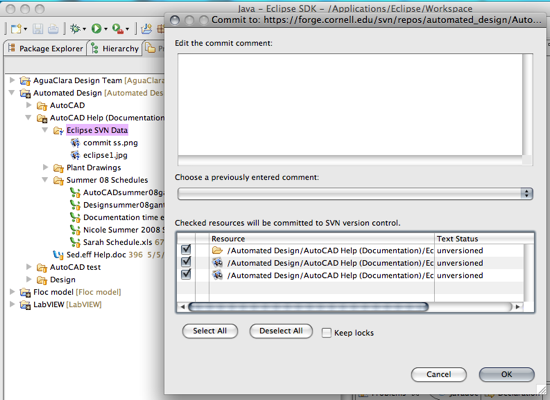
- Select the files you wish to modify and click ok to modify the file in question.
Adding Files
- Add new files and folders to the project location in your workspace on your computer. i.e. Make changes to the files directly on your computer.
- Right click on the folder within your Workbench in Eclipse that holds the changes you have made. Go to Team > Update. The new files you wish to add should appear within Eclipse with question marks.
- Click on the folder containing the new files and select Team > Commit. You should be brought to a screen listing the files to be added.
- Select the files you wish to add to the repository and then click ok to add the new files. See the screen shots below for visuals.
{"serverDuration": 89, "requestCorrelationId": "896303db8e1b3bd0"}
