*** This version of Confluence is for testing only and contains a copy of content from June 29th 2026. No changes will be preserved. ***

Scope: The document below outlines the procedures that Library Technical Services serials staff follow when processing an EBSCO or Harrassowitz credit memo in FOLIO.
Contact: Joanna Cerro
Unit: Serials Management
Date last updated:
...
7. Edit the invoice itself by clicking Actions → Edit.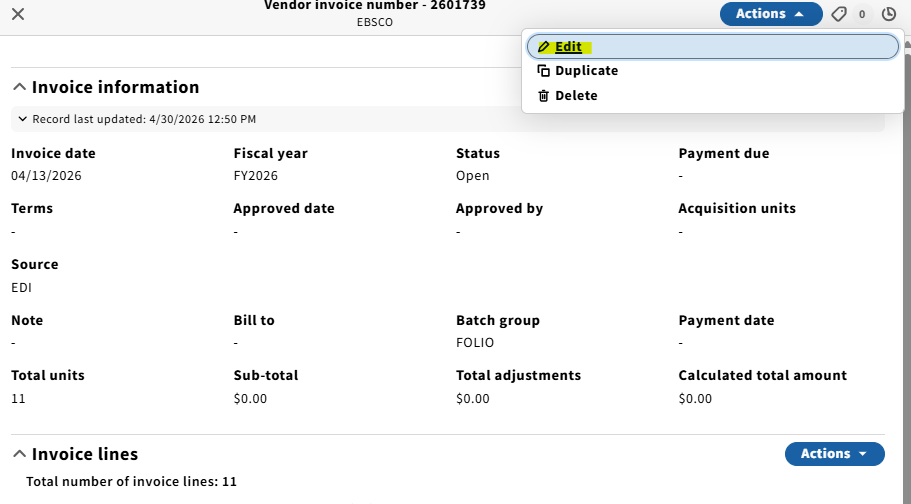
8. Confirm that the invoice date matches what is on the credit memo. Set status to Reviewed. Fill in the Bill to field to LTS E-Resources & Serials. Make sure lock total amount is unchecked.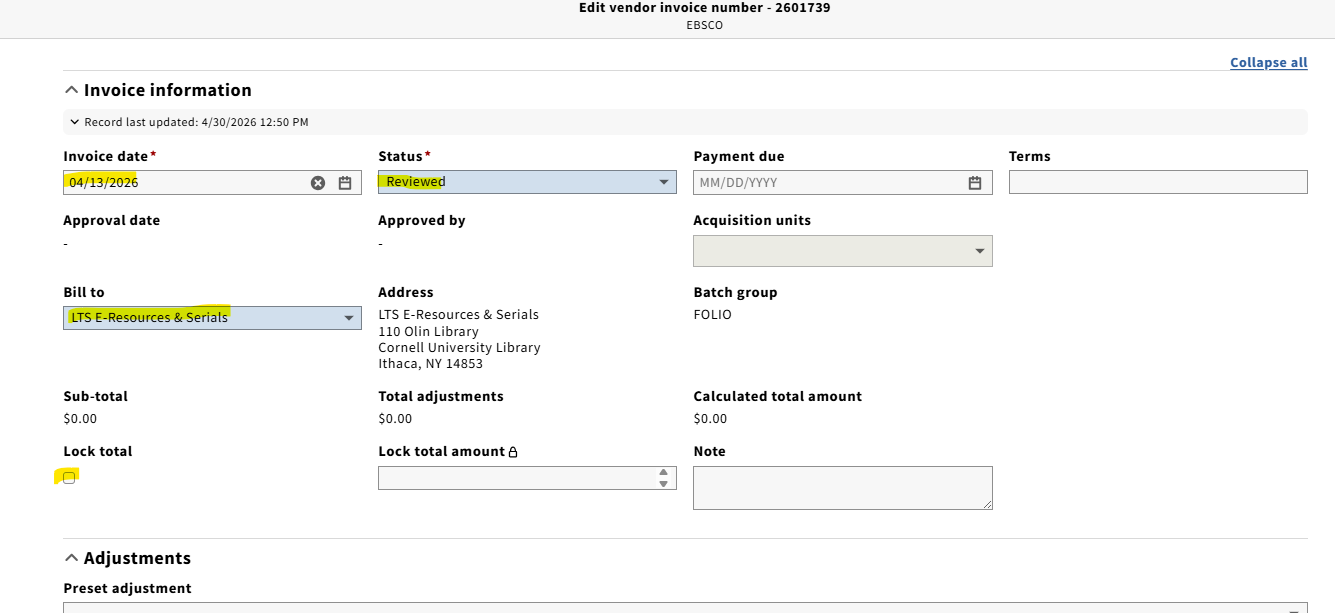
9. Scroll down, make sure payment method is Deposit account, the Check subscription overlap box is checked, and the Export to accounting box is unchecked.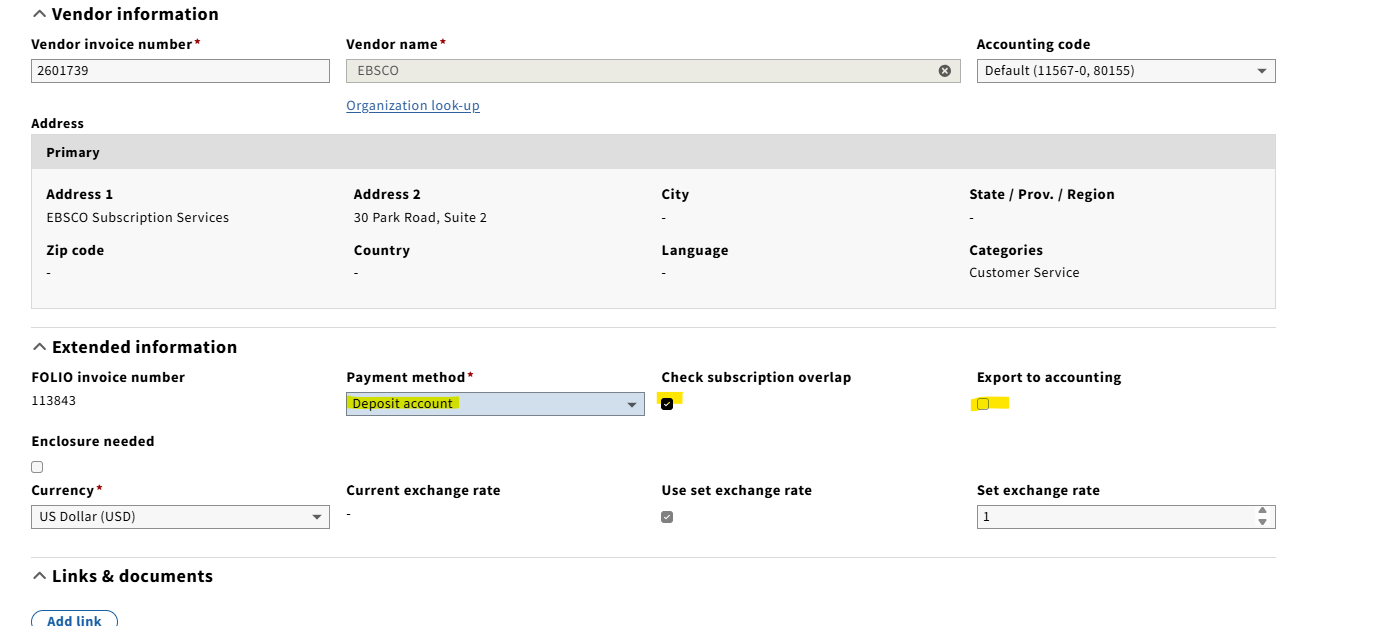
10. Upload a copy of the credit memo to the invoice. Similar to an invoice, the credit memo should be edited to include the LTS Receiving "stamp", date, and initials.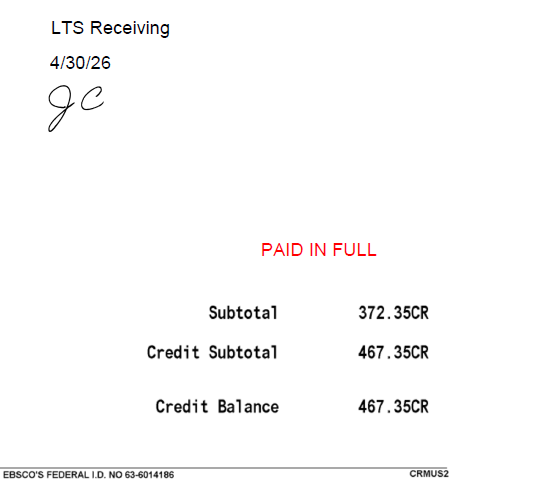
...
Harrassowitz
For the most part, processing the Harrassowitz credit is the same as processing an EBSCO credit; however, there are a few differences:
Credit memos are sent to LTSSER-L as pdf's, but not uploaded to FOLIO through EDI. They must be created from scratch in FOLIO.
Harrassowitz credit memos typically give one of two instructions:
If the credit memo doesn't show that the balance will be added back to our deposit account, a deposit account line will not be added to the credit in FOLIO (Ex. 11093).
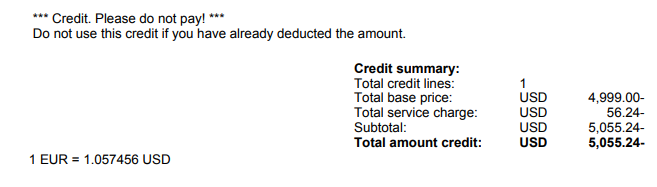
If this is the case, the Extended Information in the credit in FOLIO should be Physical check for payment method, with subscription overlap and export to accounting checked:

If the credit memo shows that the amount is added back to our deposit account, a deposit line will be added to the credit in FOLIO (ex. 38233).
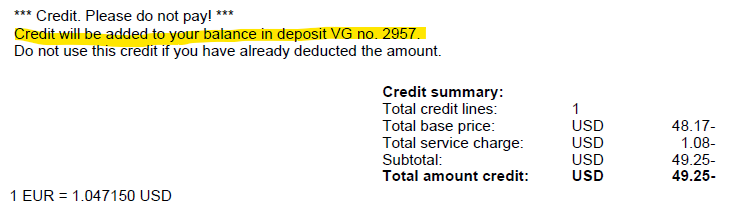
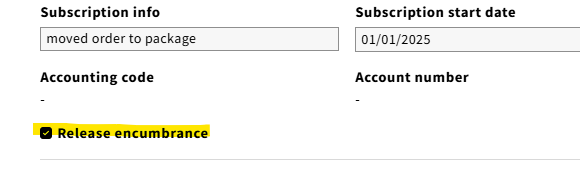
In both cases, like credit memos from all vendors, the Release encumbrance box should be checked when editing the invoice line.