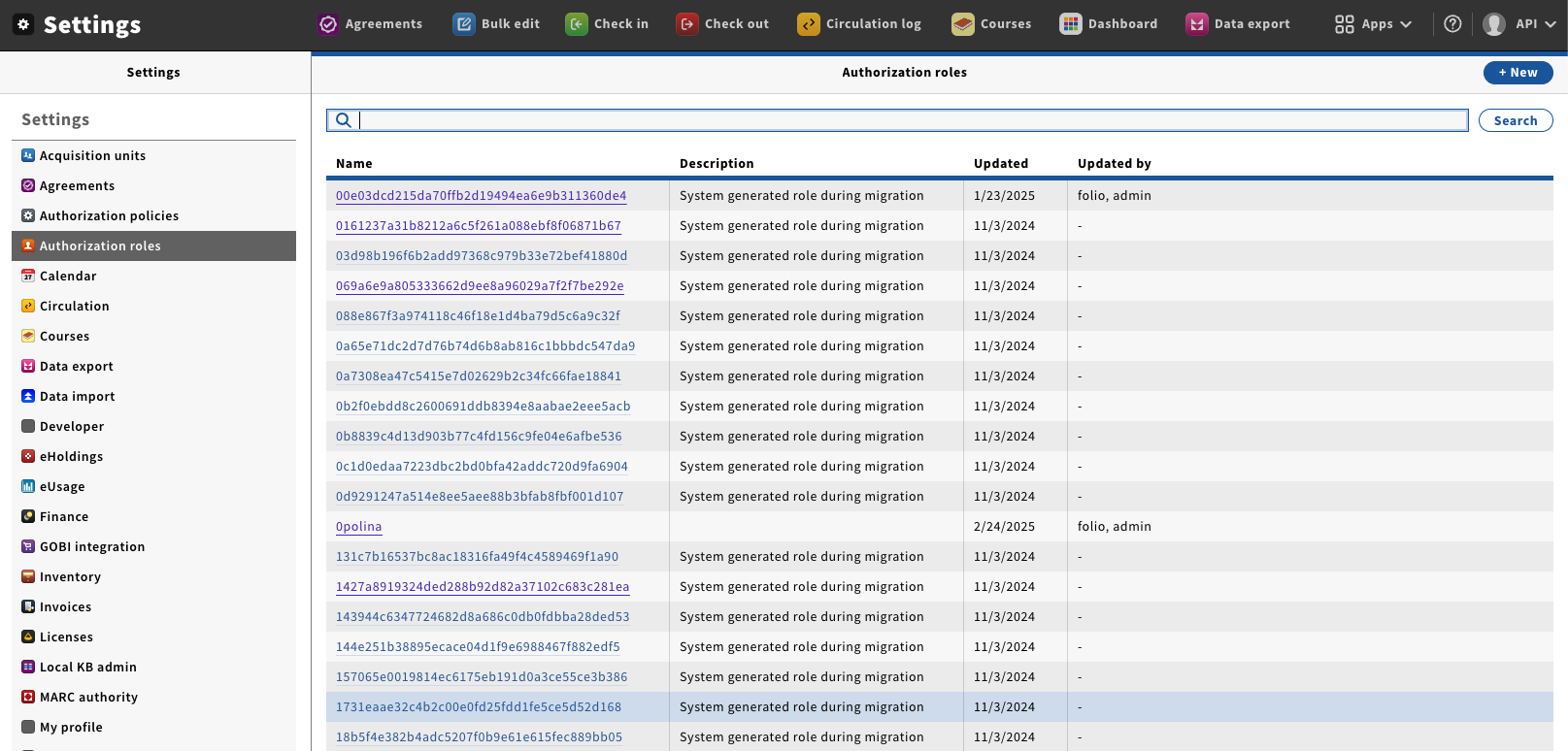
Go to “Settings” → “Authorization roles”, this will pen the Role management window.
Image Modified
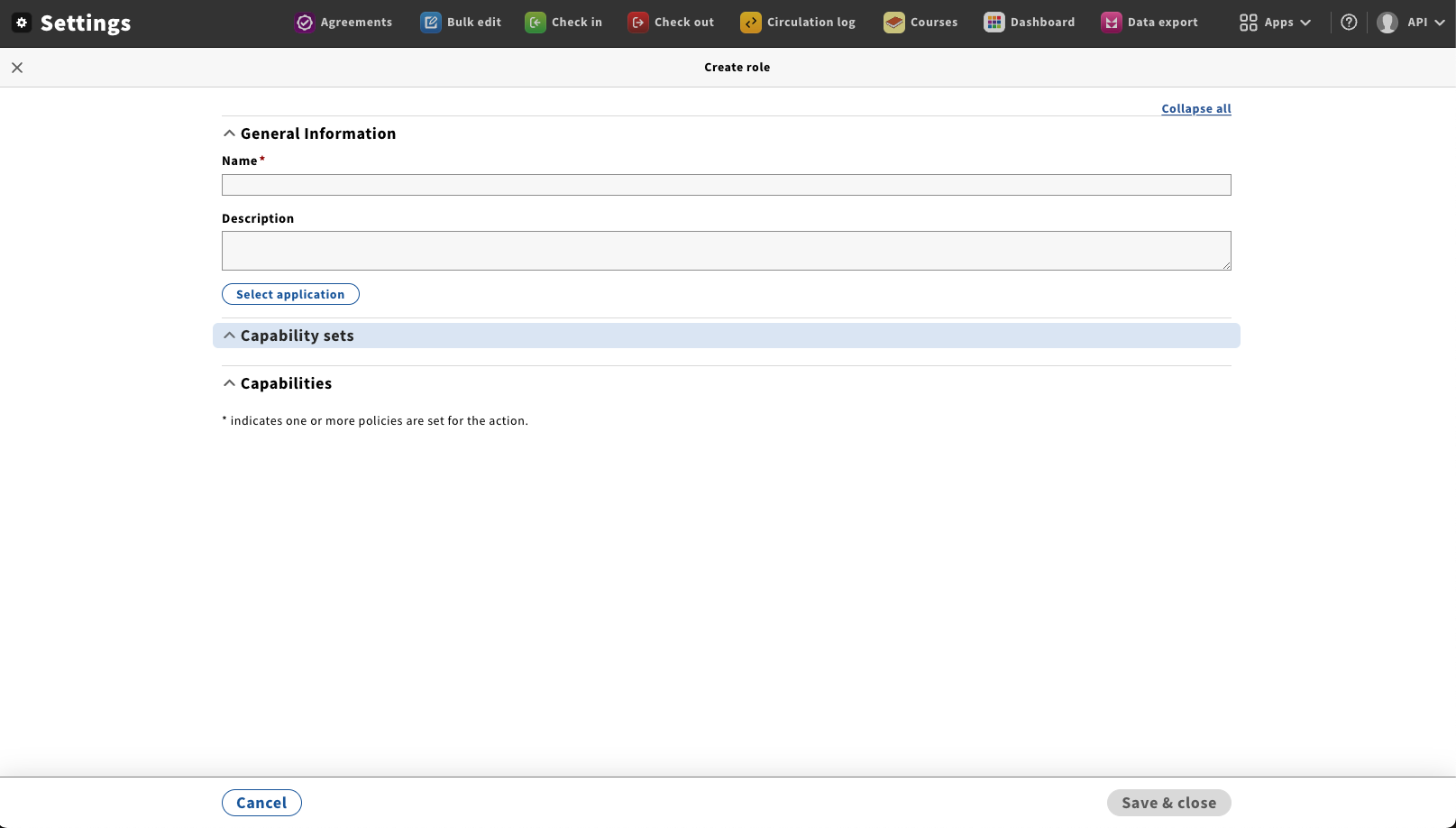
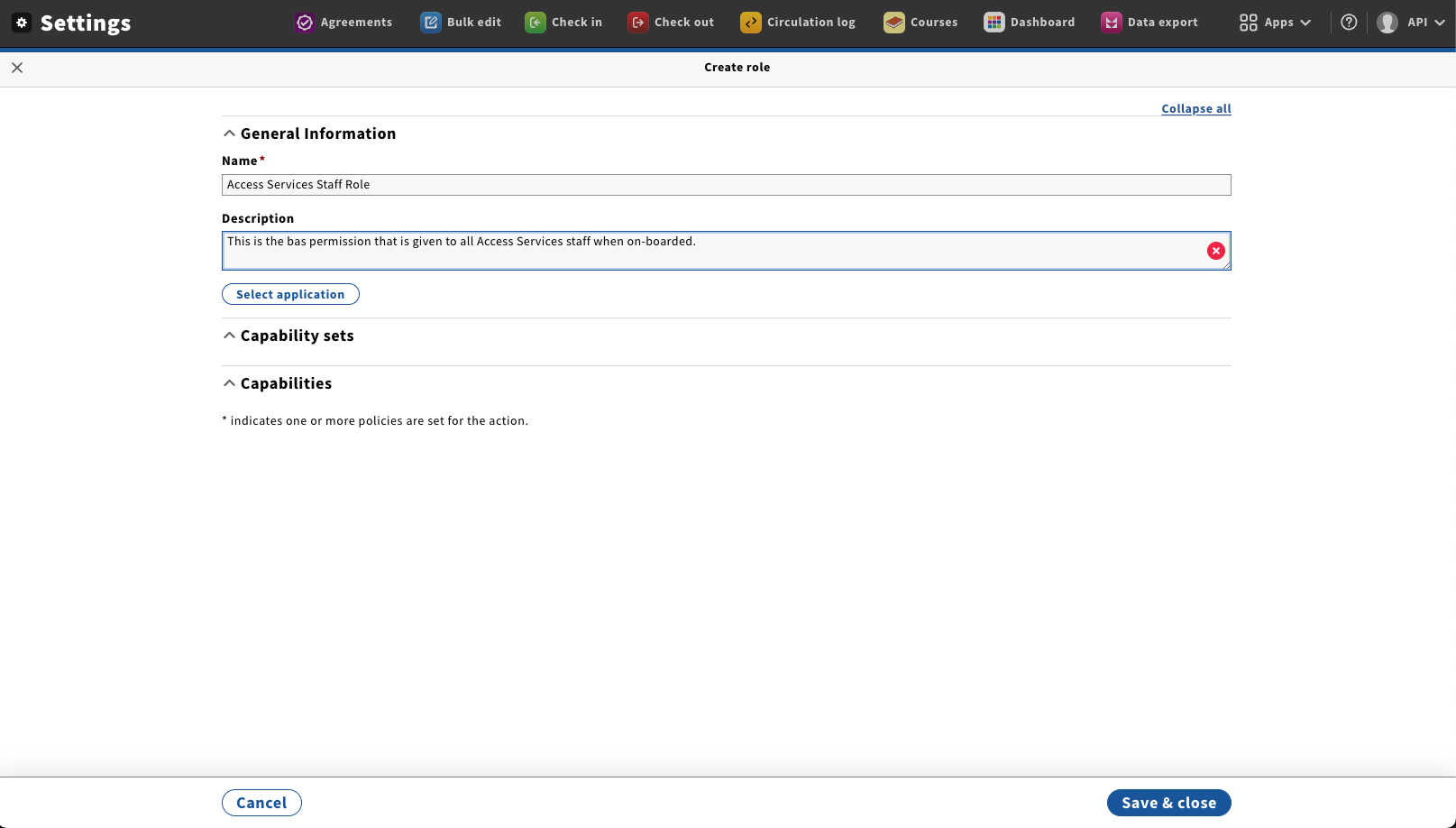
Click on “New” button; this will open the New role window.
By default there are no Capability sets or Capabilities shown, this will be addressed in
Image Removed
Image Added
Fill role name with any unique value → Click on “Save & close” button.
Image Modified
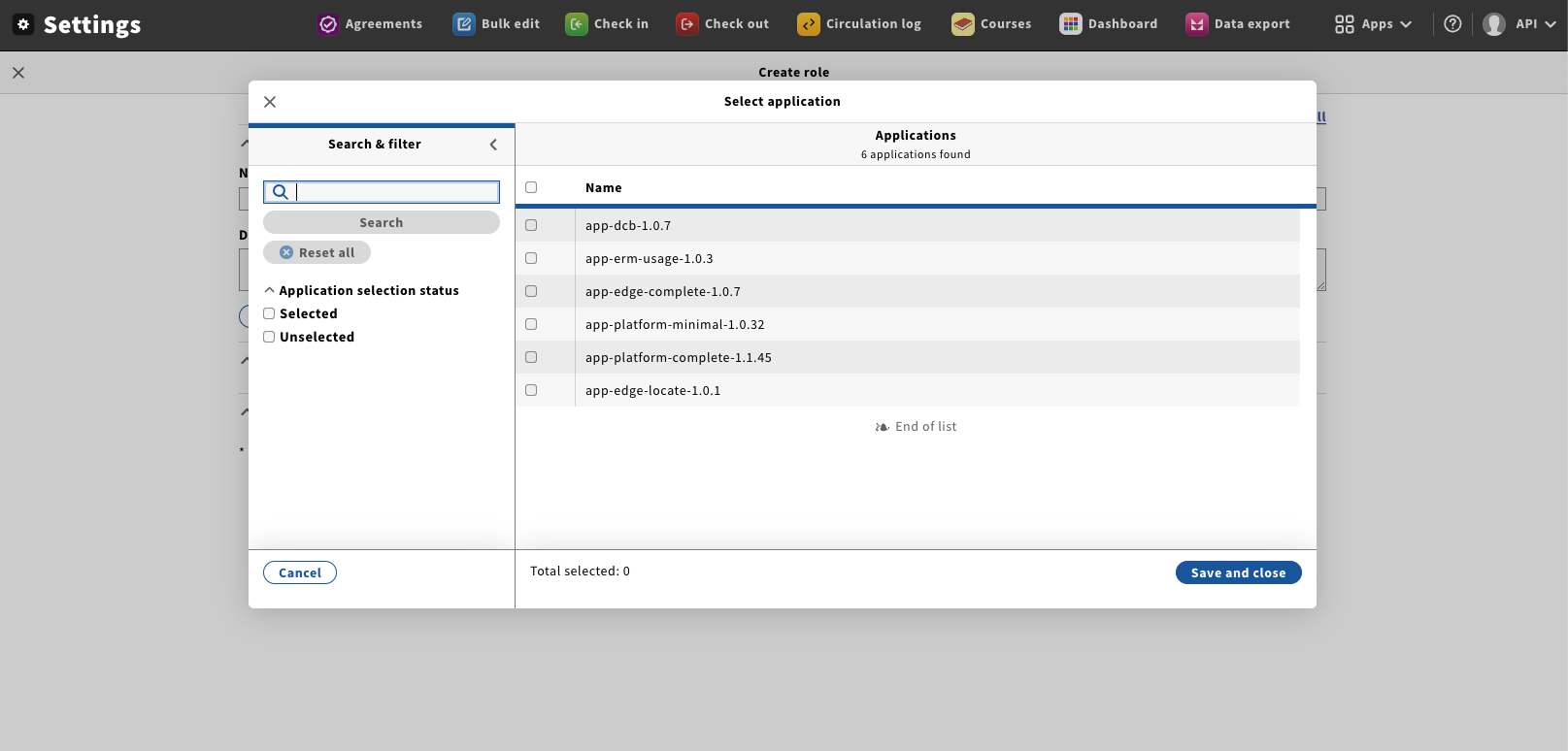
Click on the “Select application” button. This will open the “Select application” dialog.
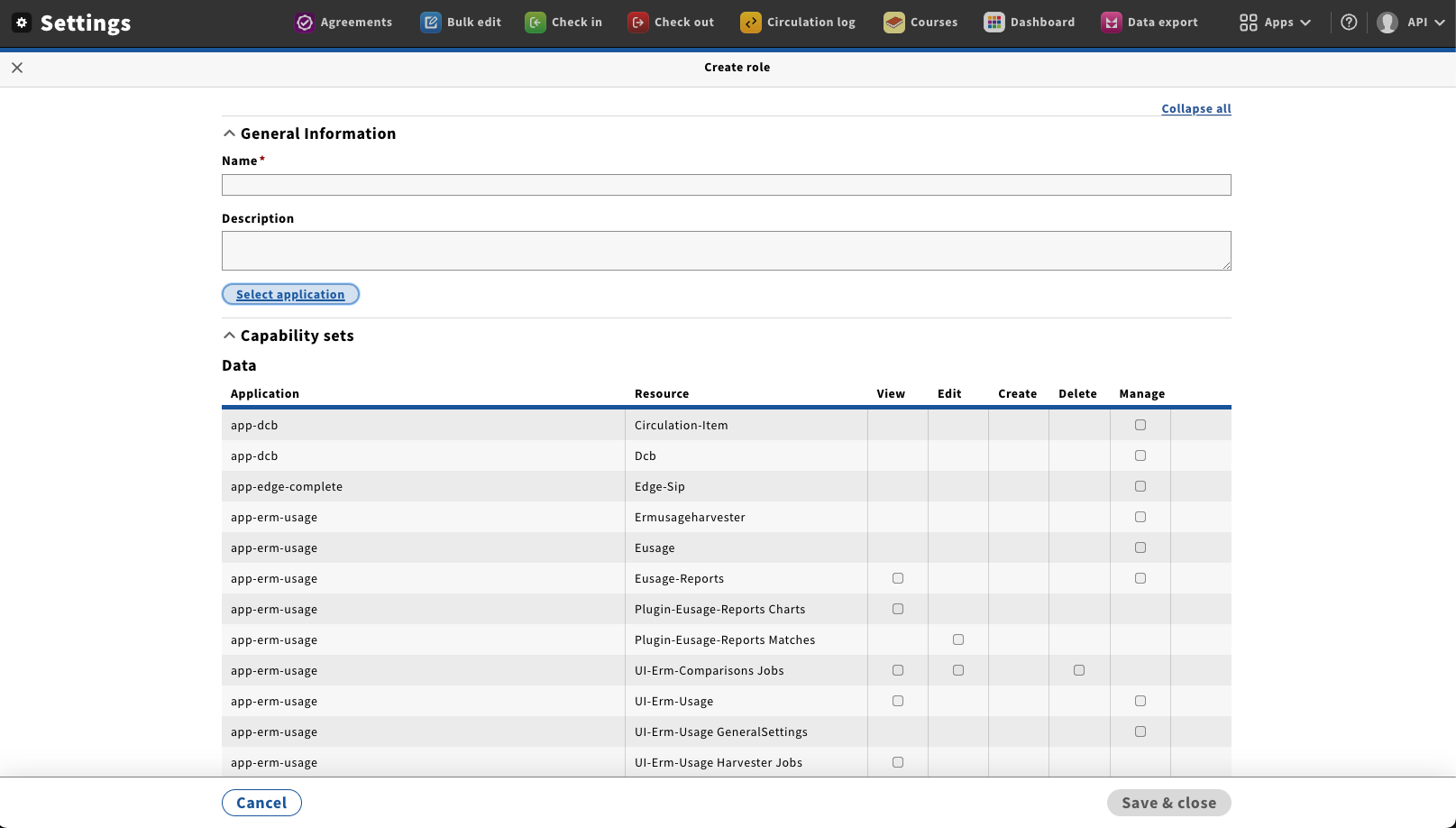
Using the checkboxes select what application area you would like to add Capability sets or Capabilities from. Click on “Save and close” to display the Capability sets and Capabilities.
Image Modified
Image Removed
Image Added
Using the checkboxes provided select the Capability sets and Capabilities that you would like this role to have
When you have selected all the Capability sets and Capabilities you would like to assign to this Role, click on the “Save and close” button. The Role will now be available to be assigned to a user.