*** This version of Confluence is for testing only and contains a copy of content from June 29th 2026. No changes will be preserved. ***

...
Upload a copy of the invoice and any approval information by dragging them to the box under Links & documents or select or choose file.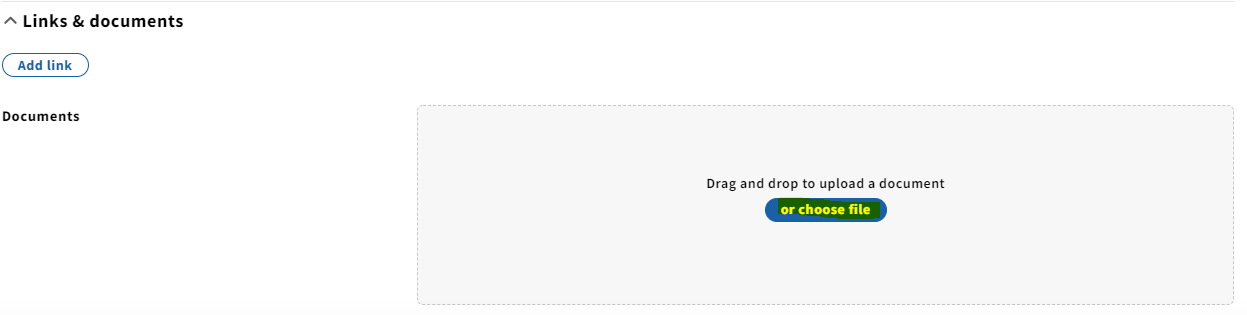
9. Click Save & close at the bottom.
10. Select Actions ->Add line from POL under Invoice lines.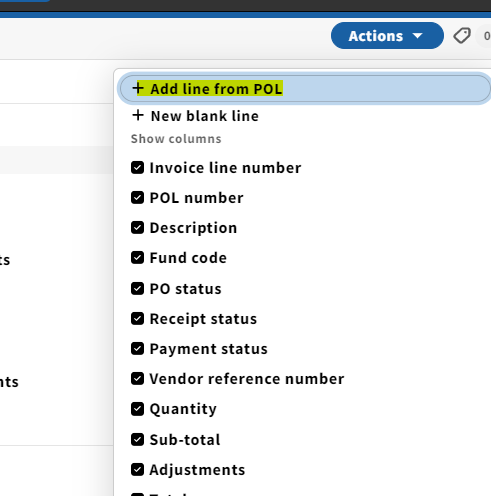
11. A pop-up will appear where you can search for an order line by title or PO#. After you've identified the order line, click the checkbox next to the PO# and click Save.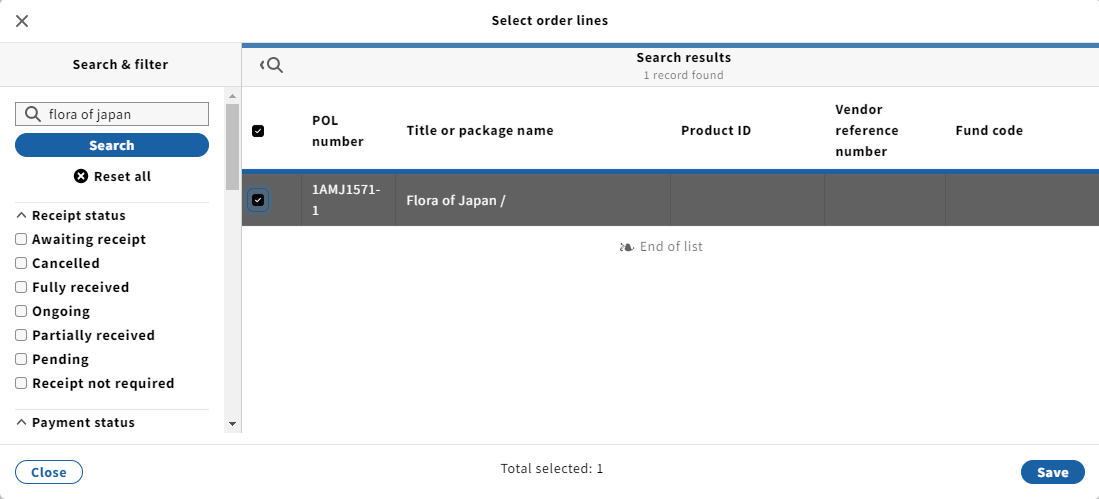
12. The Invoice lines field will now be populated with the title you just selected. Next, click on the invoice line.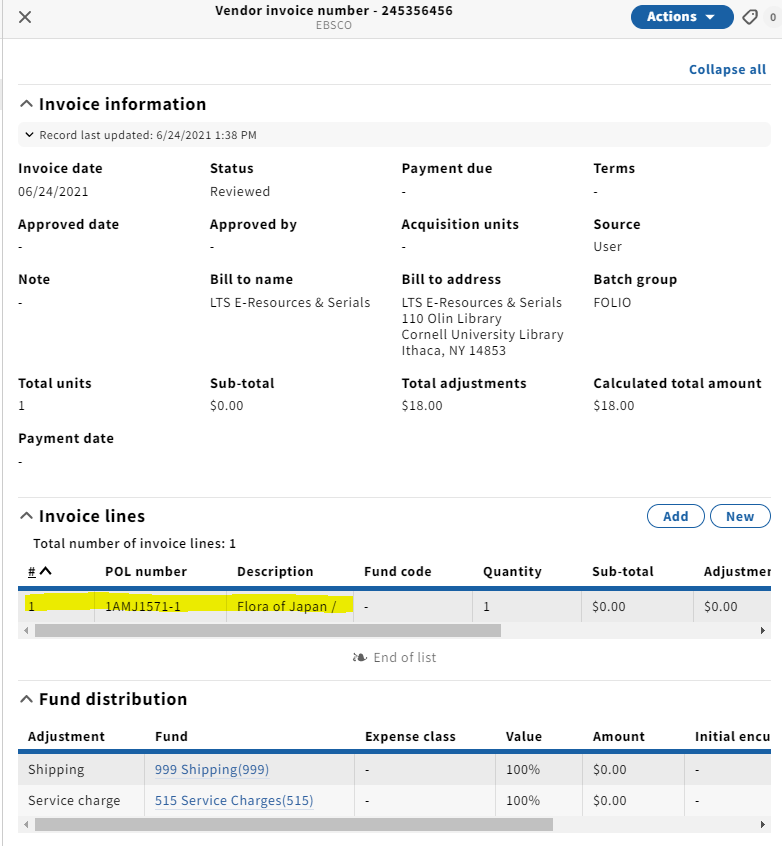
13. Select Edit from the Actions drop-down menu.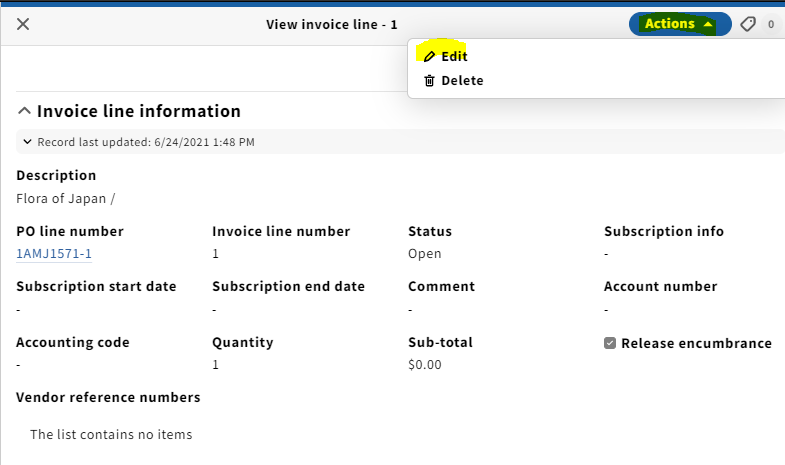
14. On the Invoice line information edit screen, fill in the following information:
- Subscription start and end dates if you'd like or...
- Subscription info: fill in volume or enumeration info in this field along with the year
- Sub-total: the cost of that particular line item (as stated above, if this is a single-line invoice, you will include shipping in this field similar to our practice in Voyager)
- Fund distribution and expense class
- Comment field can be used to further describe what we are paying for on a given invoice, specifically the cost per issue if we are paying for multiple issues of a single title.
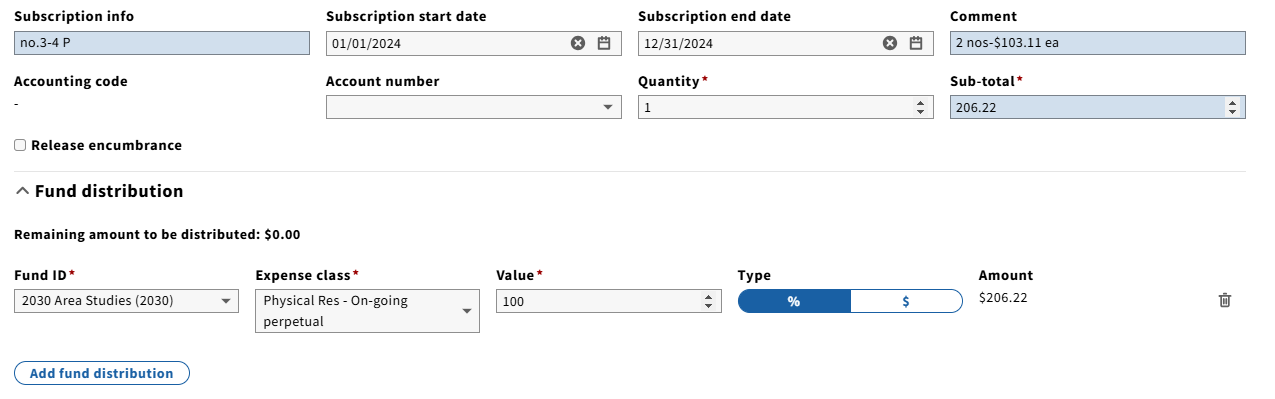
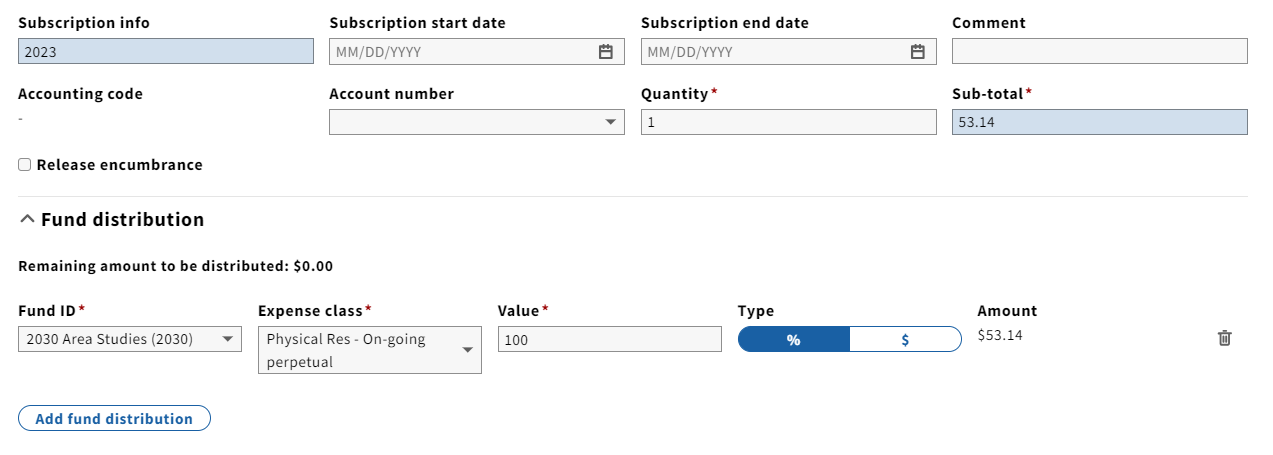
NOTE: Release encumbrance should be checked unless the amount on the invoice ends up being more than what was brought over from the POL. In other words, if there is no money leftover from the payment, there is nothing to release.
NOTE 2: For implementation, the POL's have migrated at $0. For FY23, the The release encumbrance box does should not need to be checked at all.
15. Click Save & close.
16. If adding more invoice lines, repeat steps 10-15 for each item.
17. Double-check to make sure that the Calculated total amount matches the total on the invoice.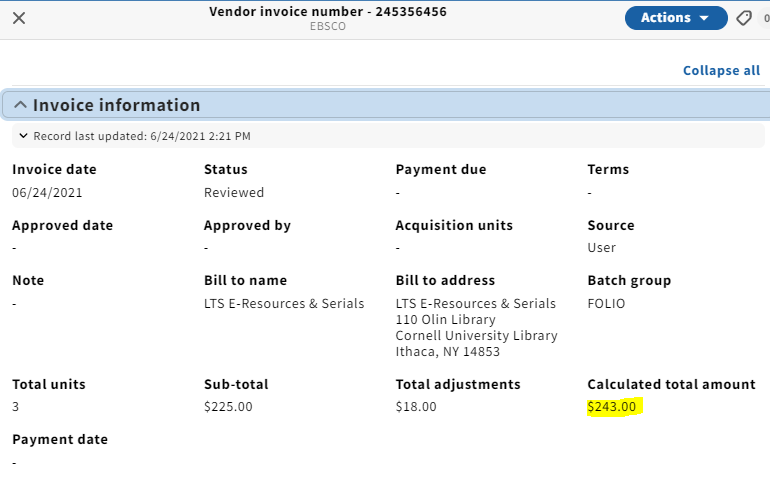
...
