Connect to the Server
- Connect to EC2:
Run the following command, where | Code Block |
|---|
ssh -i <private.key> -L 6445:localhost:6443 username@ssh.diaper-project.com |
- -L mean to forward server's port to local
- , because Kubernetes exposes port 6445, we would like to forward it to localhost:6443.
Username is your NetID. An admin account holder should be able to create the linux account for you.
If permission error
| Code Block |
|---|
sudo chmod 600 private.key |
- You should see a pop-up looks like this, which means that you have already connected to the server.
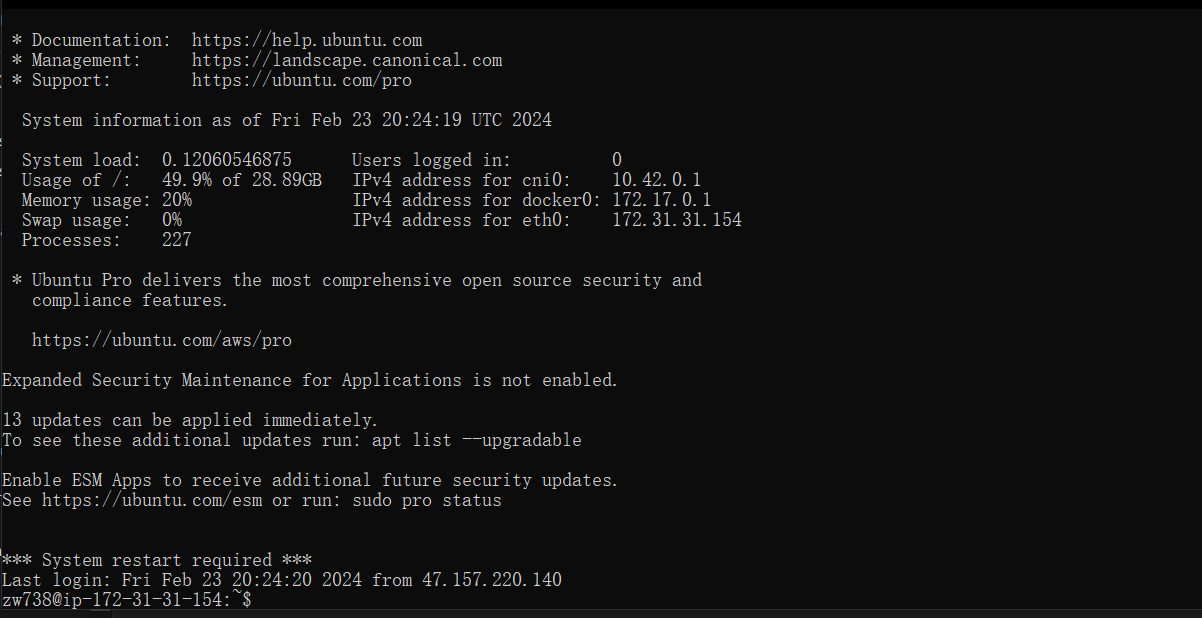 Image Modified
Connect to Kubernetes
- We first need to install Kubernetes on our local machine. To install using Install Kubernetes by Docker (you might want to use Docker to build images), check out Install and turn on Kubernetes.
- There are various UI explorers for Kubernetes, one of my favorites is called k9s. To install. Such as k9s, check out out Install (k9scli.io).
- Add the server cluster credentials in the Kubernetes config file. (In Mac, config file is located in ~/.kube). The configuration is as follows:
| title | Kubernetes Config File |
|---|
linenumbers| collapse | true |
|---|
true | apiVersion: v1
clusters:
- cluster:
certificate-authority-data: |
LS0tLS1CRUdJTiBDRVJUSUZJQ0FURS0tLS0tCk1JSUJlRENDQVIyZ0F3SUJBZ0lCQURBS0JnZ3Foa2pPUFFRREFqQWpNU0V3SHdZRFZRUUREQmhyTTrEPCPrqR3YziyHVBJnibzUcQvxyeVaz756SXpNRFl3SGhjTk1qUXdNakExTTrEPCPrqR3YziyHVBJnibzUcQvxyeVaz7RRMgpXakFqTTrEPCPrqR3YziyHVBJnibzUcQvxyeVaz71WeUxXTmhRREUzTTrEPCPrqR3YziyHVBJnibzUcQvxyeVaz7BRSUJCZ2dxaGtqT1BRTTrEPCPrqR3YziyHVBJnibzUcQvxyeVaz7NqNkNIdDlxK3daSUV6N093ajM5VXJmRnoKTTrEPCPrqR3YziyHVBJnibzUcQvxyeVaz7dTTrEPCPrqR3YziyHVBJnibzUcQvxyeVaz70JnTlZIUThCQWY4RQpCQU1DQXFRd0R3WURWUjBUQVFIL0JBVXdBd0VCL3pBZEJnTlZIUTTrEPCPrqR3YziyHVBJnibzUcQvxyeVaz72CnNrWkUzOG93Q2dZSUtvWkl6ajBFQXdJRFNRQXdSZ0loQUxKelRCZTTrEPCPrqR3YziyHVBJnibzUcQvxyeVaz7KQVkya1cyamcvMy80QWlFQXdhMTlENk1IcThPTTrEPCPrqR3YziyHVBJnibzUcQvxyeVaz7UzdFJvY2c9Ci0tLS0tRU5EIENFUlRJRklDQVRFLS0tLS0KLS0tLS1CRUdJTiBDRVJUSUZJQ0FURS0tLS0tCk1JSUJlRENDQVIyZ0F3SUJBZ0lCQURBS0JnZ3Foa2pPUFFRREFqQWpNU0V3SHdZRFZRUUREQmhyTTNNdGMyVnkKZG1WeUxXTmhRREUzTURjeE56SXpNRFl3SGhjTk1qUXdNakExTWpJek1UUTJXaGNOTXpRd01qQXlNakl6TVRRMgpXakFqTVNFd0h3WURWUVFEREJock0zTXRjMlZ5ZG1WeUxXTmhRREUzTURjeE56SXpNRFl3V1RBVEJnY3Foa2pPClBRSUJCZ2dxaGtqT1BRTUJCd05DQUFSeG5lcFhxd1oxSUNGcXBrcmNqNkNIdDlxK3daSUV6N093ajM5VXJmRnoKTHBBS2tpUzhpS2NIRGNHMTZiazFjaEhzbVdTLzZjV0ptZm5ueEs3cTg2WDNvMEl3UURBT0JnTlZIUThCQWY4RQpCQU1DQXFRd0R3WURWUjBUQVFIL0JBVXdBd0VCL3pBZEJnTlZIUTRFRmdRVUpsRGJlajRVa2IyV0ZVRjBDREd2CnNrWkUzOG93Q2dZSUtvWkl6ajBFQXdJRFNRQXdSZ0loQUxKelRCZTQyZFZtMmtTWUJWQW5TZW05bWw1TSt1NVcKQVkya1cyamcvMy80QWlFQXdhMTlENk1IcThPTS9pMTlSWitXYUxrdkJYV3Uwb1MwWmJCV2UzdFJvY2c9Ci0tLS0tRU5EIENFUlRJRklDQVRFLS0tLS0K
|
  server: https://127.0.0.1:6445
  name: diaper-server
contexts:
- context:
    cluster: diaper-server
    user: <Kubernetes service account name>
  name: diaper-server
current-context: diaper-server
kind: Config
preferences: {}
users:
- name: <Kubernetes service account name>
  user:
token: <Kubernetes service account token> |
- After adding the configs, you should be able to connect Connect to the Kubernetes cluster using k9s. If your k9s is under one of the environments $PATH, you can simply run: k9s on any command line interface. It looks like the following:the command
- then you have
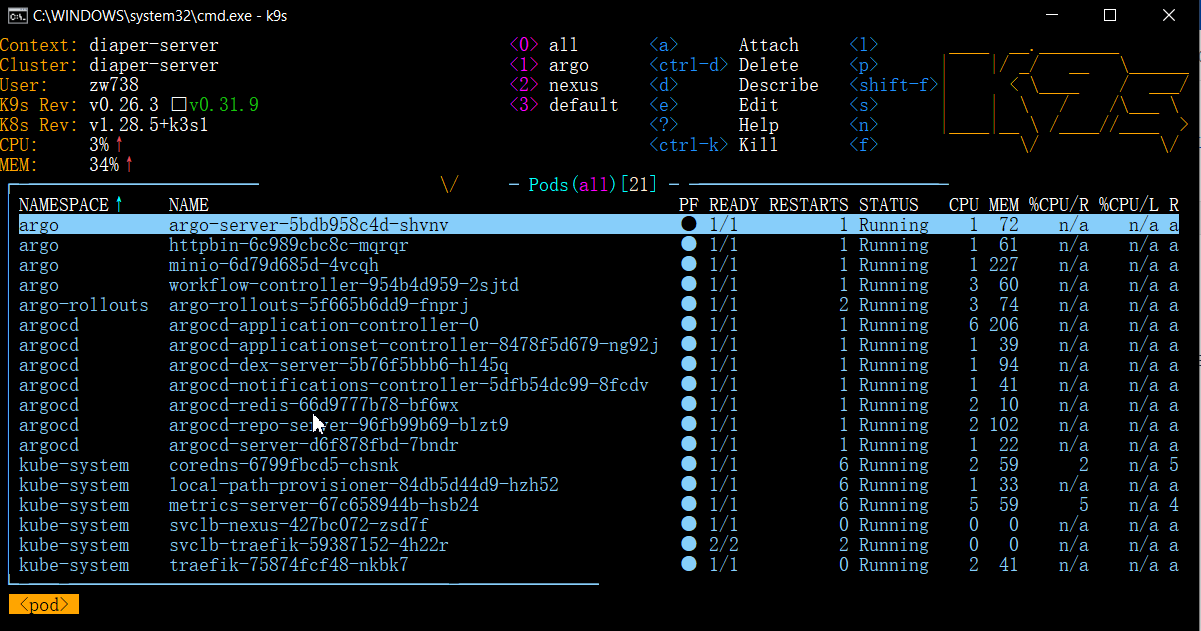 Image Modified
If you don't see all pods running, it is probably because you're viewing a specific namespace. You can simply press '0' to view pods in all namespaces.
- To navigate between Services, Deployments, or Pods, you can type
:services or :deployments or :pods
- To port-forward a pod, type shift+F. To view the log, type l. To kill a pod, type ctrl+k.... You can always view these commands by typing ?(question mark).
...

