*** This version of Confluence is for testing only and contains a copy of content from June 29th 2026. No changes will be preserved. ***

...
1. Request an account for biohpc Biohpc at https://biohpc.cornell.edu/lab/lab.aspx
...
a. at your computer terminal, type: ssh yournetid@cbsujohnson.biohpc.cornell.edu
b. enter your password
(c. type: screen -r(enter screen session)
d. run the following command:
docker1 run \
--volume "/workdir/yournetid/get_colors:/home/jovyan/work" \
...
Copy this link to your browser, you can then see the jupyter notebook page
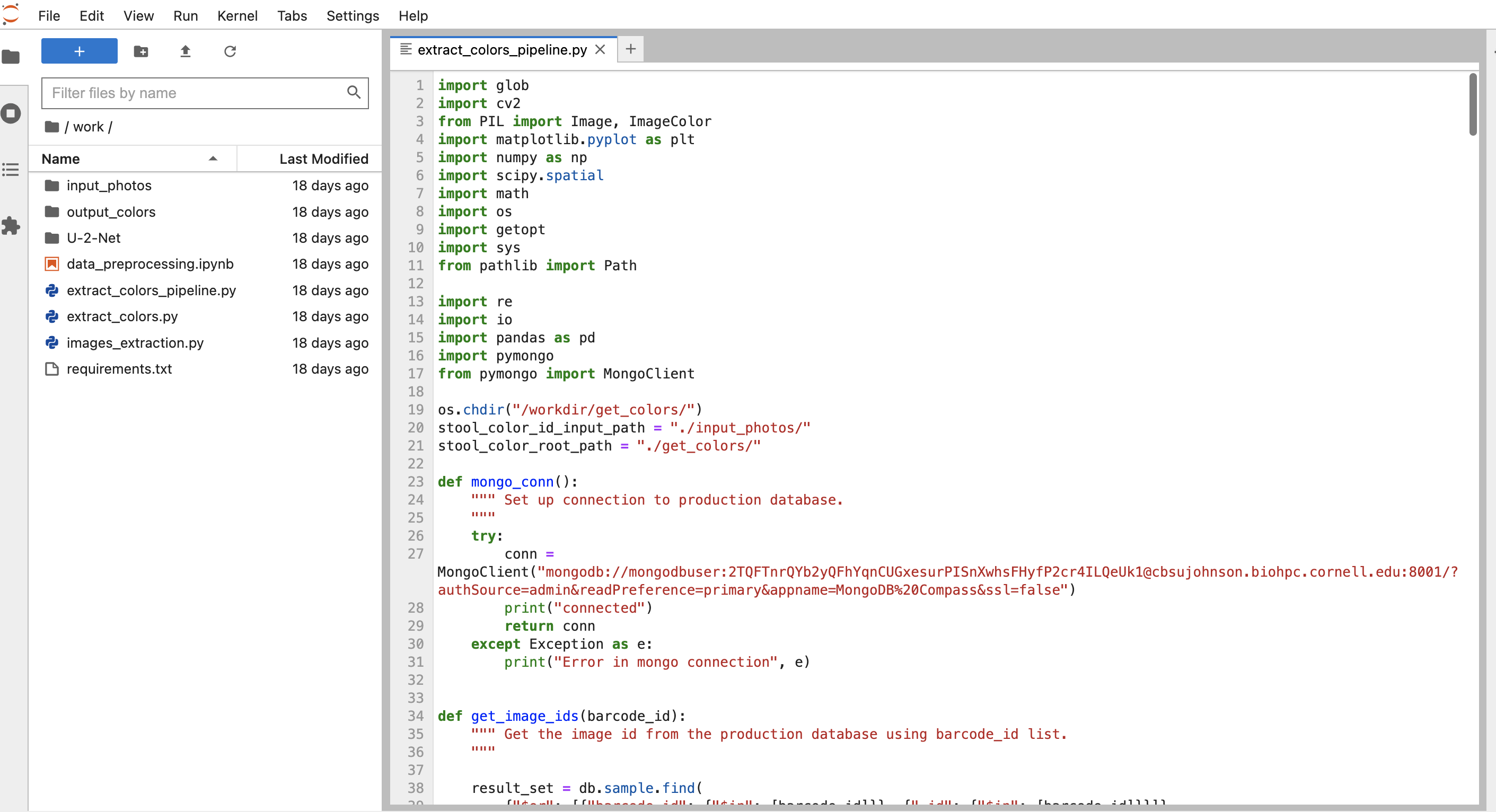
e. type control-a, releasing, the type d (detach from the screen session)
Theoretically, by using the screen command, you should be able to start the notebook this way and leave it running indefinitely (assuming it doesn't crash anymore). It should only need to be restarted when the server is rebooted. Using the screen command is good practice for any command that you don't want to get killed if you get disconnected from the server.
f. next time when you log in, type: screen - r (resume session)
4. More on The Screen Command & Provide Access for other team members
a. More details on the screen command are in this pdf:
https://biohpc.cornell.edu/lab/doc/Linux_exercise_part2.pdf
b. As far as sharing with other team members:
5. Steps to edit and run the data pipeline in the Jupyter Notebook
6. Steps to edit and run the data pipeline in your computer terminal:
(Currently don't have permission to edit or run Jupyter Notebook in Browser, the connection was interruptedin case the Jupyter Notebook does not work)
a. cd /workdir/yournetid/get_colors
...
f. to run: type python /local/workdir/yournetid/get_colors/extract_colors_pipeline.py
PS: All the steps above require access to the Cornell Network, if you are outside of Cornell University, you can connect to the VPN: https://it.cornell.edu/cuvpn
google doc version of this documentation: https://docs.google.com/document/d/10mJzJUvUKSlWoK7e-n8yJ-766NdSm0LfIWmDjoRTBQ8/edit
...
