Versions Compared

Key

  • This line was added.
  • This line was removed.
  • Formatting was changed.

Anchor
Locating contacts
Locating contacts

Where are contacts?

Contacts can only be accessed through the Organizations app. 

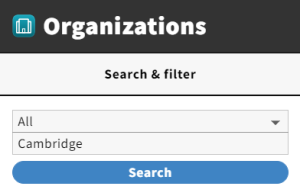
  • Search for an organization. 
  • Select it.
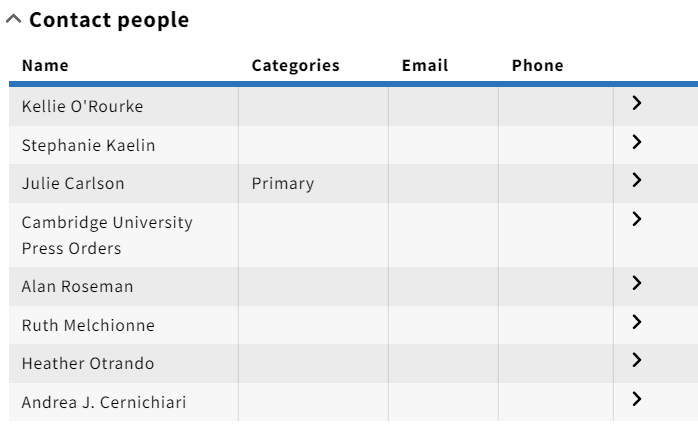
  • Expand the "Contact people" accordion to see contacts assigned to that organization. 


Anchor
Contact information
Contact information

Anchor
list of contact people

But how do I get to the contact information?

  • Just click on the arrow to the right of a contact's name.

Anchor
Editing a contact – part 1


What if I want to make changes to a contact?

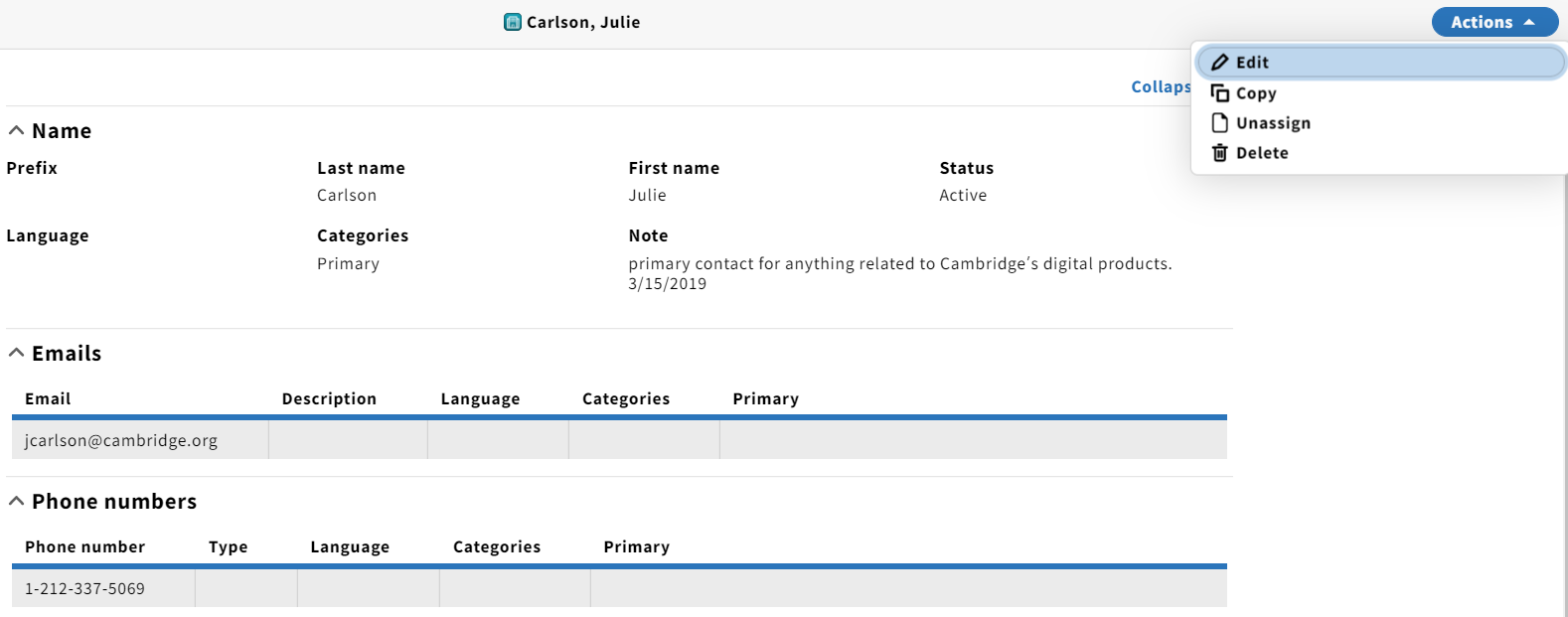
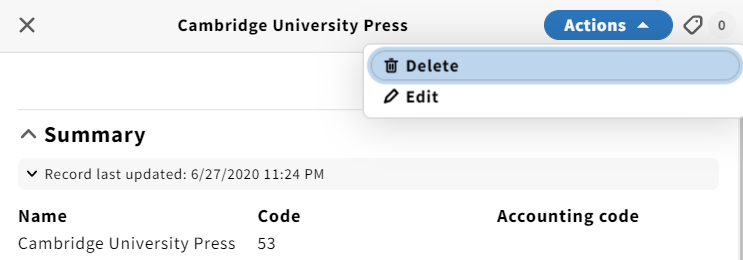
  • You can edit, copy, unassign, or delete the contact from the Actions button in the upper-right hand corner of the contact. 
    • Unassign will unassign the contact from that particular organization, but not remove them entirely from our list of contacts. 

Anchor
Editing a contact – part 2


What about editing a contact?

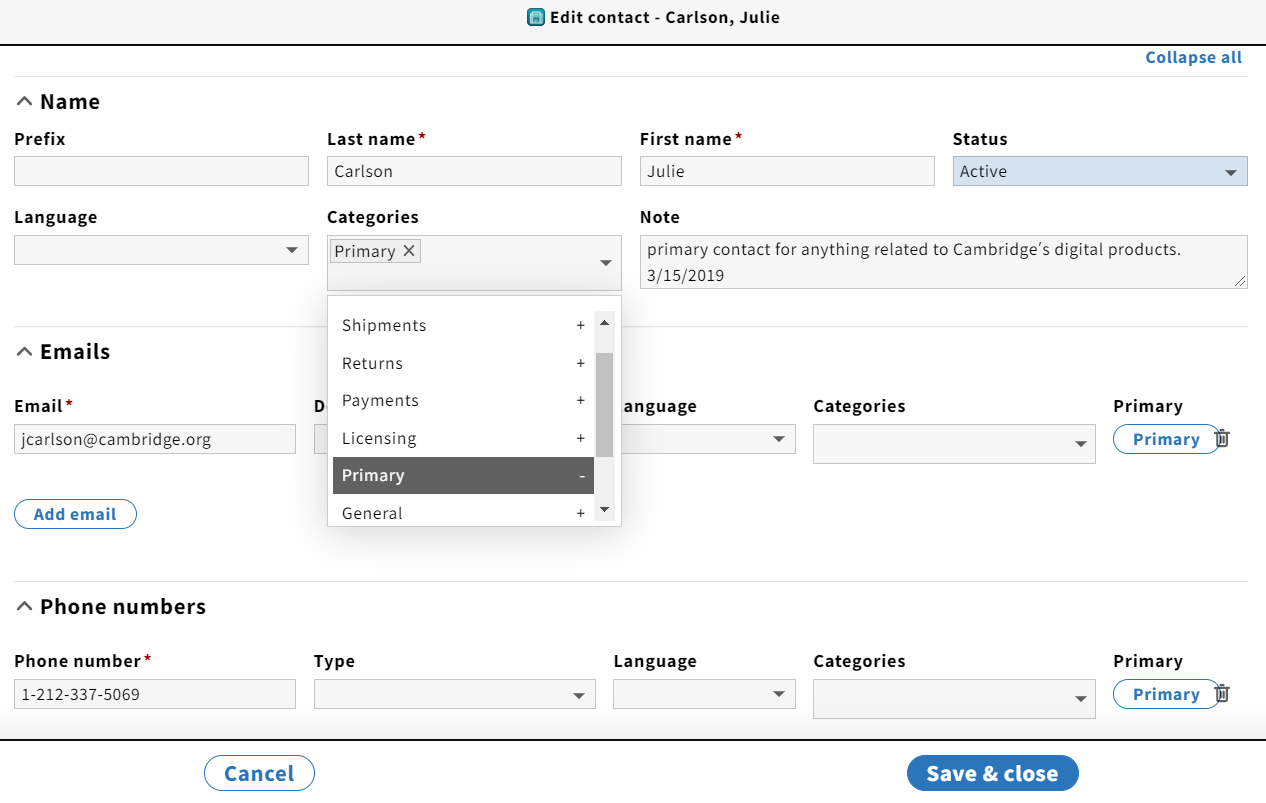
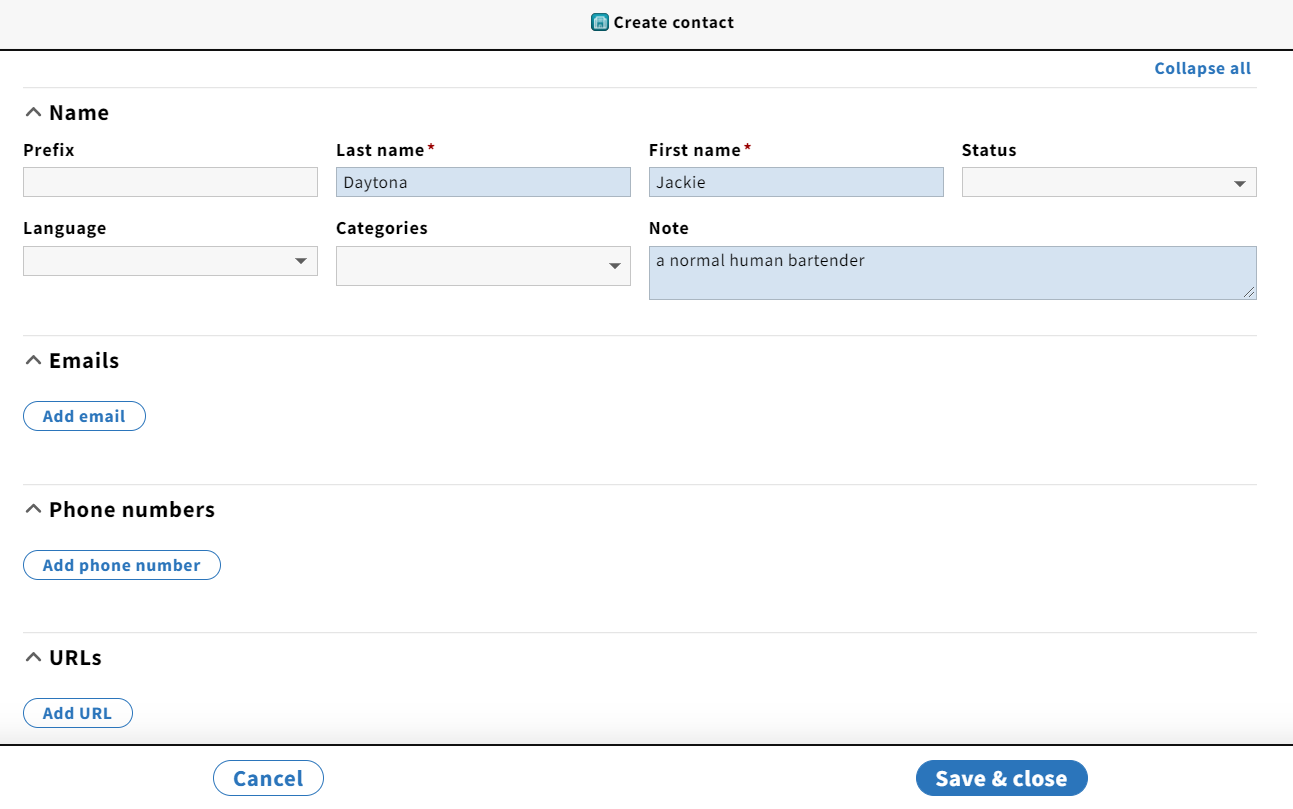
  • Using the Status drop-down menu, a contact can be made Active or Inactive, so you can make a contact inactive that no longer works at an organization without deleting them from our contacts list. 
  • You can select as many categories as are relevant for that contact from the Categories drop-down menu. 
    • Categories include Primary, Payments, Support, etc. 
    • Emails and phone numbers can also be given categories. 
  • URLs and addresses can be added on this screen if you scroll down. 

Anchor
Creating a new contact


How do I add a new contact to an organization?

That must be done from within the organization.
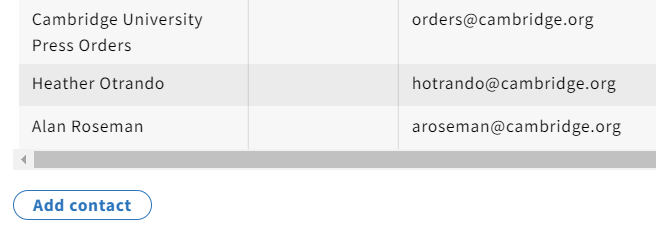
  • After searching for and selecting the organization, choose edit from the Actions drop-down menu. 
  • At the bottom of the list of Contact people, click Add contact. 


Anchor
Enter the contact's app

I'm in the contacts app! Now what?

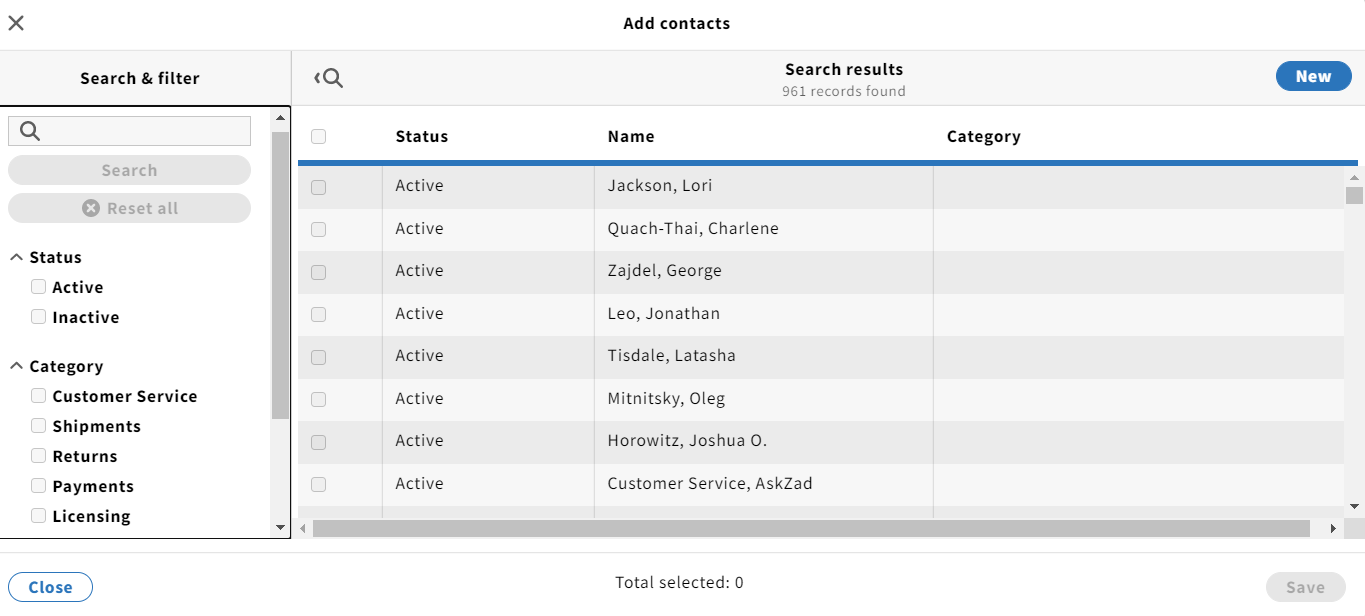
  • If you know your contact already exists within FOLIO, you can search for their name in the left-hand search bar. 
  • You can filter by active, inactive, or categories.

  • Background Color
    If you're adding an entirely new contact, click the New button in the upper-right hand corner. 


    • When you click Save & close, the contact will automatically attach to the organization.