*** This version of Confluence is for testing only and contains a copy of content from June 29th 2026. No changes will be preserved. ***

When trying to develop and debug in container environment, in lieu of local machine
Multiple versions of docs are kept in this page in the following order:
...
Solved these problems:
docker-compose up| Code Block | ||
|---|---|---|
| ||
docker volume rm $(docker volume ls -f dangling=true -q) |
In terminal, run the above command to do some cleaning. (There might be some dangling volumes not garbage-collected yet by docker).
(Optional) In Docker Desktop, on the Container / Apps tab, delete all related containers of this project.
(Optional) In Docker Desktop, on the Images tab, except busybox, delete all related images of this project. Do NOT delete busybox.
Switch to git branch docker2, where the new code resides.
If everything goes swimmingly, it is recommended to merge docker2 into the branch you're working on (master, feature, etc.).
Some overview:
alpine Linux.alpine Linux does not include many necessary libs for development, explaining why Python extension fails and additional lib installation (RUN apk *) in DockerfileDockerfile: The base image FROM is changed to python:3.8.6, a full-feature image. You will also see many lines commented out, unnecessary for the moment.docker-compose.yml : This is used for development (also the default one). You can see all env variables for development.docker-compose-prod.yml: This will be for production. Not finished yet.docker-compose.debug.yml.old: Just some backup. Ignore it.| Code Block | ||
|---|---|---|
| ||
# Path for online repo
backend-online/dev-backend

# Path for offline repo
backend-offline/dev-dashboard |
Go to the path as above.
| Code Block | ||
|---|---|---|
| ||
# For the first time
# Or whenever you want to update the image, e.g changing Dockerfile, requirements.txt
docker-compose up -d --build

# Otherwise
docker-compose up -d |
Run the command.
This will build the image, create+run the container.
This could take a minute.
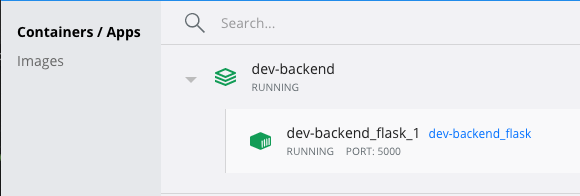
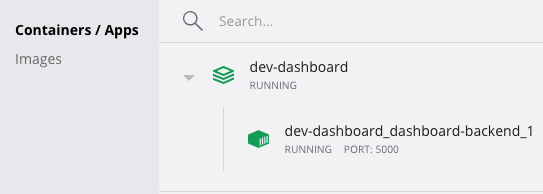
You should see a new container running.
Name is based on the path (not random anymore)
On VS Code, make sure you've installed these two extensions:
Remote - ContainersPythonOn VS Code, click the Remote button at bottom left > Attach to running container > Click the container name in the menu.
For the first time, it could take a minute to load.
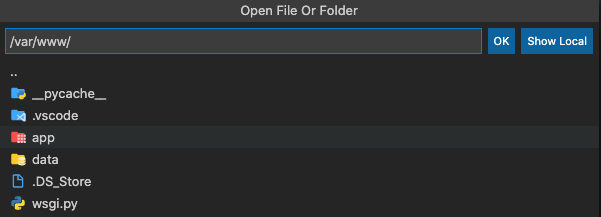
For the first time, click File > Open and enter the path above /var/www/ . Then you will be at the working directory.
From the second time, VS Code will remember to open this path automatically.
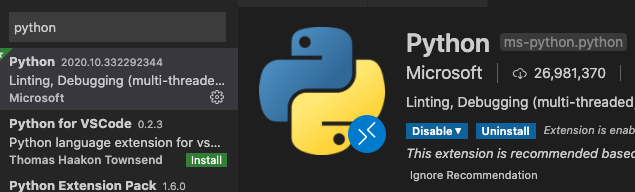
As always, make sure you've installed this Python extension, and it is enabled in container.
Click an .py file to activate it.
Choose interpreter of Python 3.8.6 64-bit
It might show loading/downloading analysis at the bottom status bar, after which it should work properly.
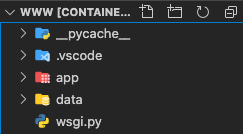
Everything under www, if changed:
docker_code subfolderwww and docker_code as two pointers to the same folder
| Code Block |
|---|
# Visit http://localhost:5000/
{
  "message": "Welcome to the Dockerized Flask MongoDB app, again and again and again (this will auto-reload)!"
}

# Change the message at app/views/static.py
# For instance, add "test" at the end

# Visit http://localhost:5000/ again
# Notice the end now includes "test"
# It's auto-reloaded
{
  "message": "Welcome to the Dockerized Flask MongoDB app, again and again and again (this will auto-reload)! test"
} |
This example is only for online repo. (Offline repo does not have defined this url in repo)
Try the above to see auto-reloading is working.
On VS Code, click the Remote button at bottom left > Close remote connection.
| Code Block | ||
|---|---|---|
| ||
docker-compose down |
In terminal, run the command above. It will shutdown and remove container (as you can see it disappears from Docker Desktop > Containers / Apps)
...
| Gliffy Diagram | ||||||
|---|---|---|---|---|---|---|
|
Note: This guide is based on VS Code. I've also tried IntelliJ IDEA (including PyCharm), but unfortunately it doesn't work on my laptop. If interested, see the link below under "Read more"
...
If you run it, it should show in terminal the same output as above. Note the 2nd line Linux shows it's been run in container (not local machine of Mac OS/Windows)
Everything you've coded is done in the same git repo.
...
