 Sign-up for free online course on ANSYS simulations!
...
In order to test our simulation for convergence, we will refine the mesh. Refining the mesh will allow us to make sure that the results we are calculating are independent of the mesh. However, instead of refining the mesh everywhere (which would be wasteful, as most of the area of the domain far away from the shock has constant values), we will use our results to refine our mesh. Specifically, we are going to use the gradient of the pressure to determine where to refine the mesh. First, let's take a look at our mesh. In the Outline window, select Graphics and Animations, under Graphics, select Mesh, then press Setup. Select all of the surfaces (except y=0.35) and press Display. This will display the current mesh.
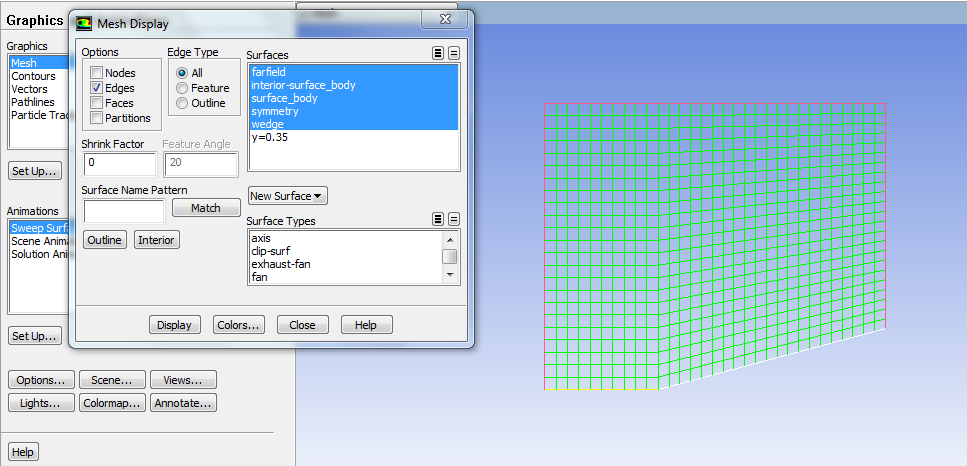
You may now close the Mesh Display window. In the menu bar, go to Adapt > Gradient. Under Options uncheck Coarsen. Under Method click the radio box next to Gradient. Ensure that Gradients of > Pressure... Static Pressure are selected. Then press Compute.
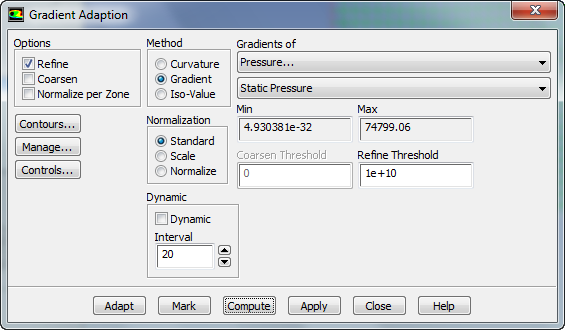
This will compute the maximum and minimum gradients of static pressure. Next, we need to pick a threshold. In order to do this, click on Contours.... This will open the familiar Contours window. In the Contours window, select Contours of Adaption... Existing Value, then press Compute. This will populate the Contours menu with the values we were viewing for adaption, in this case, gradient of the static pressure. Also, make sure to uncheck Node Values (by first checking filled).
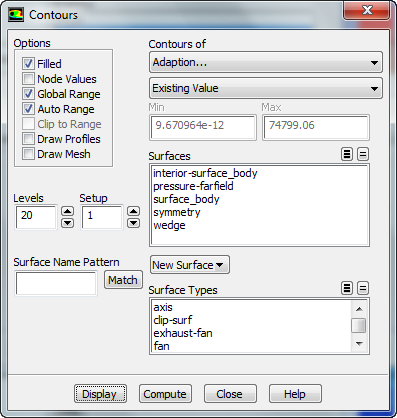
Finally, press Display to display the contours of static pressure gradient.
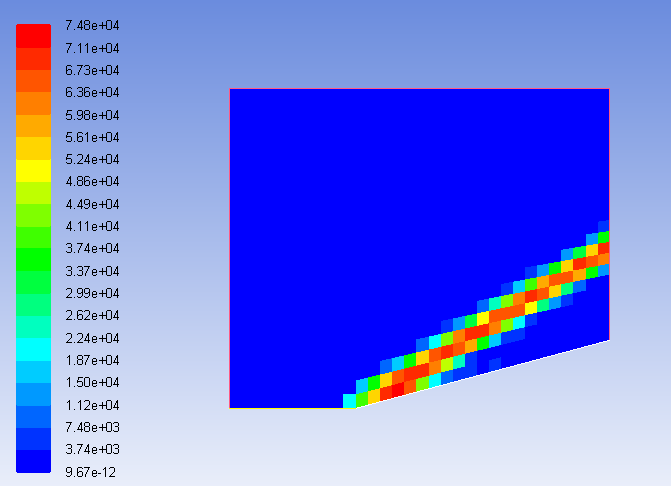
Our goal is to discover the areas of high gradient, and mark those areas for adaption. Using the contour graph we can then find the areas of high pressure gradient that we want to refine. In the Contours window, uncheck Auto Range. This will allow us to specify the range of gradients we can see in the graph. Change the Min value to 10000. Then press Display. You will see that the pressure gradients above 10000 generally mark the area of high pressure gradient quite well. We will use 10000 as our threshold for refinement.
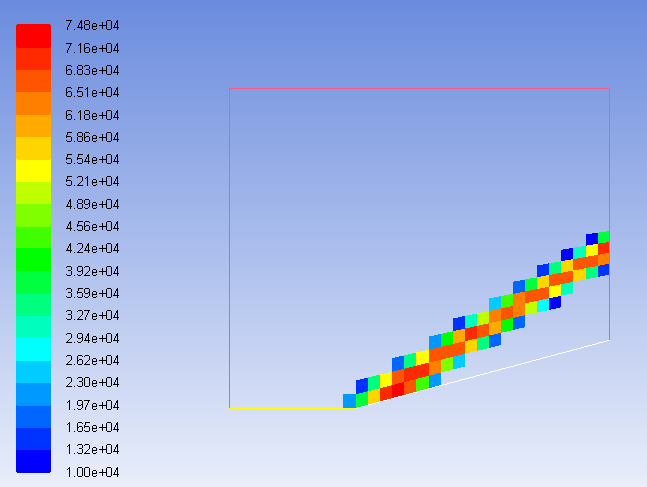
Return to the Gradient Adaption window, and enter 10000 into Refine Threshold. Then press Mark. The print window will inform us we have marked 70 elements for refinement. Next, press Adapt. You will be asked if you want to change the mesh. Press Yes.
It will seem like nothing has changed, but that is because we need to re-display the mesh in order to see the adaption. The new mesh should look something like this.
| HTML |
|---|
<iframe width="560" height="315" src="https://www.youtube.com/embed/DPwK6W2e9RA?rel=0" frameborder="0" allowfullscreen></iframe> |
Summary of the Above Video:
- Display Current Mesh:
- Mesh>Setup>Display
- In the Menu
- Adapt>Gradient
- uncheck Coarsen
- select Gradient in Method Box
- Gradients of > Pressure > Static Pressure
- Compute
- Adapt>Gradient
- View Contours
- Contours > Contours of Adaption > Existing Value
- Compute
- Display
- Under Contours
- Uncheck Auto Range
- Change Min to 10000
- Display
- Under Refine Threshold enter 10000
- Press Mark
- Press Adapt
- Display the New Mesh
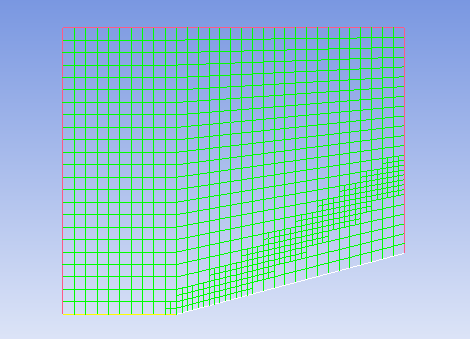
Notice that the area surrounding the shock was refined. Now, re-initialize the solution, (Solution Initialization > Compute From Farfield > Initialize), and rerun the solution (you will also need to increase the number of iterations – I recommend 150).
...