...
Suggestions are always appreciated, so please let us know if there is material that is unclear, could be improved, or additions that we should make to this page. Thank you!
Getting Started
Hosting Dashboard and Instance Splash page
- Once your Hosting Virtual Machine (VM) has been created and instance(s) set up, you can access information and the VM from the Hosting Dashboard via https://dashboard.hosting.cornell.edu
 Image Removed. This is a one stop shop to controlling services on your VM (yes you can stop and start your instances), as well as finding specific information about your instance(s). The Hosting Dashboard should list all VM's you have access to based on the AD Group or Permit that's been assigned to them.
 - Once you've logged into the Hosting Dashboard, and you find the VM that you were assigned, if you click on that VM name (should look like webhost###.serverfarm.cornell.edu), the dashboard takes you to the Status page of that VM. This shows you what services are running, and this is where you can stop/start/restart/configtest Apache and/or Coldfusion.
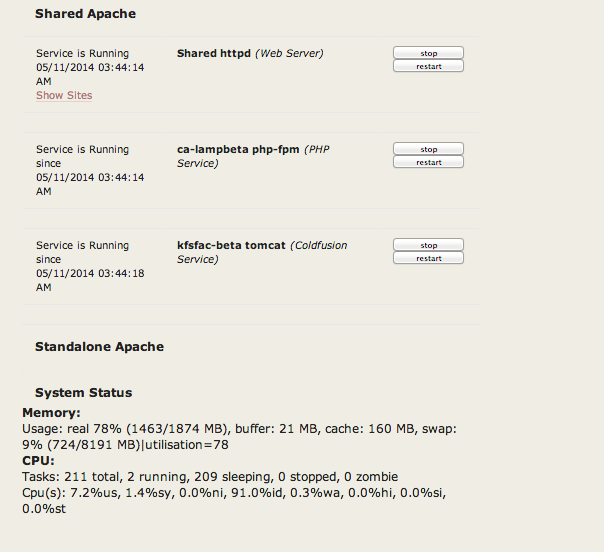 Image Removed
 - At the bottom of the Status Page there are "Quick" links to the instances created on the VM. These are links to the Splash page of each instance(s) and any virtual hosts that have been configured for those instances.
 Image Removed
 - Webdav
- CFAdmin
- Password Seed
- Updating ColdfusionInstalling JDBC database drivers (i.e. Oracle)
- Include link to DB Driver page

