 Sign-up for free online course on ANSYS simulations!
...
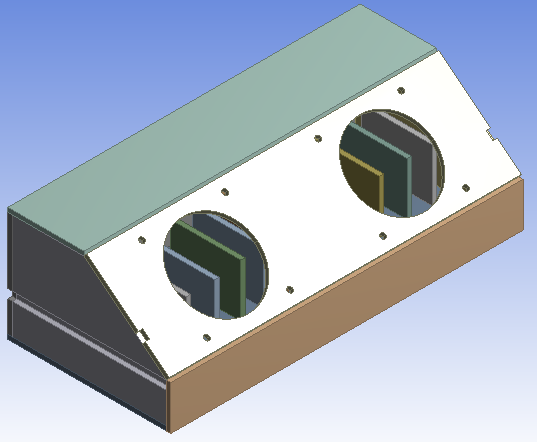
As you can probably tell, ANSYS does not generate the model automatically, so we need to generate the geometry. Click  to generate the geometry.
Create a Flow Geometry
Caps
The next step is for us to create a flow geometry. The air is going to flow through the inside of the box; however, we need to create a geometry for this empty space in order for ANSYS to be able to calculate the solution. We will accomplish this by creating Caps, then using those caps to create Fill. In the menu bar, select Tools > Fill. In the Details window, name the fill Caps, and make sure the extraction type is set to By Cavity.
...
To select these surfaces, use the Face Selection Filter  Hold down CTRL to select multiple surfaces at once. When all the surfaces have been selected, press Faces > Apply in the Details window. 40 surfaces should have been selected.
Fill
Next, we need to create the fill geometry. Once again, go to Tools > Fill. Name the fill, Flow Geometry.