 Sign-up for free online course on ANSYS simulations!
...
Next, we will apply edge sizing controls to all of the edges of the mesh. To begin, go to Mesh Control > Sizing. Next, click the edge selection filter  . Select the following edges buy holding Ctrl and using the left mouse button:
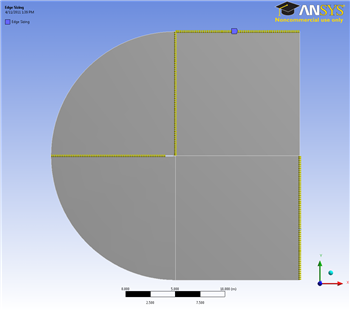
Once the edges are selected, in the Details View Window select Geometry > Apply. Next, select Type > Number of Divisions. Change the Number of Divisions to 40. Select Behavior > Hard. We also want the mesh to have a bias, so select the first bias type in Bais > ----- — - -, and give the edge sizing a Bias Factor of 70. The Edge sizing should now look like this:
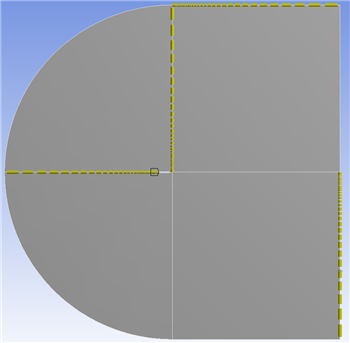
Notice that the element sizes get smaller towards the airfoil. This will give us a better resolution around the airfoil where the flow gets more complicated. We will repeat edge sizing, but for the remaining straight edges, and we will choose the second Bias > {}
Go to Step 4 - Setup (Physics)
Go to all FLUENT Learning Modules