 Sign-up for free online course on ANSYS simulations!
| Panel |
|---|
Problem Specification |
Step 4:
...
Setup (Physics)
If you have skipped the previous mesh generation steps 1-3, you can download the mesh by right-clicking on this link. Save the file as pipe100x30.msh. You can then proceed with the flow solution steps below.
...
Close the Grid Display Window when you are done.
Define
...
Governing Equations
Main Menu > Define > Models > Solver
...
Change Density to 1.0 and Viscosity to *2e-5. These are the values in the Problem Specification. We'll take both as constant.
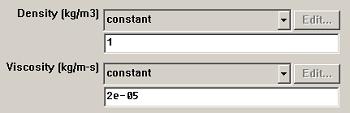
Click Change/Create.
Define
...
Boundary Conditions
Main Menu > Define > Operating Conditions...
...
Click Cancel to leave the default in place.
Define Boundary Conditions
We'll now set the value of the velocity at the inlet and pressure at the outlet.
...
Note: Backflow in the Pressure Outlet menu refers to flow entering through an outlet boundary. This is not likely to happen in this case. So we don't have to set the backflow parameters.
This completes the boundary condition specification. Close the Boundary Conditions menu.
Go to Step 5: SolveSolution
See and rate the complete Learning Module
...